
New-order alerts and the notification center
On this page
- New-order popup and sound
- Turn it on or off
- Which orders it lists
- Buttons
- How the sound works
- Desktop notifications
- The notification center
- Problems
- Suggestions
- Messages after an action
- Other admin changes in 3.5.1
- Order screen next-step button
- Order list More actions
- Live Orders
- Delivery fee in the store header
- A locked template pack is kept
- For developers
RestroPress 3.5.1 changes how the admin screens get your attention. A new-order popup follows staff around the admin area, a bell in the admin bar collects suggestions and problems, and the results of your actions appear as short messages at the bottom of the screen. This page covers all three, followed by the other admin fixes in this release.
New-order popup and sound#
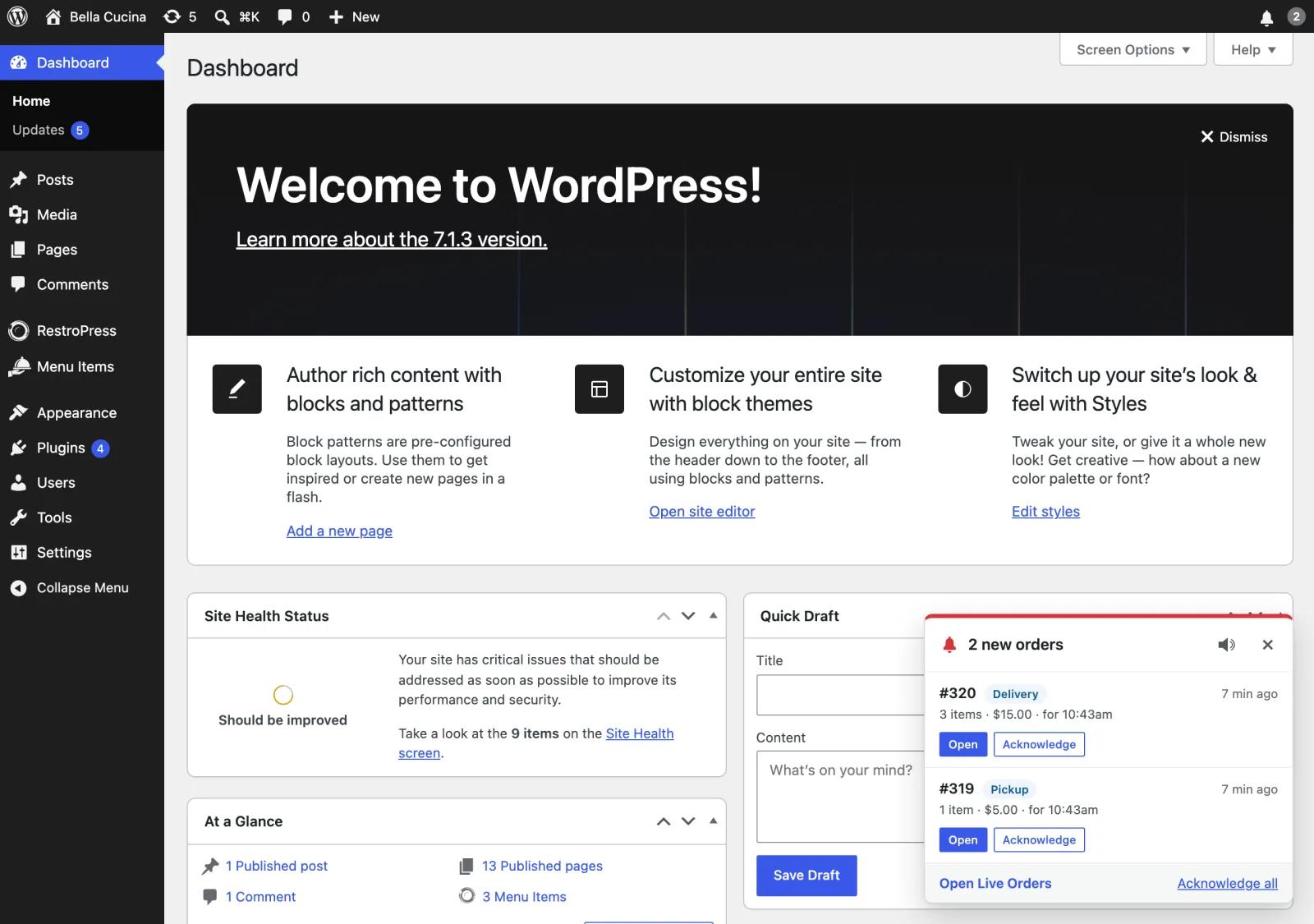
The popup appears on every admin screen except Live Orders, which has its own alerts. It is shown to users who can open Live Orders (the edit_shop_payments capability). It replaces the earlier admin-wide notification, which could miss orders when several tabs or staff members were signed in.
Turn it on or off#
Go to RestroPress › Settings › General › Live Orders and tick or clear New-order popup and sound on admin screens. This is the setting that was called Enable Notification before 3.5.1. The setup wizard has the same choice, worded Show a popup and play a sound for new orders on every admin screen.
Which orders it lists#
The popup lists the orders that meet all of these conditions, newest first:
- The order status is Pending (not yet accepted).
- The payment status is Paid or Processing. Cash orders are Processing. An online order still waiting for payment is not listed.
- The order was placed within the last 24 hours.
- An order for a later time is due within the Live Orders look-ahead (3 hours by default). ASAP orders count as due now.
- Nobody has acknowledged it.
The popup shows up to 20 orders. If more are waiting, a link to the rest on Live Orders appears under the list. For each order you see its number, the service type, how long ago it was placed, the number of items, the total and, if the order has one, its order time. The browser tab title also starts with the number of waiting orders.
It checks for orders at the interval set in Live Orders refresh interval, which is 10 seconds when no value is saved.
Buttons#
| Button | What it does |
|---|---|
| Open | Opens the order screen. The order number does the same. Opening an order does not acknowledge it. |
| Acknowledge | Stops the alert for that order for everyone, on every screen and device, including the Live Orders board. The order stays on Live Orders. Other open screens catch up at their next check. |
| Acknowledge all | Acknowledges the orders listed in the popup. It appears when two or more are listed. |
| Open Live Orders | Opens the board. |
| Speaker | Turns the new-order sound off or on in this browser. |
| Close (Dismiss until the next new order) | Hides the popup and stops its sound in this browser until another new order arrives. It does not acknowledge anything. |
Acknowledging an order does not accept it. If the unattended-order email is on, it is still sent when the order stays unaccepted for too long.
How the sound works#
- The popup rings only while it is showing orders. It repeats every Repeat new-order sound every seconds (10 by default). Each ring is cut off after Notification Length seconds, or after 5 seconds when that setting is empty or 0.
- It plays the file set in Notification sound, or the sound included with RestroPress if you have not chosen one.
- When several admin tabs are open in one browser, they take turns so that they do not all ring together.
- The popup's speaker button and the Sound alerts button on Live Orders are one switch. Since 3.5.1, turning sound off in either place silences the new-order sound on every admin screen, and stops a sound that is already playing in every open tab.
- The switch is saved in the browser. Muting one tablet or computer does not mute another.
- Browsers can block sound until someone interacts with the page. The popup then says "Your browser blocked the sound. Click anywhere on this page to allow it."
- On both the popup and the Live Orders board, orders placed more than 24 hours ago no longer ring.
Desktop notifications#
If you have already allowed desktop notifications for your site, for example with Enable desktop notifications on Live Orders, the popup also sends one for a new order while its tab is in the background. The popup does not ask for permission itself, and sends nothing if you turned desktop notifications off on Live Orders. These notifications use your Title, Description and Notification Icon settings. With Title empty, the title is "New order" followed by the order number. With Description empty, the text shows the service type, number of items and total.
The notification center#
Users who can manage RestroPress settings (the manage_shop_settings capability) see a bell in the WordPress admin bar. The number on it counts the current notifications and turns red when at least one of them is a problem. No number is shown when there is nothing to report.
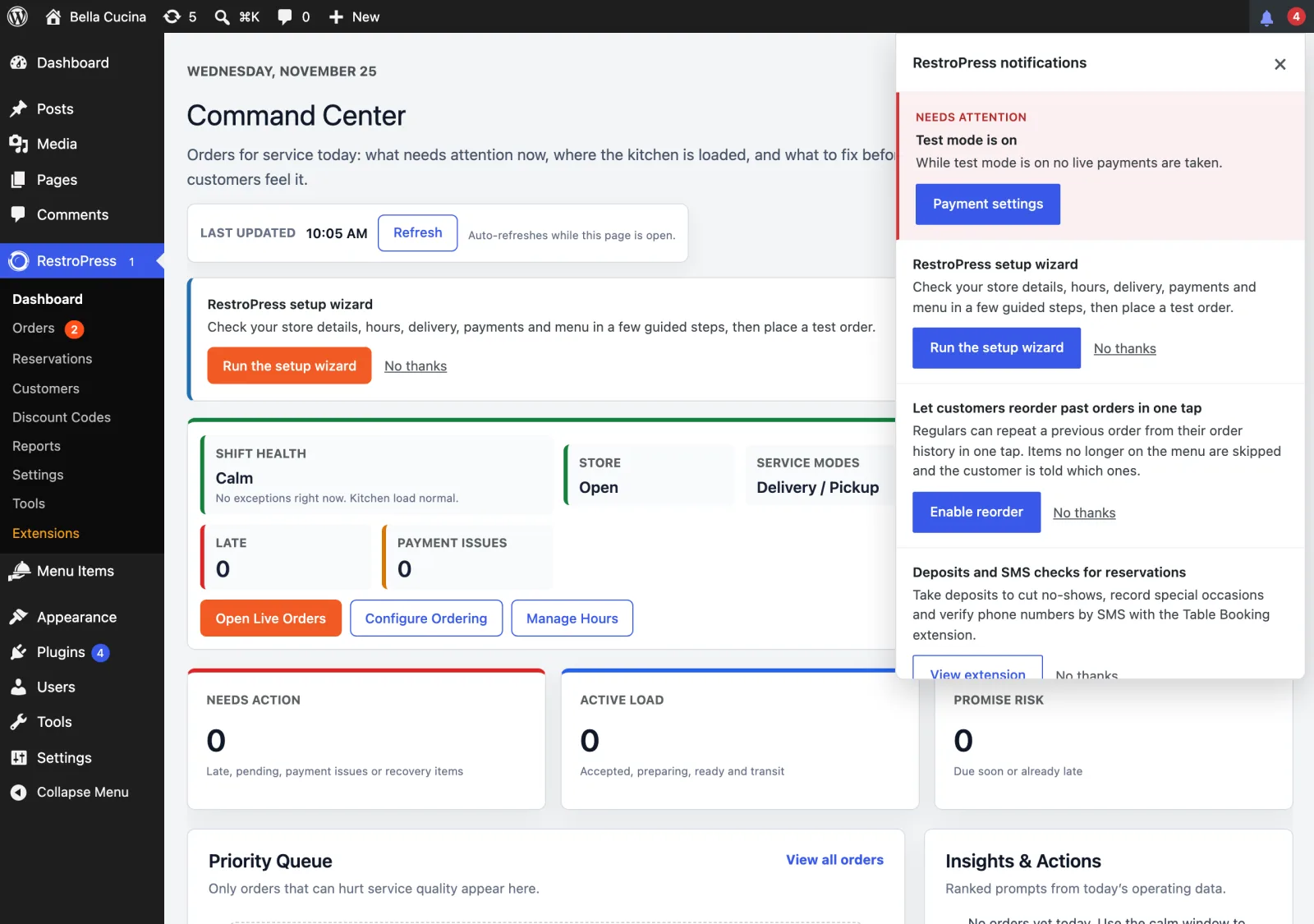
Click the bell to open RestroPress notifications. Problems come first and are marked Needs attention. Close the panel with its close button, the Escape key or a click outside it. When the list is empty it reads "You are all set. New suggestions and anything that needs attention will show here."
Problems#
The number of problems also appears next to RestroPress in the admin menu. A problem can show as a red banner on the screens where it matters, and a screen shows at most one RestroPress problem banner at a time. A problem leaves the list when its cause is fixed. Only the two missing-page problems have a Dismiss button.
| Problem | Button | Banner appears on |
|---|---|---|
| No menu page | Choose a page | Settings and the RestroPress Dashboard |
| No checkout page | Choose a page | Settings and the RestroPress Dashboard |
| Licence keys need attention | Update licences | Extensions and the RestroPress Dashboard |
| W3 Total Cache setting needed | Open W3 Total Cache settings | Settings and the RestroPress Dashboard |
| Test mode is on | Payment settings | The Orders screens |
Before 3.5.1, the licence key warning appeared on every admin screen.
Suggestions#
Suggestions that used to be banners or notices on separate screens are now in the panel. Each has a button and a No thanks link. One of them also appears as a card on the RestroPress Dashboard. If you answered No thanks or dismissed one of these before updating, that choice is kept. When you turn a feature on from a suggestion, you return to the screen you were on.
| Suggestion | Shown while | No thanks applies to |
|---|---|---|
| RestroPress setup wizard (Run the setup wizard) | The setup wizard has not been completed | Your user account |
| Unattended-order email (Enable unattended-order email) | The email is off on a store that was installed before 3.5 | The whole store |
| One-tap reorder (Enable reorder) | Reorder is off | The whole store |
| Table Booking (View extension) | You have at least one reservation and the Table Booking extension is not active | Your user account |
Messages after an action#
Since 3.5.1, the result of most RestroPress admin actions is a short message at the bottom of the screen instead of a banner at the top. Examples are "Discount code added.", "The order receipt has been resent.", "Customer successfully deleted", the result of a reservation update and "Settings updated.". Settings errors still show as a banner.
A message closes by itself after a few seconds and waits while you hover over it or focus it. You can also close it with its close button or the Escape key. Refreshing the page does not repeat the result of an action. Admin messages now look the same as the storefront ones. The old notice asking you to deactivate the Recount Earnings plugin has been removed.
Other admin changes in 3.5.1#
Order screen next-step button#
The next-step button on the order screen now follows the order's service type. Delivery orders go from Ready to Out for delivery to Completed. Pickup and dine-in orders go from Ready to Completed. Before 3.5.1, Complete delivery could set an order to Cancelled, and Complete order on a ready pickup order could set it to Out for delivery. If you used these buttons before updating, check the status of those orders. See Orders.
Order list More actions#
Order actions added by extensions appear again in the More actions menu of each row in the order list.
Live Orders#
The count tiles above the board now update when an order leaves a column. Before, a tile could keep counting an order for up to a minute after its column was empty, for example after you completed a pickup order. Acknowledge on a card now counts on every device. Extensions can also add their own controls next to the pause and prep time buttons.
Delivery fee in the store header#
With the Delivery Fee extension active, the store header and the store card on the menu page no longer show the flat delivery fee from RestroPress, because the extension sets the price by zip code or distance. An extension can supply its own text there.
A locked template pack is kept#
Saving RestroPress › Settings › Styles while your chosen Pro template pack is locked, for example after the Pro license lapses, no longer resets the pack to Classic. The template picker marks the pack Locked, says that customers are seeing the Classic design, and gives a Check license link. Your pack comes back when the license is active again.
For developers#
| Name | Type | Purpose |
|---|---|---|
rpress_register_admin_notice() | Function | Adds a suggestion or problem to the notification center. Call it during the rpress_register_admin_notices action. |
rpress_admin_toast() | Function | Queues a short message (success, info or error) for the current admin screen. |
rpress_admin_notices | Filter | The notifications shown to the current user. |
rpress_admin_notices_capability | Filter | Capability needed to see the bell (default manage_shop_settings). |
rpress_admin_action_messages | Filter | The messages shown after admin actions. |
rpress_command_center_before_panels | Action | Fires on the RestroPress Dashboard above the panels. |
rpress_order_popup_enabled | Filter | Whether the new-order popup is on. |
rpress_order_alerts_max_age | Filter | Age in seconds after which an order no longer rings (default one day, minimum one hour). |
rpress_order_popup_query_args | Filter | The query that finds orders for the popup. |
rpress_order_alert_acknowledged | Action | Fires when an order alert is first acknowledged (order ID, user ID). |
rpress_live_orders_controls | Action | Adds controls to the pause and prep time panel on Live Orders. The panel is redrawn after changes, so bind events with delegation. |
rpress_store_header_delivery_chip | Filter | The delivery text in the store header (header) and menu page store card (store_card). Return an empty string to show none. |