
Menu QR codes and structured data
On this page
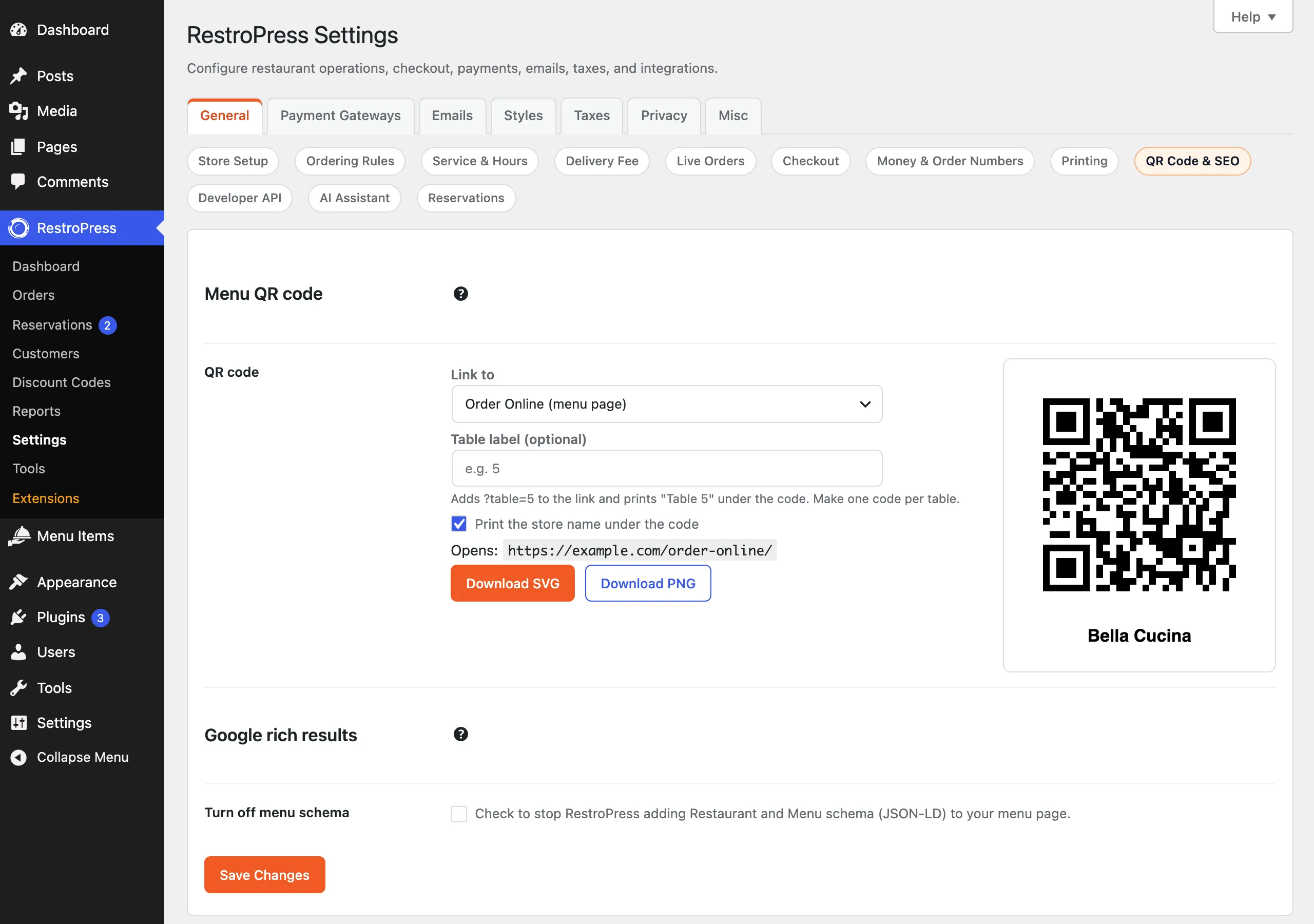
This feature does two jobs for your menu page. It makes a printable QR code that opens your online menu when a guest scans it with a phone camera, with an option to make one code per table. It also adds restaurant and menu details (schema.org structured data) to your menu page so search engines can read your dishes, prices and dietary labels. Both are built into RestroPress 3.5 and found in one place: RestroPress › Settings › General › QR Code & SEO.
Turn it on#
Nothing needs to be switched on for the QR generator. Open the settings section and it is ready to use. The code is generated on your own server, with no outside web service, and the section has two parts: Menu QR code and Google rich results.
The structured data is on by default. It appears on your menu page as soon as you have at least one published menu item. To stop it, tick Turn off menu schema (see below).
Make a QR code#
- Go to RestroPress › Settings › General › QR Code & SEO.
- In Link to, choose the page the code should open. The list shows your published pages, with your menu page marked (menu page) and selected. Choose Custom URL... to type any
httporhttpsaddress instead. - Leave Table label (optional) empty for a general code, or enter a table name (up to 40 characters, for example
5). See the next section. - Tick or untick Print the store name under the code. It is ticked by default.
- Check the address shown after Opens:, and the preview image, then click Download SVG or Download PNG.
SVG is a vector file that prints sharply at any size, so use it for flyers, table tents and signs. PNG needs the PHP GD extension on your server. If GD is missing, the PNG button is replaced by a note and SVG still works. The files are named menu-qr.svg or menu-qr.png, and menu-qr-table-5.svg style for a table code.
The fields on this screen only drive the preview and downloads. They are not saved, so they reset when you leave the page. Always print a test copy and scan it before you print many.
One code per table#
Enter a table label and the code opens your page with ?table=5 added to the address, and the image gets a Table 5 line under the code. Make one code for each table and print them separately.
The table value is added to the link, but RestroPress core does not read it or change the ordering flow because of it. It is there for other tools, such as table ordering add-ons, to pick up. If you only want guests to land on your menu, a single code without a table label is enough.
Menu structured data for search engines#
On your menu page RestroPress adds a block of structured data in the page head. It describes a Restaurant with a Menu, menu sections and menu items. Search engines can use this to understand your dishes. Whether they show it in results is up to them.
Where it appears#
- On the page chosen as Menu Items Page under Settings › General › Store Setup.
- On any other single page or post that contains the
[fooditems]shortcode or the Menu block (rpress/food-menu).
The new block storefront blocks (see Block storefront) are not detected on their own. A page built from them gets the data only if it is your Menu Items Page.
What it contains#
- Restaurant: name (your restaurant name, otherwise the site title), site address, phone (Restaurant Phone), postal address (Store Address, City, Base State / Province, Postcode / ZIP, Base Country) and an image: the Store Logo, otherwise the theme logo, otherwise the site icon. Fields you have not filled in are left out.
- Menu: named after your menu page, with one section per menu category that has items. A dish in several categories is listed once, under the first of its categories. Items without a category are listed outside any section.
- Each menu item: name, description (the short description if there is one, otherwise the full description, trimmed to 300 characters), the featured image, the price with the store currency (for items with sizes, the lowest price), and dietary labels. Items priced at 0 get no price.
Only published menu items are included, up to 500 by default. Opening hours are not part of it.
Dietary labels#
An item's dietary labels and its Veg food type are matched to schema.org diets by the label's name or slug. Labels RestroPress does not map are skipped.
| Label slug or name | Sent as |
|---|---|
| vegetarian, veg (and Food Type Veg) | VegetarianDiet |
| vegan | VeganDiet |
| gluten-free, glutenfree | GlutenFreeDiet |
| halal | HalalDiet |
| kosher | KosherDiet |
| hindu | HinduDiet |
| diabetic | DiabeticDiet |
| lactose-free, dairy-free, low-lactose | LowLactoseDiet |
| low-calorie | LowCalorieDiet |
| low-fat | LowFatDiet |
| low-salt, low-sodium | LowSaltDiet |
Turn it off, or avoid duplicates#
Tick Turn off menu schema and save to stop RestroPress adding the data. RestroPress also skips it by itself when it detects an SEO plugin that already outputs Restaurant data, so the page does not carry two copies. It checks the local business settings of Yoast Local SEO, Rank Math and All in One SEO. Plain Yoast, Rank Math or All in One SEO without a restaurant business type set do not trigger this, so RestroPress still adds its data there. When a plugin is detected, the setting's description names it.
Good to know#
- The data is cached for up to a day and refreshed automatically when you change menu items, categories, dietary labels, prices, images, or RestroPress settings, and when you rename the site.
- With WPML, a separate copy is kept for each language.
- To check the result, open your menu page, view the page source and search for
rpress-menu-schema, or paste the page address into a structured data testing tool. - A cuisine type (
servesCuisine) is only included if a cuisine value is stored for the restaurant. The current settings screens have no field for it. - If a QR code cannot be generated (for example a very long custom URL), the download shows an error instead of an image.
For developers#
| Name | Type | Purpose |
|---|---|---|
rpress_menu_qr_table_arg | filter | Changes the query argument used for the table label. Default table. |
rpress_menu_qr_url | filter | Filters the final URL encoded in a QR code. Receives the URL, the page ID and the table label. |
rpress_output_menu_schema | filter | Final say on whether the schema is printed on a page. Receives the default, the post ID and the detected SEO plugin name. |
rpress_is_menu_schema_page | filter | Whether the current single page counts as a menu page for schema. |
rpress_menu_schema_max_items | filter | Maximum number of items described. Default 500. |
rpress_menu_schema_data | filter | Filters the Restaurant array before it is encoded and cached. |
rpress_menu_schema_item | filter | Filters one MenuItem array. Receives the item array and the post. |
rpress_menu_schema_diet_map | filter | Changes the dietary label slug to schema.org diet map. |
rpress_menu_qr | admin-post action | Streams the QR image for users who can manage shop settings; requires a nonce. |
RPRESS_Menu_QR::render() | function | Returns the SVG or PNG bytes for a URL. |
RPRESS_Menu_QR::target_url() | function | Builds the link a code points to from a page ID or URL and a table label. |
RPRESS_Menu_Schema::data() | function | Builds the schema array. |
RPRESS_Menu_Schema::json() | function | Returns the encoded, cached JSON. |
rpress_qr_schema_store_name() | function | The public store name used by both the QR caption and the schema. |