
Customer account
On this page
The customer account gives regulars one place to manage their delivery addresses, follow their orders, see their table reservations and repeat a past order. It is built into RestroPress 3.5 and works on the [customer_dashboard] account page, the [order_history] page and checkout. It is meant for stores whose customers sign in.
Turn it on#
Saved addresses and order tracking links need no setting. They are active as soon as the customer is logged in. One-tap reorder has a setting:
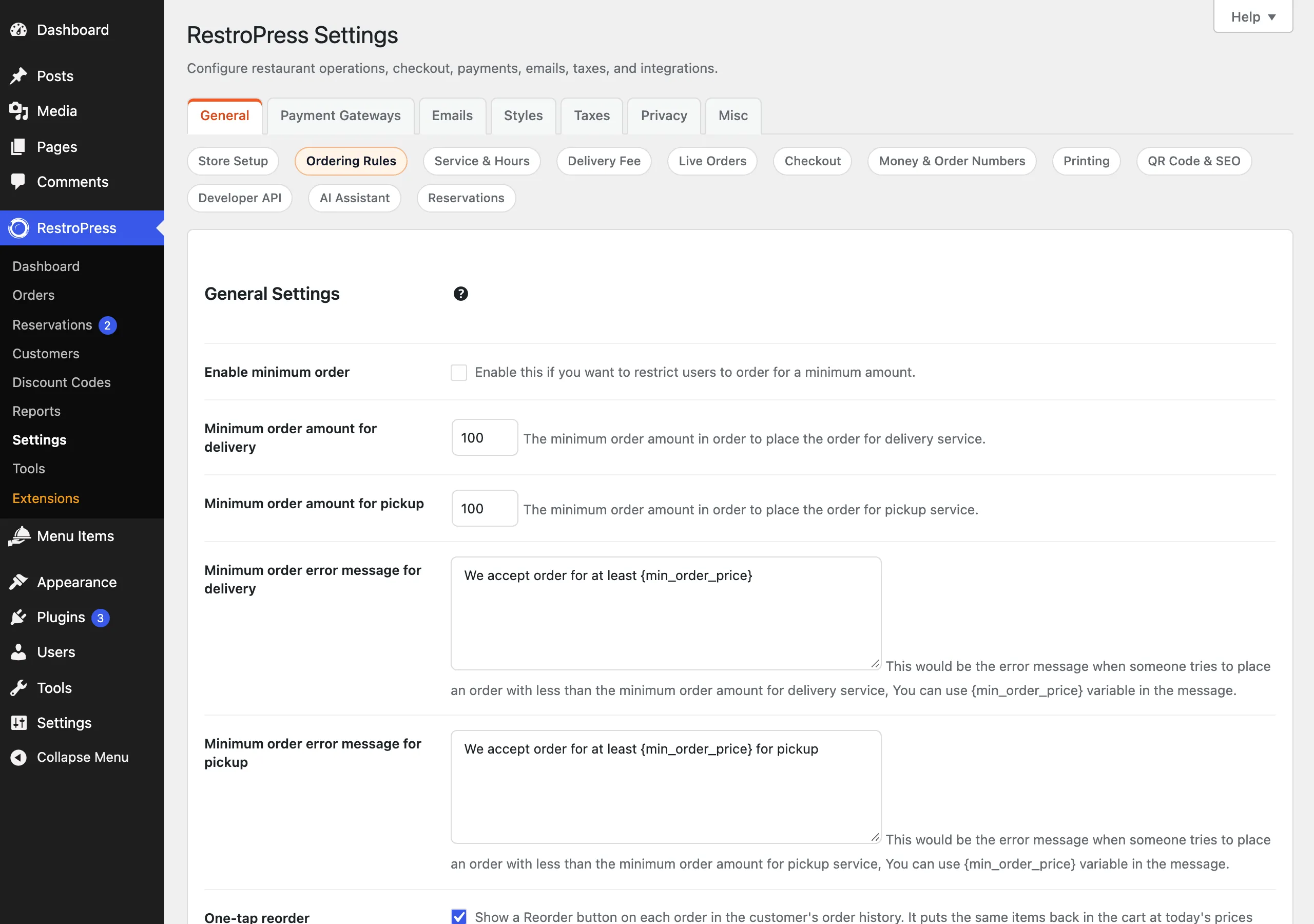
- Go to RestroPress › Settings › General › Ordering Rules.
- Tick One-tap reorder and save.
The checkbox is on by default for stores installed fresh with 3.5. A store that updated from an earlier version keeps its previous choice, which is off unless you had turned it on. On those stores, a notice on the RestroPress Settings screen offers Enable reorder or No thanks. Either button removes the notice for good.
Customers need a page to use. [order_history] is created for you as the Order History page. The full account page with the Profile, Orders and Addresses tabs needs a page that contains the [customer_dashboard] shortcode, which you add yourself.
How it works#
Account page tabs#
The [customer_dashboard] page has a sidebar with Profile, Orders, Addresses and Logout. A Reservations item is added between Addresses and Logout when table reservations are on (see below). A visitor who is not logged in sees a prompt to log in instead.
The Orders tab lists the same orders as the Order History page, newest first. This includes orders placed as a guest with the same email address as the account. Each row has the order number, date, price, status and the actions described below.
Saved addresses#
On the Addresses tab a customer can add an address with Add New Address. The form asks for first name, last name, town or city, pincode, street address, an optional apartment or suite, phone, and an address type of Home, Office or Other. Ticking Make this my default address makes it the default. Each saved address has Default, Edit and Delete actions.
- The street address and city are required. Without them the page shows "Please enter the street address and city."
- The first address a customer saves becomes the default automatically.
- Saving an address that matches one already saved (same street, apartment, city and pincode, ignoring case and extra spaces) updates that entry instead of adding a duplicate.
- A customer can keep up to 20 addresses. Beyond that the page shows "You have reached the maximum number of saved addresses. Delete one to add another."
- When the default address is deleted, the first remaining address becomes the default.
- The default address is also the one checkout prefills for delivery orders.
Addresses at checkout#
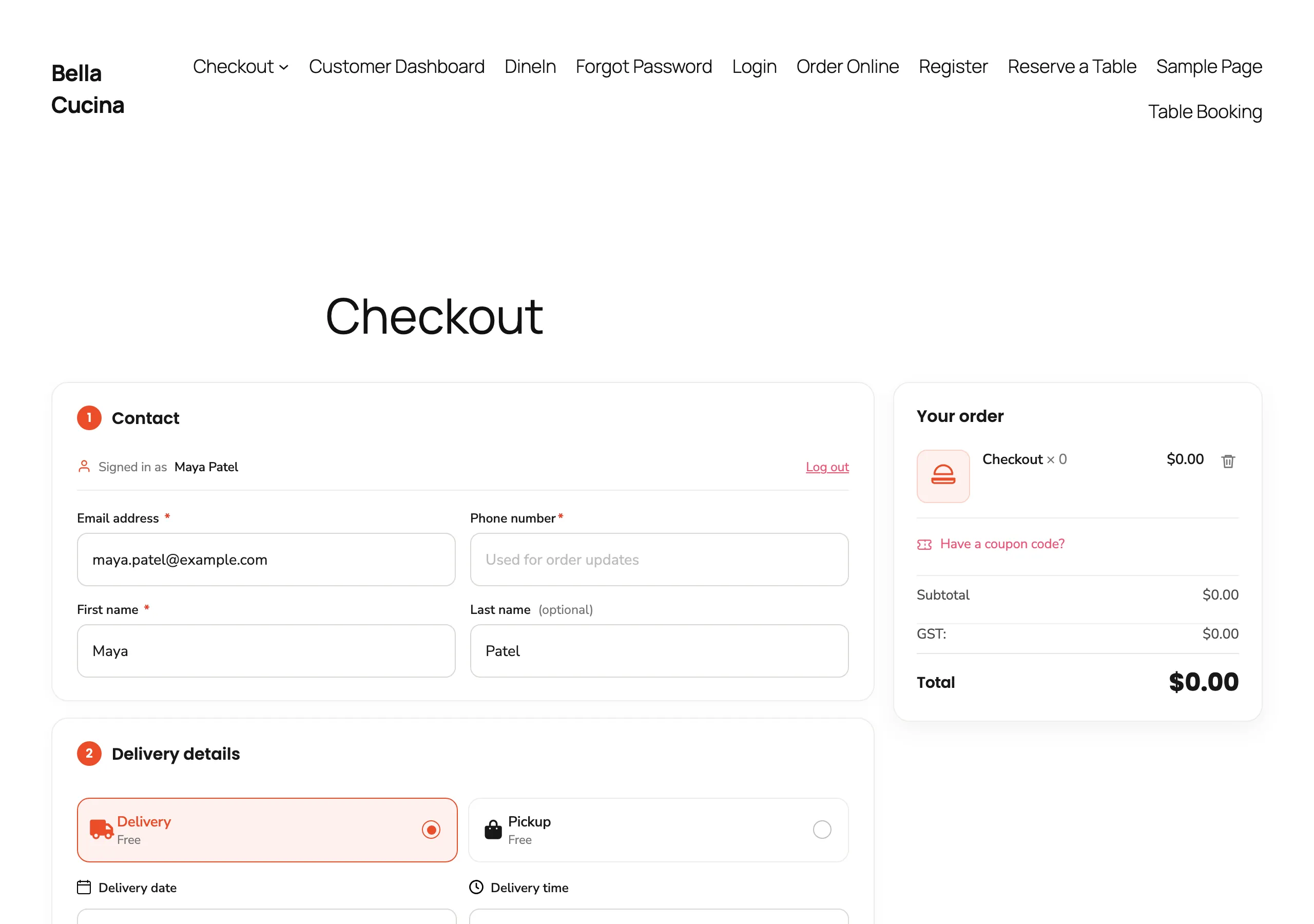
For a logged-in customer who has chosen delivery, checkout shows two extra controls:
- A Deliver to list above the delivery fields. It lists each saved address with its type, and marks the default. Choosing one fills the street, apartment, city and postcode fields. Choosing Use a new address clears them. Typing in any of those fields by hand switches the list to Use a new address.
- A Save this address for next time checkbox with a label list (Home, Work, Other). It is ticked by default when the customer has no saved addresses, and hidden while a saved address is selected.
The address is saved after the order is placed, not when the box is ticked. It is saved once the order reaches Paid or Processing, or Complete. Cash on delivery orders that move to processing count. An order that fails or stays pending does not save the address.
Tracking#
Every order in the dashboard and in Order History has a link to its receipt page, which shows the live status of the order. The link reads Track order while the order is still on its way, and Receipt once it is delivered, cancelled, failed, refunded or abandoned. The same link appears in the order details popup. It uses the page set as the Order Confirmation (success) page, so if that page is not set no link is shown.
One-tap reorder#
With reorder on, each order row has a Reorder button. It puts the items from that order back into the cart and opens a popup with the result and the buttons Add more items and Checkout Now. The popup states which items were added.
- Items are added at today's menu prices, not the prices of the old order. The popup says so: "Prices are today's menu prices."
- Quantity and special instructions are kept. For items with sizes or variations, the same size is added.
- An item is skipped when it has been deleted, is no longer for sale or is unavailable now, or when the size it was ordered in no longer exists. Skipped items are listed under "Not added (no longer available):".
- An add-on that no longer exists is left off its item, and the popup lists the affected items under "Some add-ons are no longer offered and were left off".
- If nothing can be added the popup says "None of the items from order #... can be ordered right now."
- A logged-in customer can only reorder their own orders. A guest can only reorder a guest order, and needs the order's payment key.
Reservations tab#
When table reservations are enabled, the account page shows a Reservations item if the customer has any reservations, or if the site has a booking page. It lists Upcoming reservations (soonest first) and Past ones with date, time, number of guests and status. A customer with none sees "You have no reservations yet." and a Book a table button. Reservations are matched by the account's user or email address, up to 50 are listed. Setting up reservations is covered in the reservations guide.
Good to know#
- The shared address book is the same list the account page already used, so addresses customers saved before 3.5 appear in the new picker.
- The account page forms now carry a security token. A form posted without a valid token is ignored.
- Changing the email on the Profile tab to one that belongs to another account shows "That email address belongs to another account." and the email is not changed.
- The Reorder button is shown only on the dashboard and order history. Without the setting there is no button, but nothing else about the account changes.
- The account assets (styles and the checkout script) load only on pages that need them: checkout for logged-in customers, and pages with
[customer_dashboard]or[order_history].
For developers#
| Name | Type | Purpose |
|---|---|---|
rpress_account_hub_max_addresses | filter | Maximum saved addresses per customer. Default 20. |
rpress_account_hub_address_labels | filter | The label choices next to "Save this address" at checkout. Default Home, Work, Other. |
rpress_account_hub_address_save_statuses | filter | Order statuses at which a flagged address is saved. Default publish, complete, processing. |
rpress_account_hub_order_receipt_url | filter | URL of the receipt page behind Track order or Receipt. Receives the URL and the payment ID. |
rpress_account_hub_reorder_line_problem | filter | Return a non-empty reason to skip an order line when reordering. |
rpress_account_hub_reorder_result | filter | Final reorder result (added, skipped, changed, keys) before the popup is built. |
rpress_account_hub_address_saved | action | Fires after an address is saved. Receives user ID, index and the address. |
rpress_account_hub_address_deleted | action | Fires after an address is deleted. Receives user ID and index. |
rpress_user_dashboard_before | action | Runs at the top of the account page. Used for the result notices. |
rpress_user_dashboard_menu_items | action | Add sidebar items. An <li class="user-xyz"> opens the panel with id user-xyz. |
rpress_user_dashboard_panels | action | Output extra account panels, one per sidebar item. |
rpress_user_dashboard_order_actions | action | Add buttons to an order row on the Orders tab. Receives the payment ID. |
rpress_user_dashboard_profile_form_fields | action | Add fields to the Profile form. |
rpress_user_dashboard_address_form_fields | action | Add fields to the address form. |
rpress_order_details_modal_actions | action | Buttons in the order details popup. Receives the payment ID. |
rpress_account_hub_save_address() | function | Add or update a saved address for a user. |
rpress_account_hub_get_addresses() | function | A user's saved addresses with a default flag. |
rpress_account_hub_reorder() | function | Add an order's items to the cart and return what was added or skipped. |