
Table reservations
On this page
Reservations let guests request a table from your website. They pick a date, party size and time, you confirm or decline each request from the admin, and RestroPress emails them at each step. It is meant for restaurants that take bookings by phone today and want a simple online form without extra plugins. It does not take deposits or payments; the paid Table Booking extension adds those.
Turn it on#
Reservations are off by default in 3.5. Until you turn them on, the booking form is not shown, the Reservations list and the reservation emails do not exist, and a page that already contains the [rpress_reservation] shortcode shows nothing.
- Go to RestroPress › Settings › General › Reservations.
- Tick Enable reservations and save. While it is off this is the only setting on the screen; the rest appear after you save with it on.
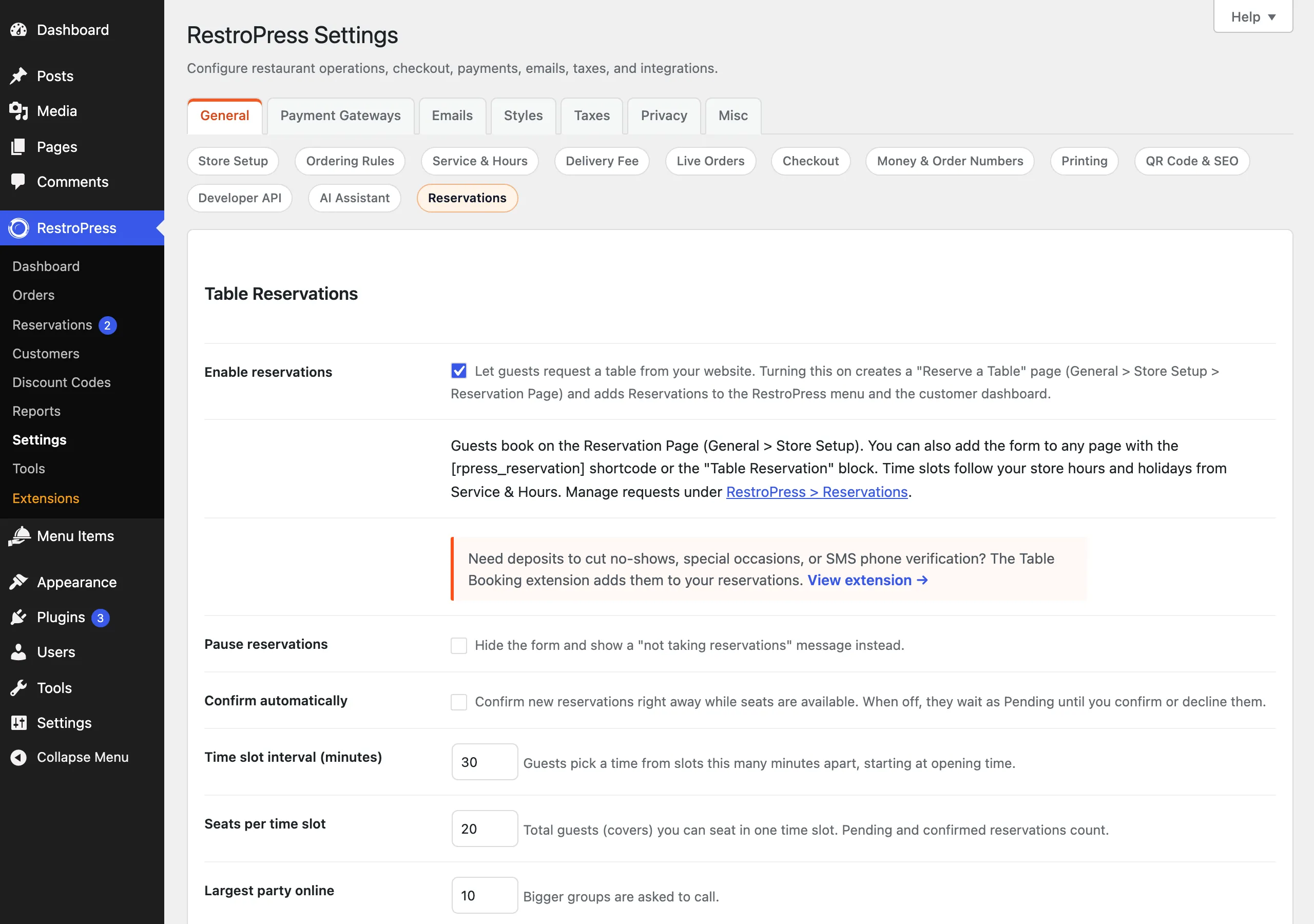
Turning reservations on does four things:
- It creates a published page called Reserve a Table (slug
reserve-a-table) that contains the[rpress_reservation]shortcode, and stores it in the Reservation Page setting. A notice with View page and Edit page links confirms it. - If a published page already contains the shortcode or the Table Reservation block, that page is used instead and no new page is created.
- It adds RestroPress › Reservations to the admin menu, right after Orders.
- It adds a Reservations section to the customer dashboard.
Stores that already took reservations on an earlier 3.5 build keep them on after updating, with their booking page selected.
The Reservation Page setting#
RestroPress › Settings › General › Store Setup › Reservation Page is a page picker, placed after Order History Page. It names the page where guests book a table. The customer dashboard uses it for the Book a table button shown to customers who have no reservations yet. The page must contain the [rpress_reservation] shortcode or the Table Reservation block; the setting does not add the form for you.
The setting is created when you turn reservations on and has no default before that. If the selected page is not published (for example after you trash it), RestroPress falls back to any published page that contains the form, found by searching page content. If you switch reservations off and on again, a new page is created only when the setting does not point at a published page.
Set it up#
All options are under RestroPress › Settings › General › Reservations.
| Setting | What it does | Default |
|---|---|---|
| Enable reservations | Master switch. | Off |
| Pause reservations | Hides the form and shows "We are not taking online reservations right now. Please call us." Existing reservations are not affected. | Off |
| Confirm automatically | Confirms new requests immediately. When off, they wait as Pending until you confirm or decline them. | Off |
| Time slot interval (minutes) | Gap between bookable times. Minimum 5. | 30 |
| Seats per time slot | Total guests you can seat at one time. Minimum 1. | 20 |
| Largest party online | Highest number in the Guests list. Bigger groups are asked to call. | 10 |
| Minimum notice (minutes) | How far ahead of a time a guest must book. Minimum 5. | 60 |
| Book up to (days ahead) | How far into the future guests can book. Minimum 1. | 30 |
The email options are on a separate screen, Emails › Reservation Notifications; see below. A shorter list of every setting with its screen is in Settings & Options.
Which times guests can book#
Times come from your store hours, not from a separate schedule. Set them under RestroPress › Settings › General › Service & Hours.
- Slots start at opening time and repeat every Time slot interval. The last slot starts one interval before closing time. With hours of 12:00 to 22:00 and a 30 minute interval, the last time offered is 21:30.
- A day marked closed, and holidays you have listed, offer no times. A closing time earlier than the opening time (for example 6 pm to 1 am) is treated as closing the next morning.
- Times earlier than now plus Minimum notice are not offered.
- Dates beyond Book up to are refused.
- Times are shown in your store time format when one is set in the store settings, otherwise in the WordPress time format.
Seats per time slot#
Each time slot has its own limit. Pending and confirmed reservations count against it; declined, cancelled and completed ones do not. A slot that cannot fit the party size is shown as full and cannot be chosen. The count is per exact start time: a booking at 7:00 does not use up seats at 7:30.
How it works#
What the guest sees#
The form has Date, Guests and Time, then Name, Phone, Email and an optional Note (up to 500 characters). The date defaults to the first day that has an open slot. Changing the date or party size reloads the time list. The submit button reads Request reservation.
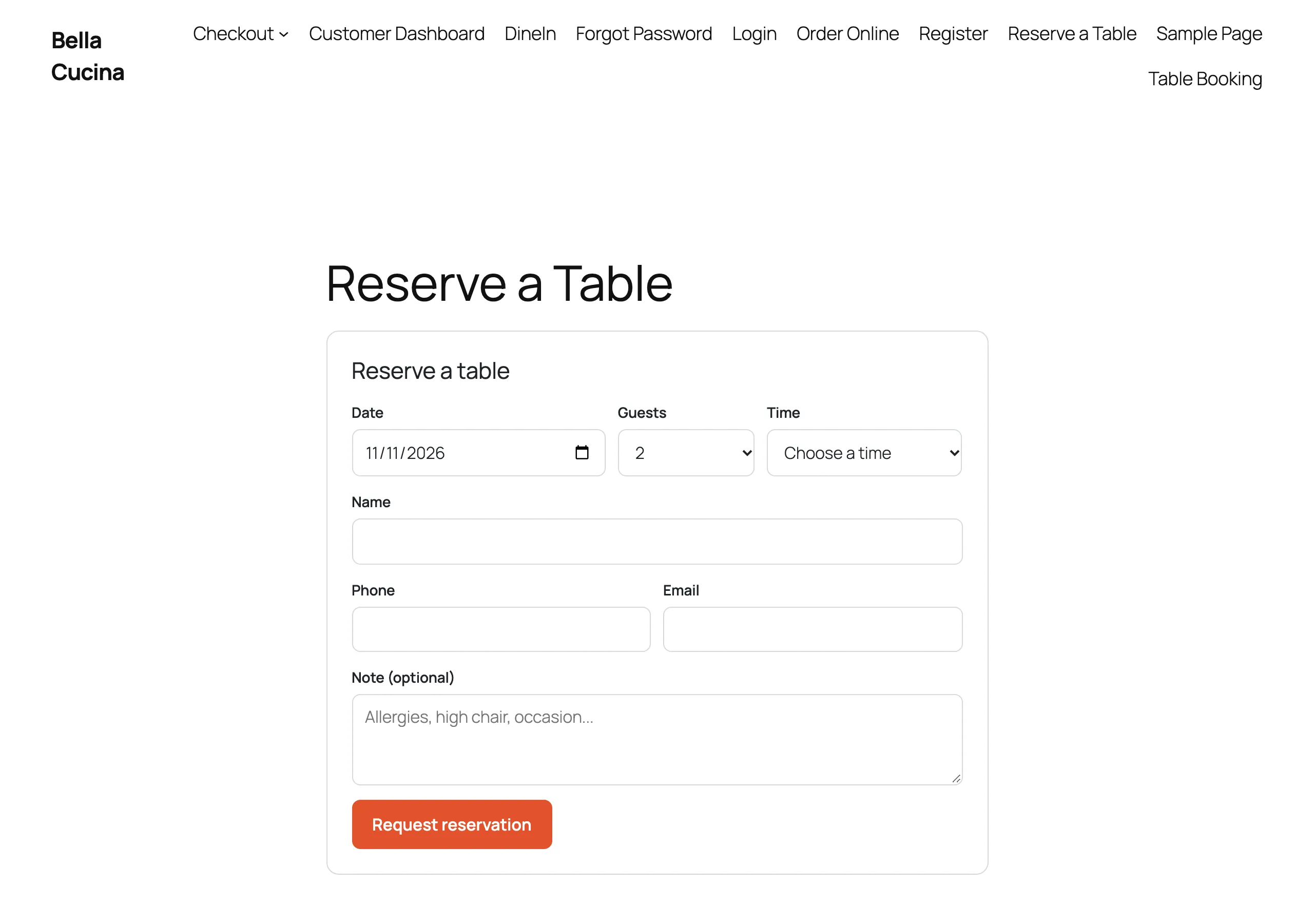
- All fields except Note are required. The phone number must be at least 5 digits.
- After a successful request the guest sees either "Thanks! We received your request and will email you once it is confirmed." or, when it was confirmed automatically, "Your table is confirmed. We have emailed you the details.", with the date, time and number of guests.
- Each connection can send 5 requests per hour. Staff who can edit orders are exempt. Beyond that the form says "Too many reservation requests from your connection."
- The form includes a hidden anti-spam field. A request is silently dropped only when that field is filled and the form was submitted in under 4 seconds.
What the guest sees in their account#
Customers who are logged in find Reservations in the customer dashboard. It lists Upcoming and Past reservations with date, time, guests and status, up to 50 of the most recent. A customer sees reservations booked while logged in and any made with the email address of their account. When the site has a booking page, customers with no reservations see "You have no reservations yet." and a Book a table button. The section needs a published page with the [customer_dashboard] shortcode.
What staff see#
Open RestroPress › Reservations. A number beside the menu item counts upcoming Pending requests. When requests are waiting and you open the screen without a filter, it opens on Needs action.
- Views: All (newest bookings first), Today, Upcoming, Needs action (upcoming Pending requests) and Past. The Upcoming view lists Pending and Confirmed reservations only.
- Filters: a status list (All statuses, Pending, Confirmed, Declined, Cancelled, Completed) and a date picker.
- Columns: Date / Time (with how long ago it was booked), Name, Guests, Phone, Email and Status. Phone and email are links. A guest's note appears under the status.
- Row actions: Pending shows Confirm and Decline. Confirmed shows Complete and Cancel. Declined and Cancelled show Confirm.
- Bulk actions: Confirm, Decline, Mark completed and Cancel.
- Today's count: the Orders screen shows "N reservations still to come today" with a link to today's list, when there are any.
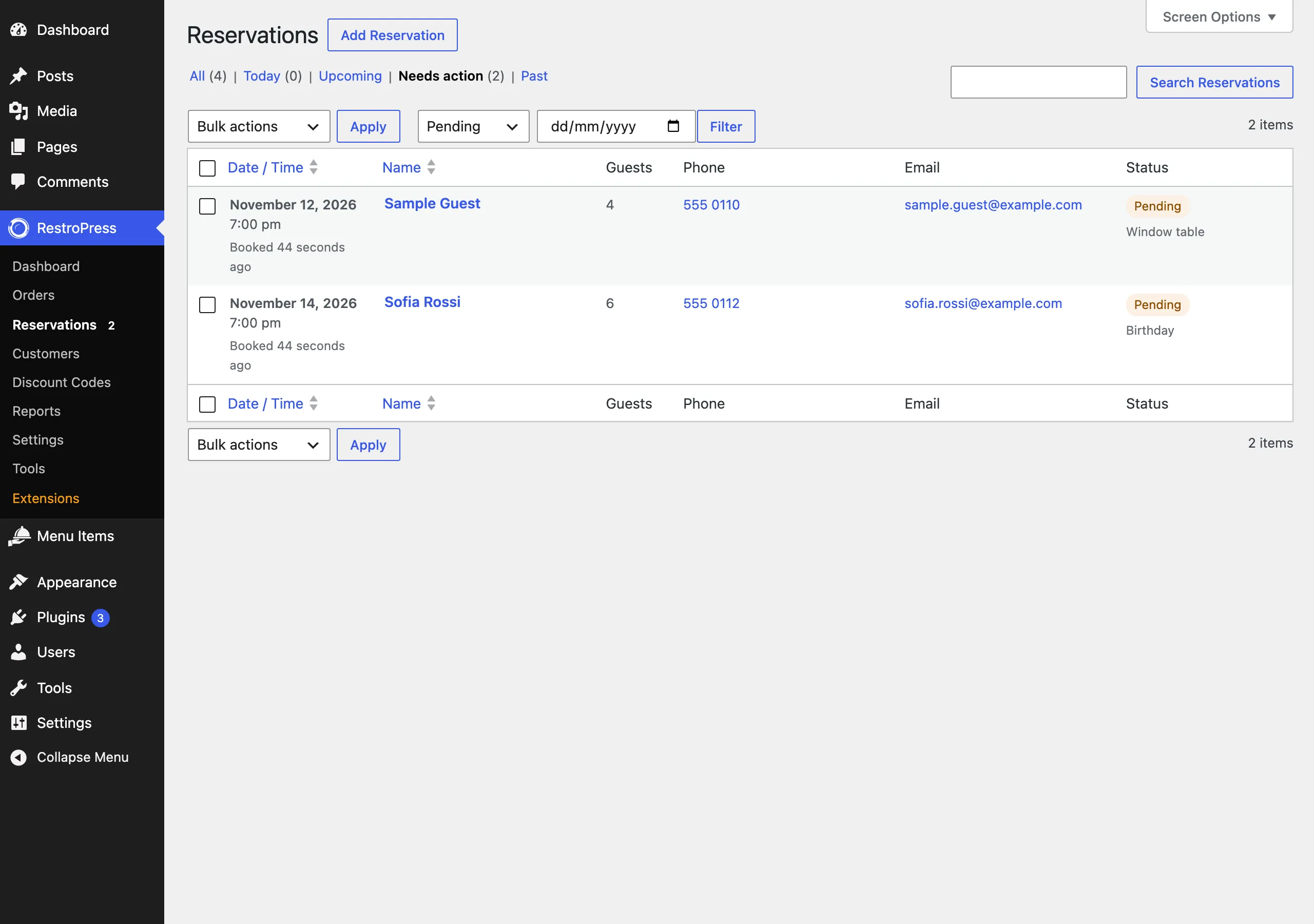
Statuses are Pending, Confirmed, Declined, Cancelled and Completed. Confirming a reservation does not re-check seat availability, so confirming one that was declined earlier can take a slot over its limit.
Adding or editing a reservation#
Use Add Reservation on the list, or click a name to edit. The Reservation details box has Date, Time, Guests, Name, Phone, Email, Note and Status, plus a Notify tick box ("Email the customer when the status changes to confirmed or declined", ticked by default). A new reservation entered here starts as Confirmed. Reservations entered in the admin are not limited by slot capacity or opening hours, are marked as admin-entered, and do not send the admin notification email.
Shortcodes and blocks#
| Name | Attribute | Purpose |
|---|---|---|
[rpress_reservation] | title (default "Reserve a table") | The booking form. An empty title="" hides the heading. |
Table Reservation block (rpress/reservation-form) | Title (default "Reserve a table") | The same form in the block editor, under the RestroPress block category. Supports wide and full alignment, margin and padding. |
Emails and notifications#
Reservation emails use your store email template, From Name and From Email from Emails › General. Edit them under RestroPress › Settings › Emails › Reservation Notifications (this section appears only when reservations are on). Each email has a subject and a message; leave one empty to use the default text.
| Sent to | When | |
|---|---|---|
| Customer: request received | Guest | A new request is stored as Pending. |
| Customer: reservation confirmed | Guest | A new request is confirmed automatically, or a reservation changes to Confirmed. |
| Customer: reservation declined | Guest | A reservation changes to Declined. |
| Customer: reminder | Guest | Before a confirmed reservation; see below. |
| Admin: new reservation | The Admin Order Notification recipients | A guest submits a request on the website. Reply-To is the guest's email. |
Changing a reservation to Completed or Cancelled sends no email. Status changes made with the row or bulk actions always notify the guest; in the edit box the Notify tick box decides.
Tags available in subjects and messages: {name}, {phone}, {email}, {date}, {time}, {party_size}, {note} (shows "-" when empty), {status}, {reservation_id}, {sitename} and {admin_link} (the Upcoming list).
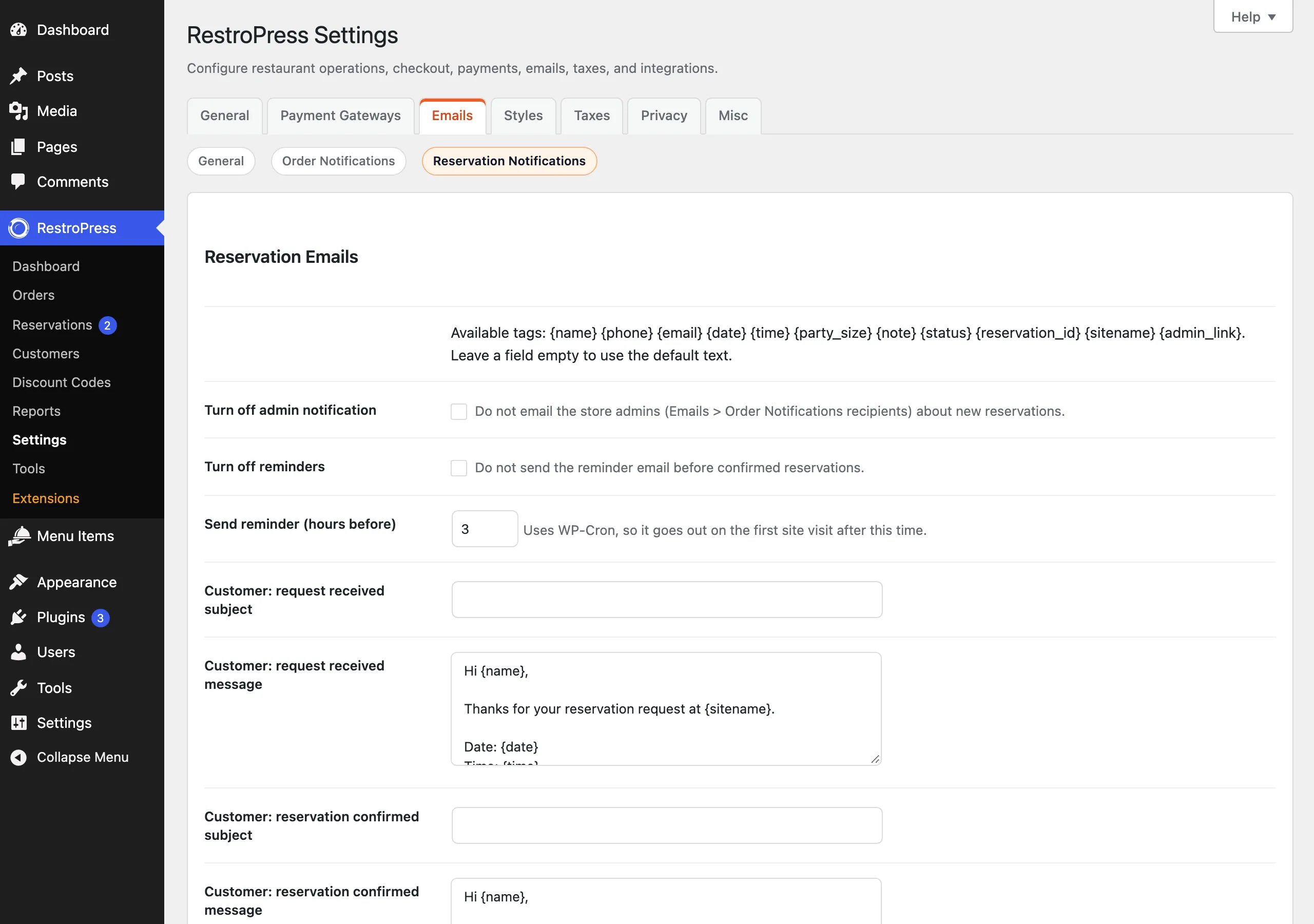
The email footer links the guest to their Reservations in the customer dashboard (when their email belongs to an account) and the admin to the reservation in wp-admin.
Reminders#
A reminder goes to the guest once, for confirmed reservations only. It is sent Send reminder (hours before) before the reservation time (default 3 hours). It is scheduled when a reservation becomes Confirmed and cancelled if the status changes away from Confirmed. It is skipped when the reservation is made less than that many hours ahead. Changing the time of a reservation in the admin reschedules it. Turn off reminders stops them. Reminders use WP-Cron, so they go out on the first visit to your site after the due time. A change to the hours setting applies to reservations confirmed afterwards; reminders already scheduled keep their time.
These reservation reminders are separate from the order reminder sent for scheduled food orders.
Good to know#
- Switching reservations off hides everything, but saved reservations stay in the database and return when you switch it back on.
- If Enable Always Order Option is ticked in your Service & Hours settings, closed days and holidays do not block reservation times either, because reservations use the same hours rule. (Per-day hours still set the slot window.)
- Reservations are not orders. They do not appear under RestroPress › Orders and do not take payment.
- Reservations use the same permission as orders: anyone who can manage orders can manage reservations.
- The Table Booking extension keeps its own data and settings. Nothing here reads or changes it. A short notice about it appears on the Reservations list and settings screen until the extension is active; each user can dismiss the list notice.
For developers#
| Name | Type | Purpose |
|---|---|---|
rpress_reservations_enabled | filter | Override the on/off switch. |
rpress_reservation_settings | filter | Resolved settings (interval, capacity, max_party, lead_time, max_days, reminder_hours, reminders, auto_confirm, paused). |
rpress_reservation_statuses | filter | Register or rename statuses. |
rpress_reservation_active_statuses | filter | Statuses that hold seats. |
rpress_reservation_slots | filter | The slot list for a date. |
rpress_reservation_slot_capacity | filter | Seats for a given slot. |
rpress_reservation_last_seating_offset | filter | Seconds before closing for the last slot. |
rpress_reservation_first_open_scan_days | filter | Days scanned for the default date. |
rpress_reservation_rate_limit | filter | Requests per hour per connection (default 5). |
rpress_reservation_min_fill_seconds | filter | Anti-spam minimum fill time (default 4). |
rpress_reservation_client_ip | filter | Client address used for the rate limit. |
rpress_reservation_submit_data | filter | Add posted fields to the submission. |
rpress_reservation_validation_errors | filter | Add validation errors. |
rpress_reservation_initial_status | filter | Status given to a new reservation. |
rpress_reservation_submit_redirect | filter | Where to send the guest after a request. |
rpress_reservation_success_message | filter | Success message. |
rpress_reservation_success_summary | filter | Success summary HTML. |
rpress_reservation_form_after_time | action | Add fields after date, guests and time. |
rpress_reservation_form_before_submit | action | Add fields before the button. |
rpress_reservation_insert_meta | action | Save extension data with a new reservation. |
rpress_reservation_created | action | After a reservation is stored. |
rpress_reservation_status_changed | action | After a status change. |
rpress_reservation_admin_details | action | Extra rows in the details box. |
rpress_reservation_admin_save | action | Save those rows. |
rpress_reservation_registered_settings | filter | Edit the reservation settings fields. |
rpress_reservation_email_defaults | filter | Default subjects and messages. |
rpress_reservation_email_tag_values | filter | Tag values. |
rpress_reservation_send_email | filter | Return false to block an email. |
rpress_reservation_email_headers | filter | Email headers. |
rpress_reservation_email_sent | action | After an email is sent. |
rpress_reservation_reminder | action | Cron event that sends a reminder (argument: reservation ID). |
rpress_reservation_post_type_args | filter | Arguments for the rpress_reservation post type. |
rpress_reservation_account_limit, rpress_reservation_account_url, rpress_reservation_booking_page_url | filter | Customer dashboard list size, section link and booking page link. |
rpress_reservation_has_table_booking | filter | Treat the Table Booking extension as active. |
rpress_insert_reservation(), rpress_get_reservation(), rpress_set_reservation_status(), rpress_reservation_get_slots() | function | Create, read, change status and list slots. |