
Checkout.com Payment Gateway
On this page
RestroPress Checkout.com Payment Gateway adds Checkout.com as a payment method at checkout. Customers type their card details into secure card fields (Checkout.com Frames) on your checkout page, and the plugin charges the card through the Checkout.com Payments API. It is meant for restaurants that already have a Checkout.com merchant account.
Requirements#
- RestroPress (the plugin header sets no minimum version; it only checks that RestroPress's gateway functions exist).
- WordPress 5.8 or later and PHP 7.4 or later, as stated in the plugin's readme.
- A Checkout.com account with a public key and a secret key, for test (sandbox) and/or live use.
- Your site must be reachable over HTTPS from the internet if you want Checkout.com webhooks to arrive.
Installation#
- In WordPress go to Plugins › Add New › Upload Plugin, choose the ZIP and click Install Now.
- Activate the plugin.
- Go to RestroPress › Settings › Payment Gateways, tick Checkout.com under the enabled gateways and save.
- Open the Checkout.com section in the same screen and enter your keys (see Settings below).
The plugin has no licence key field. The settings page is also reachable from the Settings link on the Plugins screen.
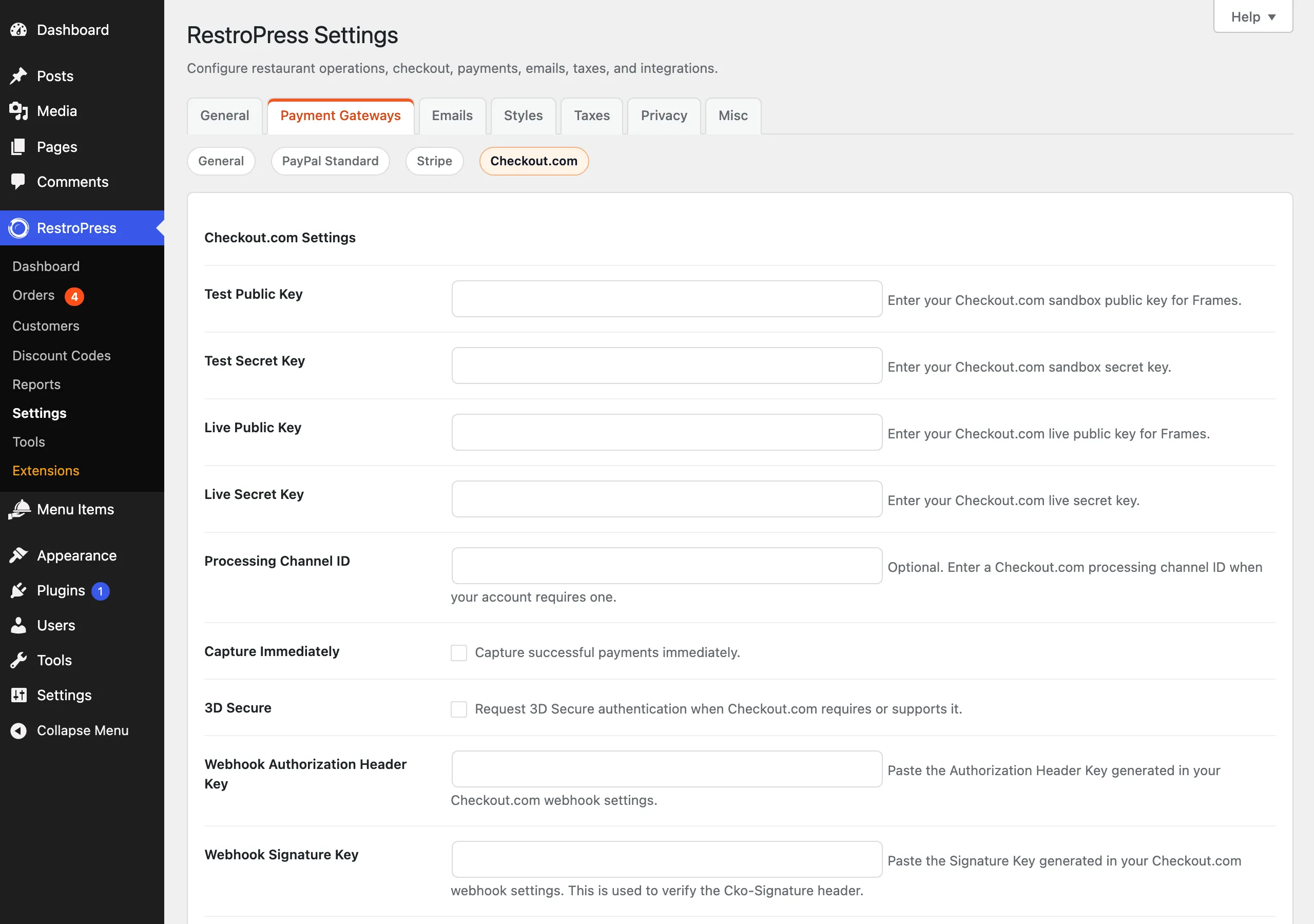
Settings#
All settings are in RestroPress › Settings › Payment Gateways › Checkout.com. The section uses the main RestroPress test/live mode setting; there is no separate test switch.
| Setting | What it does | Default |
|---|---|---|
| Test Public Key | Checkout.com sandbox public key, used by the card fields when RestroPress is in test mode. | Empty |
| Test Secret Key | Sandbox secret key, used for API calls in test mode. Stored as a password field. | Empty |
| Live Public Key | Live public key for the card fields. | Empty |
| Live Secret Key | Live secret key for API calls. | Empty |
| Processing Channel ID | Optional. Sent with each payment as processing_channel_id when your Checkout.com account requires one. | Empty |
| Capture Immediately | Checkbox, "Capture successful payments immediately." | Unchecked |
| 3D Secure | Checkbox. Sends 3ds.enabled = true so Checkout.com can ask the customer to authenticate. | Unchecked |
| Webhook Authorization Header Key | The Authorization Header Key from your Checkout.com webhook settings. If filled in, incoming webhooks must carry it in the Authorization header (plain or as Bearer). | Empty |
| Webhook Signature Key | The Signature Key from your Checkout.com webhook settings, used to verify the Cko-Signature header. If left empty, the secret key for the current mode is used instead. | Empty |
| Webhook URL | Read-only. Shows the URL to register in Checkout.com. | - |
In test mode, if the Test Public Key or Test Secret Key is empty, the plugin falls back to the live key of the same type. The gateway counts as configured only when both a public key and a secret key are available for the current mode.
Webhook#
Register this URL as a webhook endpoint in your Checkout.com dashboard:
https://your-site.example/wp-json/rpress-checkout-com/v1/webhookThe same page also lists a legacy fallback URL, https://your-site.example/?rpress-listener=checkout-com-webhook. Use the first one unless REST requests are blocked on your site. Every webhook must carry a valid Cko-Signature header (HMAC-SHA256 of the request body); requests without a valid signature get a 401 response and are ignored.
How it works#
At checkout#
- The customer chooses Checkout.com. The checkout shows a "Credit / Debit Card" box with Card Number, Cardholder Name, Expiration Date and CVC. The card number, expiry and CVC are Checkout.com iframes; the page text says "Accepted: Visa, Mastercard, Amex." If no keys are saved, the box shows "Checkout.com is not configured. Please contact the store owner." instead.
- When the customer places the order, the plugin script checks the card fields and the cardholder name, then asks Checkout.com to turn the card into a one-time token. Invalid input shows "Please enter valid card details."
- The token is posted with the order. RestroPress creates the order as pending and the plugin sends a payment request to Checkout.com (the sandbox API in test mode, the live API otherwise) with the amount in minor units, the currency, the order number as reference and the customer's name and email.
- If Checkout.com approves the payment (
approvedis true, or the status isauthorizedorcaptured), the order is marked complete, the Checkout.com payment ID is saved as the transaction ID, an order note is added, the cart is emptied and the customer lands on the success page. - If Checkout.com answers with a redirect link (typically a 3D Secure challenge), the customer is sent there. When they come back, the plugin fetches the payment from Checkout.com and completes or fails the order the same way.
- Otherwise the order is marked failed and the customer is returned to checkout with "Payment failed: ..." and the reason Checkout.com gave.
In the admin#
- Orders show Checkout.com as the gateway. Notes on the order record the payment ID or the webhook events received.
- Webhook events
payment_approvedandpayment_capturedset the order to complete.payment_declined,payment_canceled,payment_authentication_failedandpayment_expiredset it to failed. Other events are stored but change nothing. The order is found through therpress_payment_idmetadata or the payment reference. - Gateway errors are written to the RestroPress gateway error log and to the PHP error log with the prefix
[rpress-checkout-com]. Keys, tokens and card data are redacted from the log.
The plugin does not implement refunds. Refund the payment in the Checkout.com dashboard.
Developer reference#
| Name | Type | Parameters | Purpose |
|---|---|---|---|
rpress_checkout_com_settings | filter | $checkout_settings (array) | Add, remove or change the fields shown in the Checkout.com settings section. |
rpress_gateway_checkout_com | action (RestroPress core hook) | $purchase_data | Runs the plugin's payment processing. |
rpress_checkout_com_cc_form | action (RestroPress core hook) | none | Prints the card form. |
/wp-json/rpress-checkout-com/v1/webhook | REST route, POST | Checkout.com event JSON | Webhook receiver. Always answers 200 with {"accepted":true} once the signature passes. |
Example: remove the Processing Channel ID field.
add_filter( 'rpress_checkout_com_settings', function ( $settings ) {
    unset( $settings['checkout_com_processing_channel_id'] );
    return $settings;
} );Troubleshooting#
- "Checkout.com is not configured. Please contact the store owner." The public or secret key for the current mode (test or live) is missing. In test mode the live keys are used as a fallback.
- "Checkout.com secure card fields are unavailable. Please refresh and try again." The Checkout.com Frames script did not load (blocked by a script blocker or network rules) or the public key was rejected.
- "Payment token missing. Please check your card details and try again." The card was not tokenised before the form was submitted. Another script that submits the checkout form can cause this.
- "Payment gateway error. Please try again." The API call failed; check the secret key, the processing channel ID and the gateway error log.
- "Payment verification failed." or "Invalid Checkout.com payment return." The return from a 3D Secure page could not be matched to a payment or verified with Checkout.com.
- Orders stay pending. Webhooks are not arriving or are being rejected. Confirm the webhook URL, that the Signature Key matches the one in Checkout.com, and that a firewall or security plugin is not blocking the REST route.
Changelog highlights#
- 1.0.0: Initial release.