
RestroPress Table Booking
On this page
Table Booking adds a reservation form to your site. Customers pick a number of guests, a date and a time, enter their contact details and submit a booking request. Each request appears under RestroPress › Table Bookings, where staff mark it Pending, Accepted or Cancelled. Both the restaurant and the customer can receive emails, and customers can optionally verify their phone number with a text message (Twilio or Plivo) or be sent to Stripe Checkout to pay for the booking.
Bookings are stored separately from food orders. They do not create RestroPress orders and do not appear in the order list or reports.
Requirements#
- RestroPress (free plugin) installed and active. If it is not active, the extension shows an error notice and deactivates itself.
- Optional: a Twilio or Plivo account, only if you turn on phone verification or want booking status texts.
- Optional: a Stripe account and API keys, only if you want customers to pay when booking.
- Optional: the Store Timing extension. When it is active, booking dates and times follow its opening hours instead of the start and end times set here.
Installation#
- In WordPress go to Plugins › Add New › Upload Plugin, choose the extension ZIP and click Install Now.
- Click Activate.
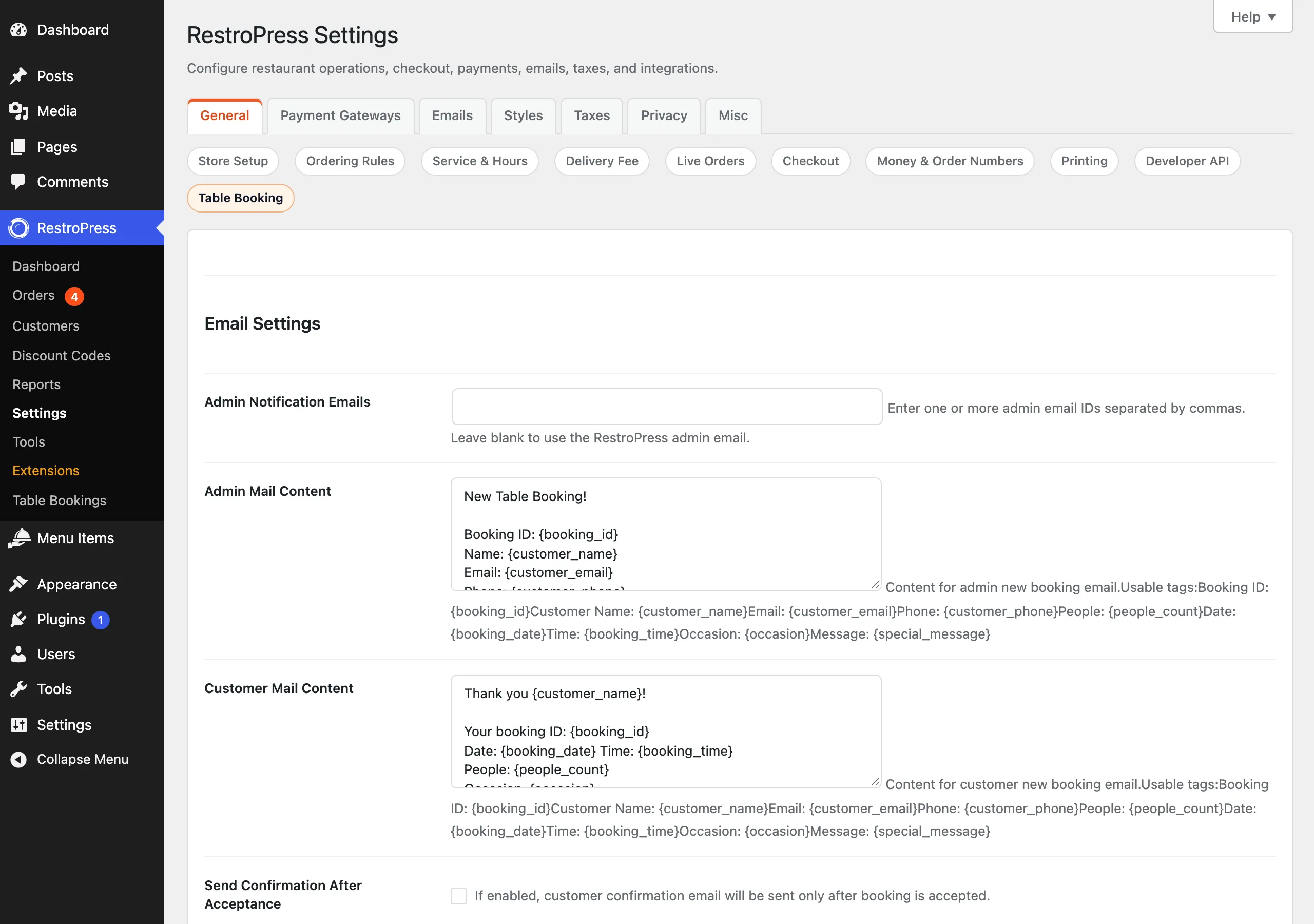
- Open RestroPress › Settings › General › Table Booking and complete the settings below. A Settings link is also shown beside the plugin on the Plugins screen.
On the first page load after activation the plugin creates a published page titled "Table Booking" (slug table-booking) containing the [table_booking] shortcode. If a page with that slug already exists it is reused. Add this page to your menu.
This plugin has no licence key field and no update checker in its code, so there is no licence to enter. Update it by uploading a newer ZIP.
Settings#
All settings are on RestroPress › Settings › General › Table Booking.
Booking rules#
| Setting | What it does | Default |
|---|---|---|
| Table Booking People Limit | The guest dropdown offers 1 up to this number. | 6 (minimum 1) |
| Table Booking Date Range | How many days ahead customers can book, counting today as day one. Later dates cannot be picked. | 30 (minimum 1) |
| Table Booking Capacity | How many bookings can be made per day. When a day has this many bookings (any status, except trashed), that date is disabled in the date picker. | 1 (minimum 1) |
| Table Booking Start Time | First time slot offered. Choices are generated in 30-minute steps between the RestroPress open and close times (9:00am to 10:00pm when those are empty). | None. Both start and end time are required; saving without them shows "Please set both booking start and end time." |
| Table Booking End Time | Last time slot offered. | None |
| Table Booking Close Enable | Stops taking bookings. The page shows the close message instead of the form. | Off |
| Table Booking Close Message | Text shown while booking is closed. | Empty. The plugin's built-in fallback "Booking is currently closed." only applies when the setting has never been saved; once saved empty, the message is blank. |
| Add Multiple Occasion Lists And Their Prices | A table of occasions (for example Birthday, Anniversary). Each row has an Occasion Name and a Booking Price; use Add New Occasion to add rows. When at least one occasion exists, the form shows a required "Select an Occasion" dropdown. The price is what Stripe charges for that occasion. | No occasions |
When the Store Timing extension is active, the Start and End Time fields show a note that opening and closing times are managed by Store Timing.
Email settings#
| Setting | What it does | Default |
|---|---|---|
| Admin Notification Emails | One or more addresses, separated by commas, that receive new booking emails. Invalid addresses are dropped with an error notice. | Empty: falls back to the RestroPress "from" email, then the WordPress admin email |
| Admin Mail Content | Plain-text body of the new booking email to the restaurant. Supports the tags below. | A short "New Table Booking!" message listing all details |
| Customer Mail Content | Plain-text body of the booking email to the customer. Supports the tags below. | A short thank-you message with booking ID, date, time, people and occasion |
| Send Confirmation After Acceptance | When on, the customer email is not sent at submission; it is sent when staff set the booking to Accepted. When off, the customer email is sent immediately. | Off |
Tags for both email bodies: {booking_id}, {customer_name}, {customer_email}, {customer_phone}, {people_count}, {booking_date}, {booking_time}, {occasion}, {special_message}, {status}. The settings screen lists {status} in its intro but not in the help text under each field; it works in both.
Phone verification (SMS)#
| Setting | What it does | Default |
|---|---|---|
| Table Booking OTP Validate | Adds a Verify button beside the phone number. The customer receives a six-digit code by text, valid for 5 minutes, and enters it in a popup. | Off |
| SMS Service Provider | Choose Twilio or Plivo. The same provider is used for status texts to customers. | Twilio |
| Account SID / Account Token / Twilio Number | Twilio credentials. The number must include the country code, for example +16175551212. | Empty |
| Auth Id / Auth Token / Enter Source Phone Number | Plivo credentials and sender number. The source number should differ from the admin phone number. | Empty |
Stripe payment#
| Setting | What it does | Default |
|---|---|---|
| Table Booking Stripe Payment | Sends the customer to Stripe Checkout after they complete the details form. | Off |
| Enable Test Payment | Uses the test keys instead of the live keys. | Off |
| Test Secret Key, Test Publishable Key, Live Secret Key, Live Publishable Key | Stripe API keys from your Stripe account. Only the secret key of the active mode is used by the code; saving with Stripe on and no secret key for the active mode shows an error. | Empty |
The amount charged is the Booking Price of the chosen occasion, in the RestroPress store currency. If that price is 0, the plugin looks for another occasion with a price above zero and uses it; in test mode it falls back to 1.00 so the flow can be tried. There is no separate "advance amount" setting (the code for one is commented out).
How it works#
Customer side#
- The customer opens the Table Booking page and sees "Make a Reservation". They choose an occasion (if you defined any), the number of guests and a date. Fully booked dates, and dates with no opening hours when Store Timing is active, cannot be selected. Choosing a date reveals the time dropdown.
- They click Book Table and reach "Complete Reservation", where they enter name, email, phone (with country code) and an optional special request. If phone verification is on, they must request and enter the code.
- If Stripe is on, they are redirected to Stripe Checkout. Otherwise the booking is saved straight away.
- They return to the page and see "Booking Confirmed" with the booking ID, name and date/time. If they cancel at Stripe they see "Payment was cancelled. Your booking is not confirmed."
Restaurant side#
- The booking is saved with status Pending and the admin email is sent.
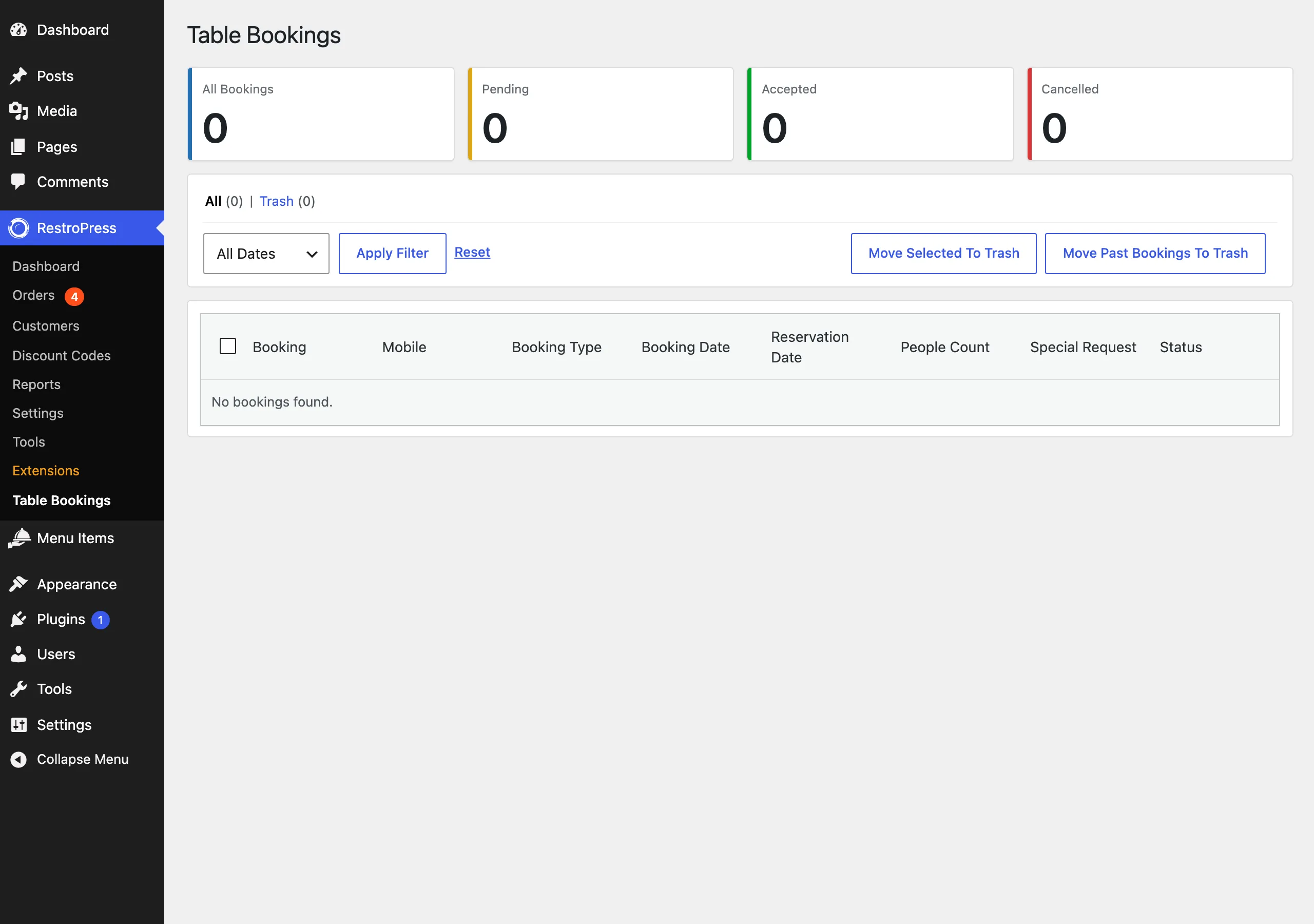
- Open RestroPress › Table Bookings. The page shows cards for All Bookings, Pending, Accepted and Cancelled, a date filter (All Dates, Today, Last Week, Last Month, Last Year, Custom Date) and a table with Booking, Mobile, Booking Type, Booking Date, Reservation Date, People Count, Special Request and Status. The menu item shows a badge with the number of bookings for today.
- Change the Status dropdown to Pending, Accepted or Cancelled. The customer is sent a text (if a phone number and SMS provider are configured) and an email. With "Send Confirmation After Acceptance" on, accepting sends the customer email from the Customer Mail Content; otherwise a short status message is emailed.
- Use the checkboxes with Move Selected To Trash, or Move Past Bookings To Trash. In the Trash view you can Restore Selected or Delete Permanently.
Shortcodes, blocks, widgets#
| Shortcode | Attributes | Purpose |
|---|---|---|
[table_booking] | None | Renders the reservation form, details form and result messages. The booking stylesheet and script load only on the auto-created page or on a page whose content contains the shortcode. |
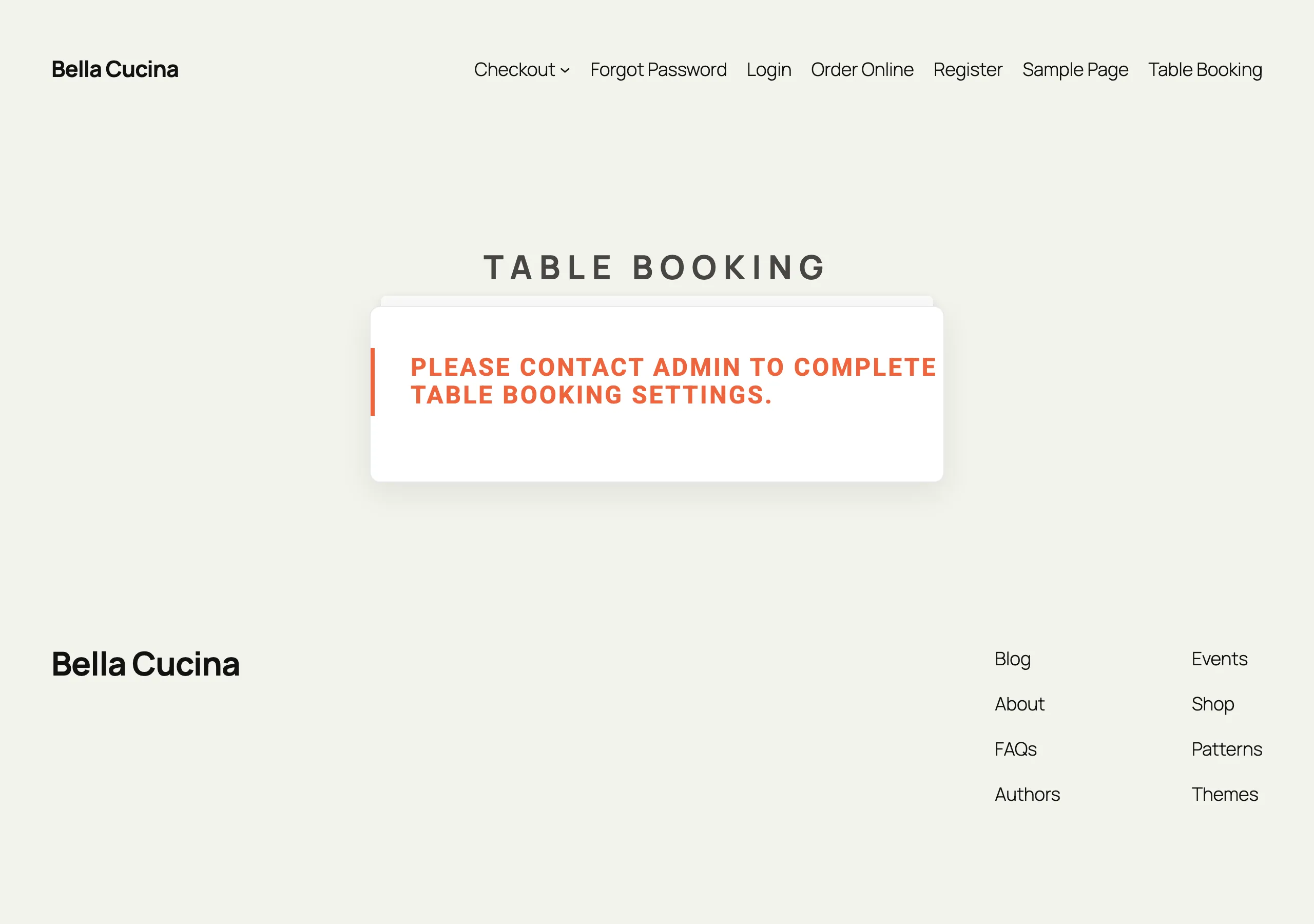
If the booking rules (people limit, date range, start and end time) are not saved yet, the shortcode shows "Please contact admin to complete table booking settings."
Developer reference#
| Name | Type | Parameters | Purpose |
|---|---|---|---|
rpress_get_table_booking | filter | $settings (array, the rpress_settings option) | Filters the settings array the extension reads for the admin screens and the occasion list. |
booking_payment | post type | Not public, no admin UI | Each booking is a post whose title is the customer name. Meta keys: booking_people_count, booking_booking_date (Y-m-d), booking_booking_time (H:i), booking_email, booking_telephone, booking_message, booking_booking_occasion, booking_status. |
tb_send_verification_otp, tb_verify_and_continue_otp, update_booking_sesson_date, rp_tb_get_available_times | AJAX (logged in and logged out) | Phone number, OTP, booking fields, date | Front-end actions for OTP, saving the booking details to the session, and listing time slots for a date. |
update_booking_status, delete_booking_records, restore_booking_records, delete_booking_records_permanently | AJAX (logged in) | Booking IDs and status | Admin actions. Status changes require the edit_shop_payments capability. |
// Read today's accepted bookings
$q = new WP_Query( array(
  'post_type'      => 'booking_payment',
  'post_status'    => 'publish',
  'posts_per_page' => -1,
  'meta_query'     => array(
    array( 'key' => 'booking_status', 'value' => 'Accepted' ),
    array( 'key' => 'booking_booking_date', 'value' => wp_date( 'Y-m-d' ) ),
  ),
) );Troubleshooting#
- "Please contact admin to complete table booking settings." Save People Limit, Date Range, Start Time and End Time under RestroPress › Settings › General › Table Booking.
- "Please set both booking start and end time." Both time fields must have a value to save.
- "Unable to start secure payment. Please check Stripe settings and occasion price." Stripe is on but the active secret key is empty, the Stripe library file is missing, or the computed amount is zero. Add the key for the active mode (test or live) and give the occasion a price above 0.
- "Could not send OTP. Please try again." The SMS provider rejected the message. Check the credentials, that the sender number is valid for your account, and that the customer typed the phone number with a country code.
- "OTP expired. Please request a new one." The code is valid for 5 minutes. The OTP and the booking details are held in a PHP session, so a host or cache that blocks sessions on the booking page will break verification and the redirect back from Stripe. Exclude the Table Booking page from page caching.
- A date cannot be selected. It has reached Table Booking Capacity, or Store Timing has no opening hours for it.
- Emails not arriving. Emails use
wp_mail(); use an SMTP plugin if your host does not deliver them. With no Admin Notification Emails set, they go to the RestroPress "from" email. - Bookings do not appear in orders. By design, they are only listed under RestroPress › Table Bookings.
Changelog highlights#
- 1.3.5: compatibility with Store Timing for opening hours, weekly closed days and holidays; time slots load by AJAX when a date is chosen; falls back to the static start and end time when Store Timing is off.
- 1.3.4: occasion lists stay saved after updates, including older serialized settings; start and end times support 24-hour store times.
- 1.3.3: booking date handling accepts the site date format and stays in the site timezone.