
Switch to RestroPress importer
On this page
Switch to RestroPress brings your menu over from the system you are leaving. It reads a GloriaFood menu export, the food products of a WooCommerce-based ordering plugin on the same site, or a spreadsheet saved as CSV, and turns them into menu items, categories, sizes, add-on groups and dietary labels. You see everything in a preview before anything is saved, and you can undo a finished import. It is for restaurant owners and the people who migrate their sites.
Open the importer#
The importer is the screen Menu Items › Switch to RestroPress. It has no menu entry of its own. Open it from:
- the Switch from GloriaFood, WooCommerce or CSV button on Menu Items › Import;
- the link Switching from another system? Use Switch to RestroPress on the Menu step of the setup wizard;
- Tools › Import › Switch to RestroPress, which redirects to the same screen;
- the address
/wp-admin/edit.php?post_type=fooditem&page=rpress-switch. Adding&source=csv,&source=gloriafoodor&source=woocommercepre-selects a source.
Anyone who can edit menu items can import. Importing store settings and customers needs the shop settings permission.
How it differs from Menu Items › Import#
The existing Menu Items › Import screen, described in Add menu items, offers AI import (PDF, photo or messy file), a spreadsheet import and a sample menu, with a review screen before you publish. Switch to RestroPress is a separate, stricter tool for moving from a known system.
| Menu Items › Import | Switch to RestroPress | |
|---|---|---|
| Sources | PDF, photos, CSV or XLSX (AI or direct), sample menus | GloriaFood export, WooCommerce products on this site, CSV template |
| File types | PDF, images, CSV, XLSX | Text files only: .json for GloriaFood, .csv or .txt for the template. Save spreadsheets as CSV first. |
| Before saving | Review and edit screen | Read-only preview with warnings and a field mapping |
| Same-name items | Rows with a matching ID or SKU update the existing item | Matched by item name: skip or update, your choice |
| Undo | No | Yes, for every finished import |
If your system has no export the importer can read, the start screen also offers Something else (PDF, photo or menu link), which opens the AI menu import.
Import step by step#
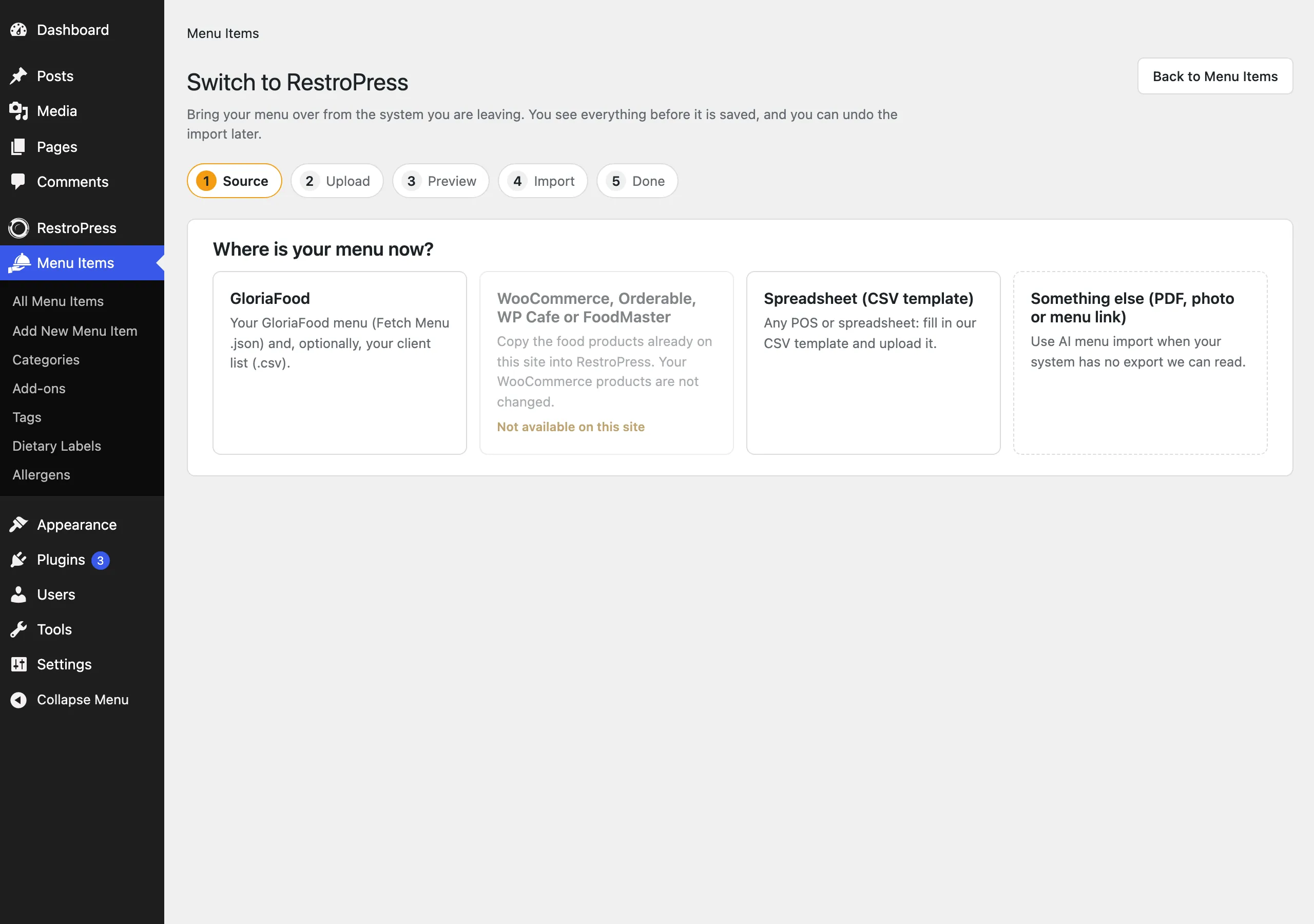
- Source. Choose where your menu is now. The tiles are GloriaFood, WooCommerce, Orderable, WP Cafe or FoodMaster and Spreadsheet (CSV template). The WooCommerce tile is greyed out and marked Not available on this site unless WooCommerce is active, and otherwise shows how many products it found.
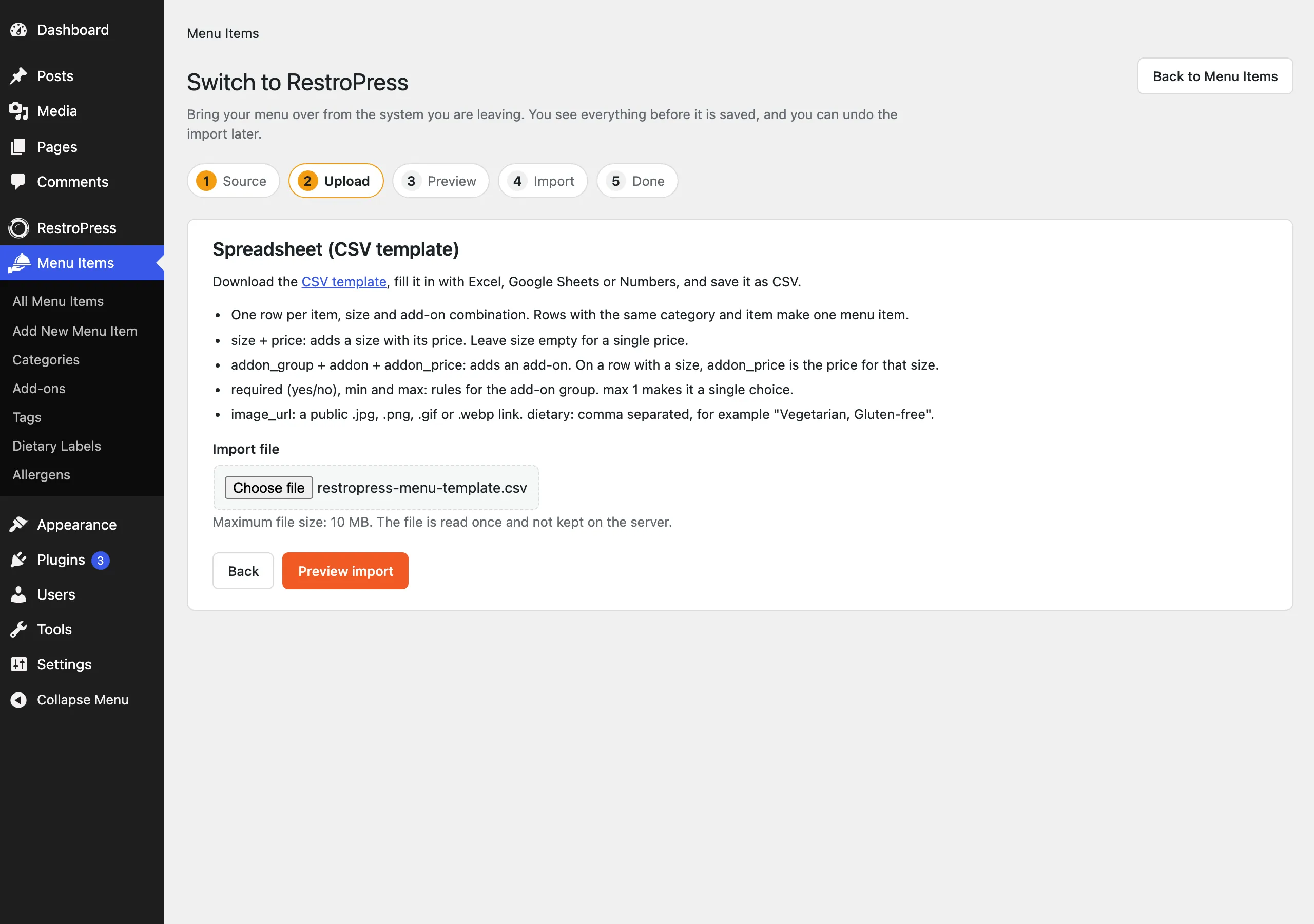
- Upload. For GloriaFood and the spreadsheet, choose the file. The maximum size is shown on the screen (10 MB, or your server's upload limit if that is lower). The file is read once and not kept on the server. The WooCommerce source has nothing to upload, it reads the site. Click Preview import.
- Preview. Nothing has been saved yet. You see counts for categories, items, sizes, add-on groups, add-ons, images, customers and warnings, a table of every item, and the choices below. Click How fields are mapped to see which source field becomes which RestroPress field.
- Import. Click the import button, for example Import 24 items. A progress bar shows the work in batches of 10 items. Keep the page open until it finishes.
- Done. A summary shows items created, updated, skipped and failed, images downloaded, and settings changed, with an import log. From here you can open the menu items, Undo this import or Start another import.
Choices on the preview screen#
- Your current menu: Add to it (the default) or Replace it. Replace moves every current menu item to the trash before importing, and asks you to confirm. Undo brings them back. Replace is not offered if your account cannot delete others' menu items, or if the trash is switched off on the site (WordPress then deletes items for good and undo could not restore them).
- Items with the same name: Skip them (the default) or Update them (prices, sizes, add-ons and description). Names are compared ignoring case. Update needs permission to edit menu items made by other users. These choices are hidden when you pick Replace.
- Store settings: shown only when the source carries settings, such as WooCommerce. Tick Also import these settings to apply them.
- Customers: shown only for a GloriaFood client list. Import only people who agreed to hear from you. RestroPress sends them no email and leaves existing customers as they are.
The Action column of the table tells you what will happen to each row: Create, Skip (same name) or Update existing. Rows imported as drafts are marked draft.
Sources#
GloriaFood#
GloriaFood does not offer a download button for your menu. The importer reads the JSON from GloriaFood's Fetch Menu integration. In your GloriaFood admin open Others › 3rd party integrations, enable Fetch Menu and copy its key. Request the menu with that key and save the response as menu.json. The upload screen shows a ready-made command for this. Upload menu.json on the GloriaFood source.
- Categories, items, descriptions, sizes, add-on groups and add-ons are imported. A size costs the item price plus the size price. Group rules for required, minimum and maximum are kept. A group with a maximum of 1 becomes a single choice.
- GloriaFood groups named like Extra Toppings (Small) and Extra Toppings (Large) are merged into one group with a price per size.
- Tags become dietary labels. HOT becomes Spicy. Allergen entries become item tags such as Contains milk.
- Inactive items and items in inactive categories are imported as drafts.
- Photos, store hours and delivery zones are not part of the export, so add them in RestroPress afterwards.
To bring over customers, export your client list from GloriaFood as CSV and upload it as its own import on the same source. The file needs an email column. Name, first and last name and phone columns are used when present.
WooCommerce, Orderable, WP Cafe or FoodMaster#
This source copies the published food products already on the site. Your WooCommerce products are only read, never changed, so you can compare both menus before you switch.
- Product categories become menu categories (a product in several categories is placed in all of them). Simple products become items with their price. Variable products become items with one size per variation, named from the variation's attribute values.
- The product image is reused as the featured image, without a second copy.
- The short description is used as the description, or the full description when there is no short one.
- Product tags that match dietary labels, such as Vegan or Gluten free, become dietary labels.
- WooCommerce Product Add-Ons set on a product are imported when they are choice or checkbox fields. Other field types and global add-on groups are skipped with a warning.
- Orderable and WP Cafe store their add-ons in their own format. These are not imported, and the preview warns you to recreate them as add-on groups.
- Settings (optional): the first standard tax rate, and the cost of the first flat rate shipping method as the flat delivery fee.
Spreadsheet (CSV template)#
Use this for any POS or spreadsheet. On the upload step, download the CSV template, fill it in with Excel, Google Sheets or Numbers, and save it as CSV. A header row is required. Column names are not case-sensitive, and some common alternatives are understood (for example name, section and variant).
| Column | Meaning |
|---|---|
category | Menu category. Rows with no category go to a category named Imported Menu. |
item | Item name. Required. |
description | Item description. The first row that has one is used. |
size | Size or portion name. With price it adds a size. Leave empty for a single price. |
price | Price of the item, or of the size on that row. Required. |
addon_group | Name of an add-on group, for example Extra toppings. |
addon | Name of one add-on in the group. |
addon_price | Price of the add-on. On a row that has a size, it is the price for that size. |
required | yes or no: whether the customer must choose from the group. |
min, max | Fewest and most choices from the group. A max of 1 makes it a single choice. |
image_url | A public .jpg, .png, .gif or .webp link. The image is downloaded into your media library. |
dietary | Dietary labels separated by commas, for example Vegetarian, Gluten-free. |
Use one row for each combination of item, size and add-on. Rows with the same category and item build one menu item. Dietary labels are matched to your existing labels, and a label that does not exist yet is created.
Undo an import#
Every finished import is listed under Recent imports on the start screen, with its date, source, file, result and status, and an Undo this import link. The same button is on the summary screen. Undo asks you to confirm and then:
- puts items that the import updated back the way they were;
- brings back items that Replace mode moved to the trash;
- deletes the items and downloaded images the import created;
- deletes categories, add-ons and labels that the import created, unless other items still use them;
- removes customers the import added, and restores changed store settings.
Items the import created are deleted permanently. If you edited one of them after importing, your edits go with it. If an import was interrupted, it shows as Not finished with a Resume link, and it can be undone too. A preview you never confirmed is removed the next time someone opens the importer more than a day later.
Good to know#
- The description of an imported item is saved as both its short description and its full description.
- Imported items are published unless the source marks them inactive. Items with a missing price are imported at 0.00 and flagged with a warning.
- Prices are not converted. If the source currency differs from your store currency, the preview warns you.
- Importing store settings changes the same options as the Settings screens, for example the flat delivery fee, minimum orders and tax rate. A tax rate only takes effect if taxes are turned on under Settings.
- If the Delivery Fee or Store Timing extension manages fees or hours on your site, those values are not imported, and the log says so.
- Check the log on the summary screen. It keeps the most recent 500 entries.
For developers#
You can add your own source with rpress_register_import_source() on the rpress_register_import_sources action. A source supplies a label, accepted file extensions, an optional detect check, and a parse callback that returns the importer's menu model.
| Name | Type | Purpose |
|---|---|---|
rpress_register_import_sources | action | Register sources here with rpress_register_import_source(). |
rpress_import_sources | filter | Filters the sorted list of registered sources. |
rpress_importer_url | filter | Filters the URL of the importer screen. |
rpress_importer_max_upload_size | filter | Maximum upload size in bytes. Default 10 MB, never above the WordPress limit. |
rpress_importer_batch_size | filter | Items imported per request. Default 10. |
rpress_importer_can_trash | filter | Whether Replace mode may trash items. Defaults to whether the WordPress trash is on. |
rpress_import_pre_sideload_image | filter | Short-circuits image download. Return an attachment ID or error to skip the default. |
rpress_import_started | action | Fires when an import is confirmed, before data is written. |
rpress_import_item_saved | action | Fires after each imported item is saved. |
rpress_import_finished | action | Fires when an import finishes. |
rpress_import_undone | action | Fires when an import has been undone. |
rpress_register_import_source() | function | Registers a source. |
rpress_unregister_import_source() | function | Removes a source. |
rpress_get_import_sources() | function | Returns all sources sorted by priority. |
rpress_importer_url() | function | Returns the importer screen URL, optionally with a source pre-selected. |