
Checkout and upsells
On this page
RestroPress 3.5 adds two things to the checkout page. The first is a set of phone-friendly checks: a live minimum-order hint, errors shown next to the field that needs fixing, and a Delivery/Pickup switch that keeps what the customer already typed. The second is an optional "Add to your order" row that offers a few extra items just above the Payment section. Both are for restaurants that want fewer abandoned and failed checkouts, especially on phones.
What changed from 3.4.11#
- Already in 3.4.11: the collapsible order summary and the sticky Place order bar with the total (checkout pages up to 782 px wide), and the "(optional)" tag on optional fields. They work the same in 3.5.
- New in 3.5: the live minimum-order hint that also blocks Place order, inline field errors with a summary line, fields that survive a Delivery/Pickup switch with a note about the new total, and the "Add to your order" row with its settings.
Turn it on#
The checkout checks need no setting and are always active on the checkout page. The minimum-order hint appears only if you have turned on a minimum order under RestroPress › Settings › General › Ordering Rules (see Settings & Options).
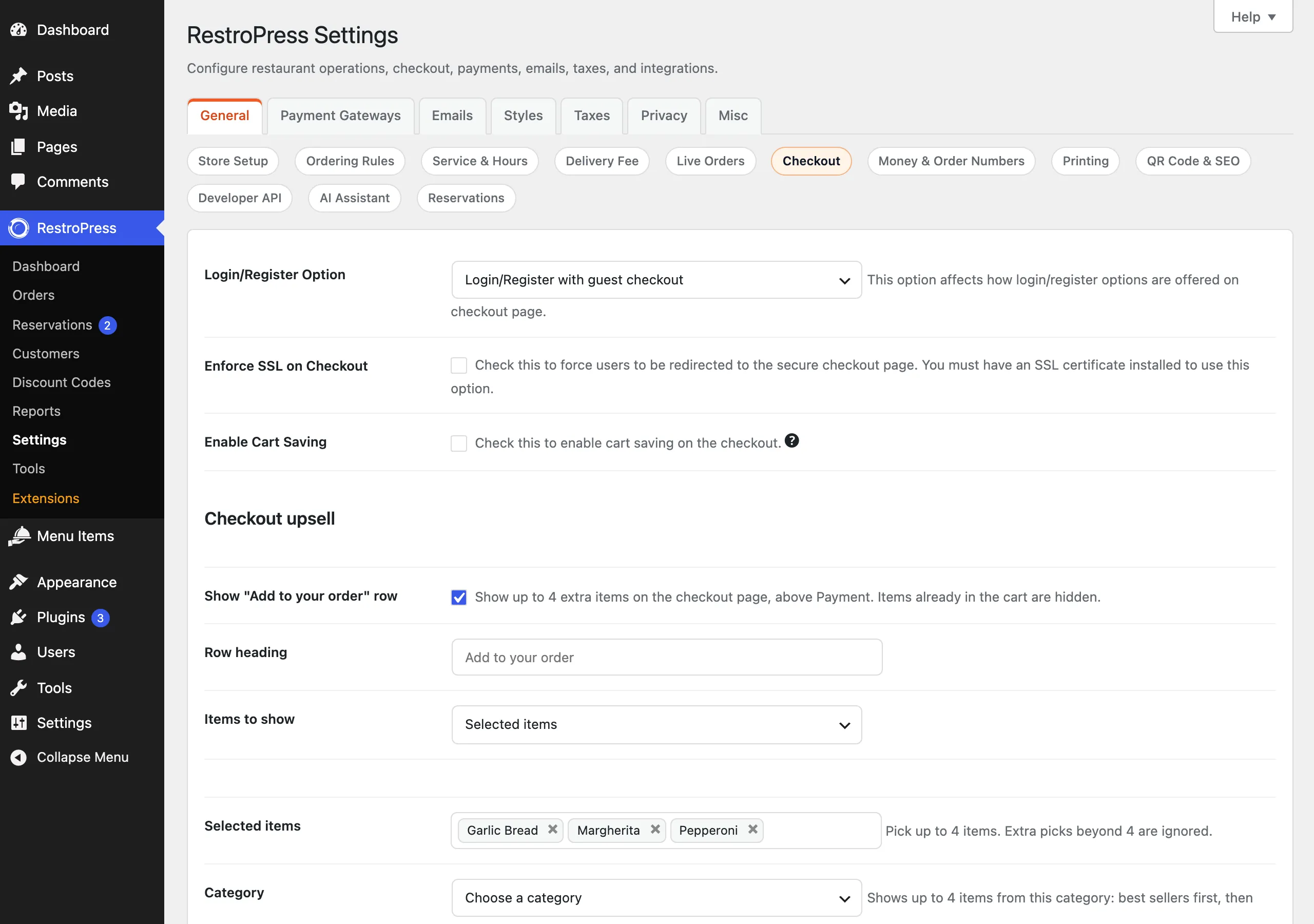
The upsell row is off by default. Turn it on under RestroPress › Settings › General › Checkout, in the Checkout upsell block, with Show "Add to your order" row.
Set up the upsell row#
- Go to RestroPress › Settings › General › Checkout and scroll to Checkout upsell.
- Tick Show "Add to your order" row.
- Optionally change Row heading. If you leave it empty the heading is "Add to your order".
- Under Items to show choose Selected items or Items from a category.
- For Selected items, pick up to 4 menu items in Selected items. Picks beyond 4 are ignored.
- For Items from a category, choose the Category. The row shows up to 4 items from it, best sellers first, then in menu order.
- Save the settings.
The full list of settings, with defaults, is in Settings & Options.
How it works#
Minimum order#
When a minimum order applies and the cart is below it, the customer sees "Add 40.00 more for pickup" with "Minimum order for pickup is 100.00" next to the Place order button, in the sticky bar on phones, in the sidebar cart and on the View cart bar of the menu page. While the cart is below the minimum, Place order is disabled. The hint changes with the service: the amount for delivery comes from Minimum order amount for delivery and for pickup from Minimum order amount for pickup. Other services have no minimum. The comparison uses the cart subtotal. The server still checks the minimum when the order is placed and shows your minimum-order error message.
Delivery and pickup switch#
When the customer switches between Delivery and Pickup on the checkout page, the checkout details are redrawn. Text typed in the address, contact and instruction fields is kept, and a line states the new total, for example "Pickup selected. Your total is now 18.00 (2.00 less)." or "Your total is still ...". The line is also announced to screen readers.
Field errors#
Required fields are checked when the customer leaves a field they have typed in, and again when they tap Place order. A field with a problem gets a message directly under it and is marked invalid for assistive technology. On submit the first problem field is scrolled into view and focused, and a banner says "Please fix the N highlighted field(s) below to place your order." The messages are:
| Field | Message |
|---|---|
| Email, empty | Please enter your email address |
| Email, wrong format | That email doesn't look right, check for typos |
| Phone, empty | Please enter your phone number |
| Phone, wrong length | Please enter a valid phone number (8 to 15 characters) |
| First name, empty | Please enter your first name |
| Last name, empty | Please enter your last name |
| Street address | Please enter your street address |
| Zip / postal code | Please enter your zip / postal code |
| Town / city | Please select your town / city |
| Any other required field | This field is required. |
Only fields your checkout marks as required are checked for emptiness. The email and phone formats are checked whenever something has been typed. The browser check mirrors the server's phone rule, so a number the server would accept is not rejected in the browser.
"Add to your order" row#
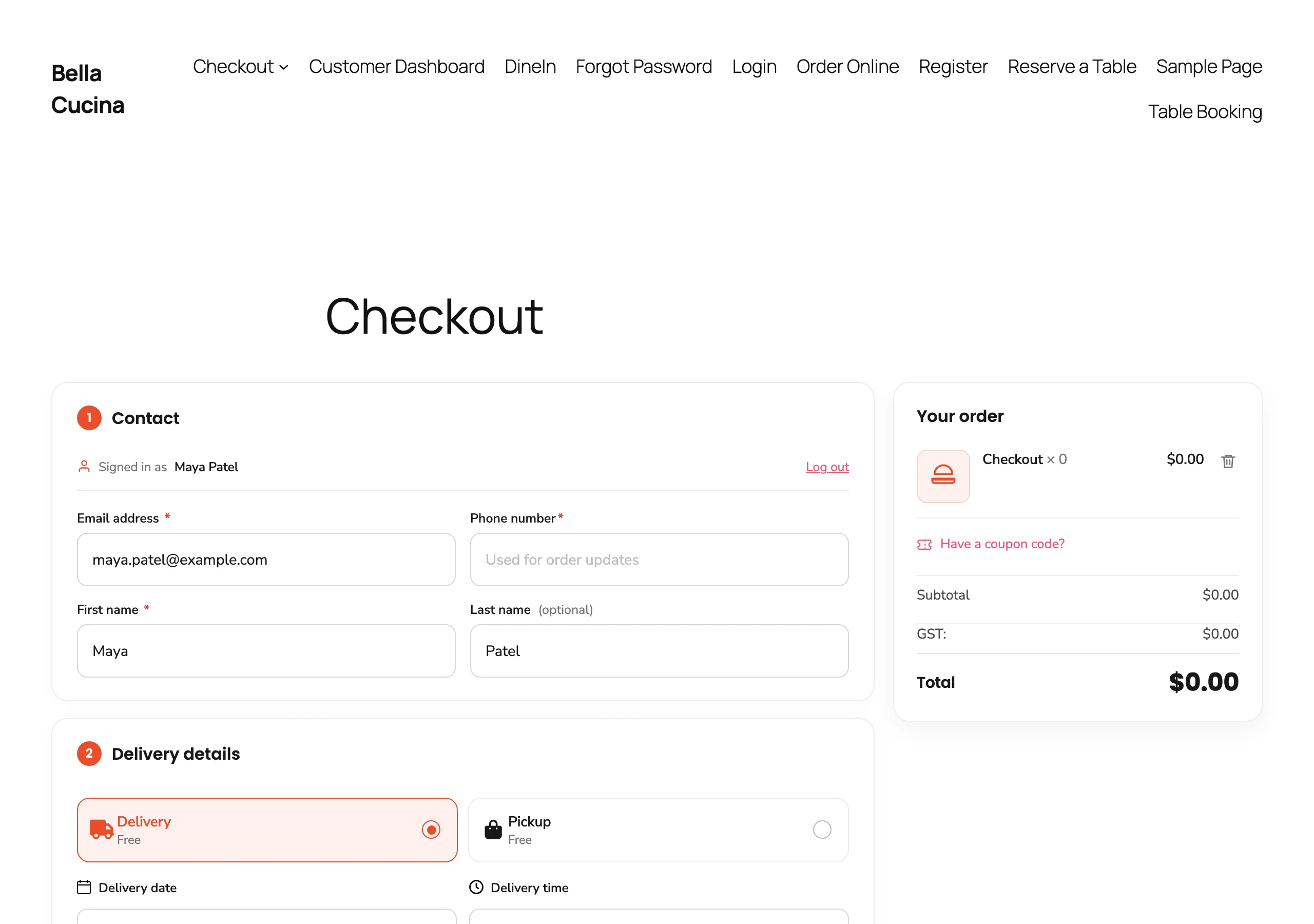
The row sits on the checkout page above the Payment section. Each card shows a photo (or the first letter of the name), the name, the price and an Add button. Items already in the cart are hidden, and the row disappears when none are left. Only published menu items that are currently available are offered.
- A simple item is added to the cart straight away, and the order summary refreshes.
- An item with sizes (variable prices), a required Add-on Group, a minimum number of add-ons or pre-selected default add-ons opens the normal item popup, so every add-on rule still applies. Its price is shown as "From" the lowest option.
- A price of zero is shown as "Free".
Good to know#
- The row needs AJAX ordering. If AJAX add to cart is disabled for the store, the row does not show.
- The item picker in the settings lists up to 500 published menu items, in alphabetical order. A store with more items than that cannot pick the rest by name; use the category source instead.
- When the row uses a category, it looks at the first 50 items of the category (menu order, then title) and then orders them by sales.
- Discounted order bumps, rules-based upsells and several rows are not part of this free row.
- The minimum-order hint is also loaded outside checkout when a minimum order is enabled, because the sidebar cart and the View cart bar use it.
For developers#
| Name | Type | Purpose |
|---|---|---|
rpress_checkout_ux_should_load | filter | Whether the checkout UX script and stylesheet load on this request. |
rpress_checkout_ux_vars | filter | The data passed to the checkout script as rpress_checkout_ux, including its messages. |
rpress_checkout_ux_minimum_order | filter | Change the minimum-order state (message, shortfall, enabled) for a service and subtotal. |
rpress_checkout_update_service_option_response | filter | Core filter on the Delivery/Pickup switch response; the feature adds a checkout_ux cart snapshot to it. |
rpress_checkout_ux_state | AJAX action | Returns the live cart snapshot and minimum-order state; needs the rpress-checkout-ux nonce. |
rpress_checkout_ux_minimum_order(), rpress_checkout_ux_state() | functions | Compute the minimum-order state and the cart snapshot. |
rpress_checkout_upsell_settings | filter | The normalised upsell settings (enabled, heading, source, items, category). |
rpress_checkout_upsell_items | filter | The item IDs shown in the row (at most 4). |
rpress_checkout_upsell_is_active | filter | Whether the row renders. |
rpress_checkout_upsell_needs_popup | filter | Whether an item opens the item popup instead of adding directly. |
rpress_checkout_upsell_display_amount | filter | The price shown on a card, after the tax display rules. |
rpress_checkout_upsell_build_setting_options | filter | Whether the settings page builds the item and category lists. |
RPRESS_CHECKOUT_UPSELL_MAX | constant | Maximum items in the row (4). |