
RestroPress Stripe
On this page
- What the extension adds to the built-in Stripe gateway
- Requirements
- Installation
- Provider account steps
- Settings
- Multisite
- How it works
- On-site payment form (Self Hosted Checkout off)
- Hosted checkout (Self Hosted Checkout on)
- Webhooks
- Refunds
- Vendor payouts (multisite with multi-vendor)
- Developer reference
- Troubleshooting
- Changelog highlights
RestroPress Stripe adds Stripe as a payment method at checkout. Customers can pay on your own checkout page with Stripe's Payment Element (cards and the other payment methods your Stripe account has switched on), or be sent to a Stripe-hosted payment page. It is for restaurants that have a Stripe account and want to take online payments.
The free RestroPress plugin already contains a basic Stripe gateway that sends customers to Stripe's hosted page. This extension replaces it: as soon as the extension is active, the built-in Stripe gateway steps aside and the extension handles the stripe payment method. What the extension adds is described in the next section.
What the extension adds to the built-in Stripe gateway#
- On-site payment form. The built-in gateway only supports Stripe hosted checkout and shows no payment form. The extension can show the Stripe Payment Element inside your checkout page, so customers do not leave your site.
- More settings. A checkout label, a choice of how billing address fields are shown, and an option to show orders that are waiting for payment.
- More webhook events. The built-in gateway reacts to Checkout Session events only. The extension also reacts to payment intents, charges, refunds and Stripe Radar reviews.
- Refunds from the order screen. Changing an order to Refunded can also refund the payment in Stripe. The built-in gateway has no refund code.
- Stripe customers. The extension creates and remembers a Stripe customer for each buyer.
- Multisite and vendor payouts. On a WordPress multisite network it reads keys from the main site and can transfer a vendor's share through Stripe Connect when the RestroPress multi-vendor add-on is present.
Requirements#
- RestroPress, active. If it is not, the extension shows an admin notice and deactivates itself. The plugin header does not state a minimum RestroPress version.
- PHP 7.4 or later and WordPress 4.0 or later (from
readme.txt). - A Stripe account with API keys, and a site served over HTTPS so Stripe.js and webhooks work.
- The extension bundles the Stripe PHP library and calls Stripe API version
2024-12-18.acacia.
Installation#
- In WordPress go to Plugins › Add New › Upload Plugin, choose the ZIP file and install it.
- Activate RestroPress - Stripe.
- Go to RestroPress › Settings › Payment Gateways, tick Stripe under the list of gateways in the General section, and save.
- Open the Stripe section on the same tab and enter your keys (see Settings).
This plugin contains no licence key field, so there is nothing to enter under RestroPress › Settings › Licenses for it. Updates are not handled by code inside the plugin.
Provider account steps#
- In the Stripe Dashboard, open the API keys page and copy the publishable key and secret key for test mode and, when you are ready, for live mode.
- In the Stripe Dashboard open Developers › Webhooks and add an endpoint with the URL shown on the Stripe settings screen. It has the form
https://your-site.com/index.php?rpress-listener=stripe. - Subscribe the endpoint to the events the plugin handles:
checkout.session.completed,checkout.session.async_payment_succeeded,checkout.session.async_payment_failed,checkout.session.expired,payment_intent.succeeded,payment_intent.payment_failed,charge.succeeded,charge.refunded,review.openedandreview.closed. - Copy the endpoint's signing secret (it starts with
whsec_) into Webhook Signing Secret. - Payment methods other than cards (wallets, bank redirects and so on) are chosen in your Stripe Dashboard. The on-site form requests
automatic_payment_methods, so Stripe decides which methods to offer for the order's currency and the customer's location.
Settings#
Found under RestroPress › Settings › Payment Gateways › Stripe, below the heading Stripe Settings. The section appears only when the extension is active.
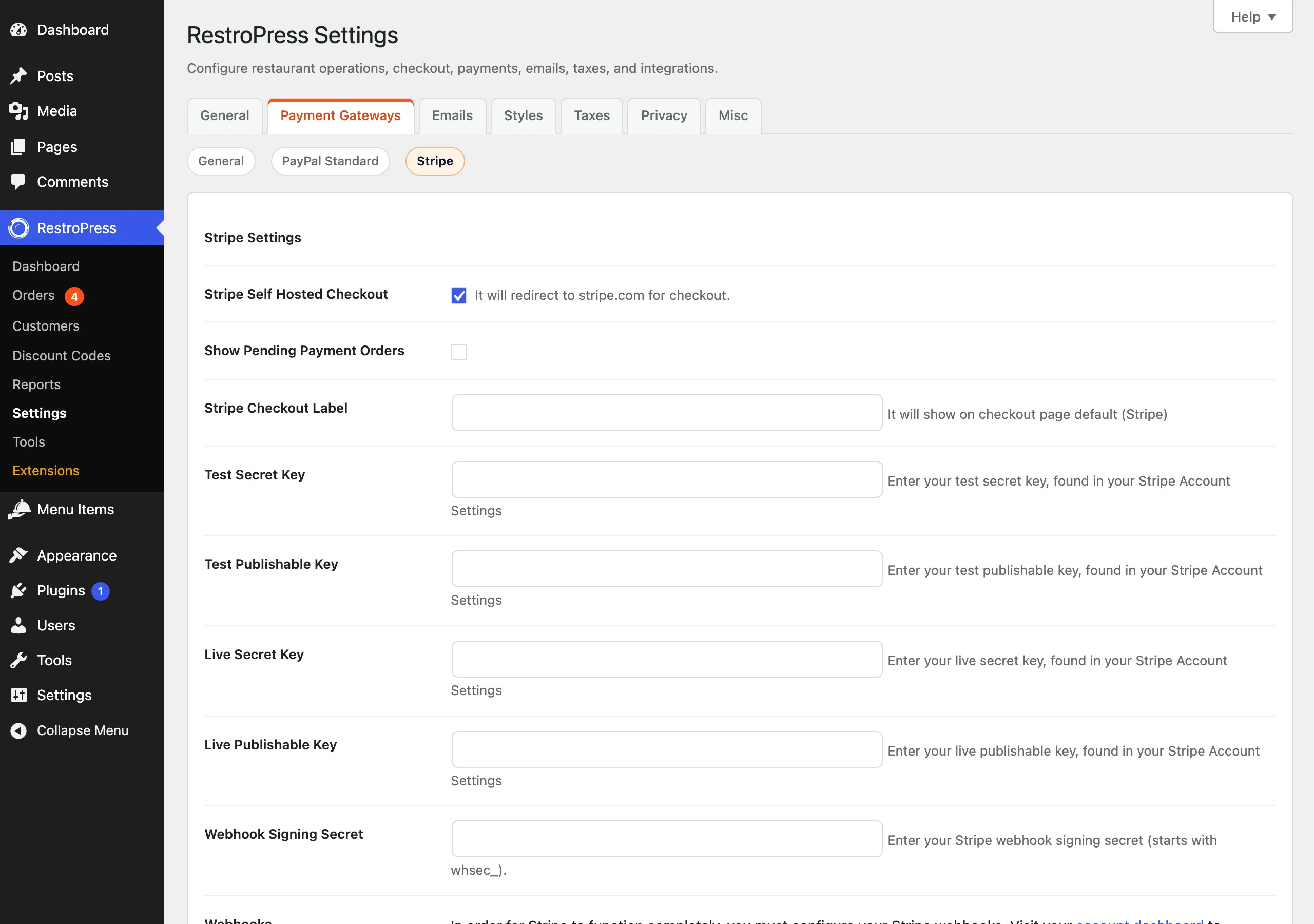
| Setting | What it does | Default |
|---|---|---|
| Stripe Self Hosted Checkout | When ticked, customers are redirected to a page hosted on stripe.com to pay. When unticked, the Stripe Payment Element is shown on your checkout page. | Off |
| Show Pending Payment Orders | While a payment is not yet confirmed, the order is stored with status pending (visible in the orders list) instead of the hidden status private. | Off |
| Billing Address Display | On-site form only. Full address, Zip / Postal Code and Country only or No address fields. If taxes are enabled and billing fields are shown, the value is forced to "Full address". If you choose "No address fields", turn off zip code verification in your Stripe account. | Full address |
| Stripe Checkout Label | The name customers see for this payment method at checkout. If empty, "Stripe" is used. | Empty |
| Test Secret Key | Stripe secret key used while RestroPress Test Mode is on. | Empty |
| Test Publishable Key | Stripe publishable key for test mode. | Empty |
| Live Secret Key | Stripe secret key used when Test Mode is off. | Empty |
| Live Publishable Key | Stripe publishable key for live mode. | Empty |
| Webhook Signing Secret | The whsec_ value for your webhook endpoint. When it is set, incoming webhooks are verified against Stripe's signature. See the gotcha below. | Empty |
| Webhooks | Information only: shows the webhook URL to add in Stripe. | - |
The four key fields and the signing secret are plain text fields, so they are visible to anyone who can open this screen. They are shown only on a single-site install; on a multisite network they are replaced by the network screen described below.
Test mode is the main RestroPress Test Mode option (RestroPress › Settings › Payment Gateways), not a setting of this plugin. Test mode uses the two test keys, live mode uses the two live keys.
Signing secret gotcha: if the secret is left empty, the plugin does not verify signatures. It reads the event ID from the request and fetches the event from Stripe with your secret key instead. This works, but setting the signing secret is recommended. You can also define the constant RPRESS_STRIPE_WEBHOOK_SECRET in wp-config.php, which takes precedence over the saved setting.
Multisite#
On a multisite network, the key fields are not shown on each site. Instead a Payment Setting screen appears in the network admin menu, with Test Mode keys, Live Mode keys and the Webhook Signing Secret. Every site then uses the keys stored on the main site (blog ID 1). Only users who can manage network options can open it.
How it works#
On-site payment form (Self Hosted Checkout off)#
- The customer chooses Stripe at checkout. The Payment Element loads below a "Credit / Debit Card" heading, with a loading indicator while Stripe prepares it.
- When the customer places the order, the plugin saves the order with status
private(orpendingif "Show Pending Payment Orders" is on), then creates a Stripe PaymentIntent for the total in your store currency, with the order summary as the description and statement descriptor. A note "Stripe Initiate PaymentIntent ID" is added to the order. - The browser confirms the payment with Stripe. Stripe may ask for extra authentication, and may redirect the customer, then returns them to the success page.
- On return, the plugin checks the PaymentIntent with Stripe. Only when it has succeeded and the amount received matches the order total is the order marked complete. The note "Stripe PaymentIntent ID" is added and the ID is stored as the transaction ID, which links to the payment in the Stripe Dashboard.
- If the payment failed or was cancelled, the customer is sent back to checkout with "Your payment could not be completed or was cancelled. Please try again." and the order is marked failed. If the payment is still processing, the customer sees the "payment processing" template until a webhook or later check confirms it.
Hosted checkout (Self Hosted Checkout on)#
- The plugin creates the order, finds or creates a Stripe customer, and creates a Stripe Checkout Session titled "Total Order #ID".
- The customer is redirected to stripe.com, pays, and returns to the success page, where the plugin confirms the session with Stripe.
- The Checkout Session webhooks (
checkout.session.completedand the async events) also confirm or fail the order, so an order is still updated if the customer closes the browser before returning.
Webhooks#
payment_intent.succeededcompletes an order that is not yet complete.payment_intent.payment_failedadds a note with Stripe's message and marks it failed.charge.succeededcopies the billing address from Stripe onto the order (or confirms the payment for Checkout Session payments).charge.refundedsets the order to Refunded when the charge was captured and fully refunded.checkout.session.expiredclears the stored session key.review.openedandreview.closedadd a note about the Stripe Radar review. Reviews for the other mode (test versus live) are ignored.
The endpoint answers 200 success when it has processed an event and 400 -2 on any error, so Stripe retries.
Refunds#
Open an order, choose Refunded in the status dropdown, and tick the checkbox Refund Charge in Stripe that appears next to it, then update the order. If the order was complete, the plugin creates a full refund in Stripe for the PaymentIntent and adds the note "Charge refunded in Stripe. Refund ID ...". Without the checkbox, only the RestroPress status changes. Partial refunds are not offered; a refund you make in the Stripe Dashboard marks the order Refunded only when the charge shows as fully refunded. If Stripe rejects the refund, the update stops with the Stripe error message.
Vendor payouts (multisite with multi-vendor)#
When the RestroPress multi-vendor add-on is active on a multisite network, a vendor's edit screen gets a Vendor Stripe Connection box with Connect to Stripe and Disconnect buttons. Connecting creates a Stripe Express account (country set to US in the code) and sends the vendor through Stripe onboarding. After each successful payment the plugin transfers the vendor's share, the order total minus the vendor's commission percentage, to the connected account.
Developer reference#
| Hook | Type | Parameters | Purpose |
|---|---|---|---|
rpress_stripe_pre_process_purchase_form | action | $purchase_data | Runs before the on-site order is created. |
rpress_stripe_process_purchase_form_before_intent | action | $purchase_data, $customer | After the Stripe customer is resolved, before the PaymentIntent is created. |
rpress_stripe_payment_create_payment_intent_args | filter | $intent_args, $purchase_data | Change the arguments sent when creating the PaymentIntent. |
rpress_stripe_payment_process_purchase_form | action | $purchase_data, $intent | After the PaymentIntent is created. |
rpress_stripe_statement_descriptor | filter | $statement_descriptor, $purchase_data | Change the descriptor before it is cleaned to 22 characters. |
rpress_stripe_create_customer_if_missing | filter | false, $purchase_data | Return true to create a Stripe customer on the on-site flow when none is stored (the hosted flow always creates one). |
rpress_stripe_create_customer_args | filter | $customer_args, $purchase_data | Change the data sent when creating a Stripe customer. |
rpress_stripe_should_process_refund | filter | $should, $payment_id, $new_status, $old_status | Allow or block the Stripe refund. |
rpress_stripe_create_refund_args | filter | $args | Arguments for the Stripe refund (default: the PaymentIntent). |
rpress_stripe_create_refund_secondary_args | filter | $args | Request options for the refund call. |
rpress_stripe_payment_refunded | action | $payment_id | After a refund was created in Stripe. |
rpress_stripe_defer_success_page_verification | filter | false | Return true to verify the payment in a background event (rpress_stripe_async_verify_payment) instead of while the success page loads. |
rpress_stripe_js_vars | filter | $vars | Change the values passed to the checkout JavaScript. |
rpress_stripe_event_{type} | action | $event | Fires for every verified webhook event, for example rpress_stripe_event_payout.paid. |
rpress_stripe_review_opened, rpress_stripe_review_closed | action | $review, $payment_id | After a Radar review note is added. |
rpress_stripe_get_payment_transaction_id | filter | $transaction_id, $payment_id | Change the transaction ID read from the order notes. |
rpress_stripe_link_payment_details_transaction_id | filter | $url | Change the Stripe Dashboard link shown for the transaction. |
rpress_stripe_get_statement_descriptor_unsupported_characters | filter | $characters | Characters removed from the descriptor. |
Example: run code whenever Stripe reports a successful payout.
add_action( 'rpress_stripe_event_payout.paid', function ( $event ) {
    error_log( 'Stripe payout paid: ' . $event->data->object->id );
} );
The plugin also registers the AJAX actions rpress_stripe_process_purchase_form and rpress_stripe_fail_pending_payment (logged-in and logged-out) used by its checkout script.
Troubleshooting#
- "Stripe publishable key missing. Please enter your publishable key in Settings." The publishable key for the current mode (test or live) is empty. Check which mode RestroPress is in.
- The payment form never appears. The extension needs Stripe.js from js.stripe.com and the publishable key; a caching or optimisation plugin that delays or removes scripts on the checkout page can break it.
- Orders stay pending or never appear. Unconfirmed on-site orders are stored as
private, which is hidden from the orders list. Tick Show Pending Payment Orders to see them. Check that the webhook endpoint is added in the same Stripe mode (test or live) as your keys. - Webhook returns 400. Messages in the log include "Missing Stripe signature header.", "Invalid webhook payload." and "Invalid webhook signature." A wrong signing secret (for example the test-mode secret while live) causes the last one. Errors are written to the RestroPress debug log.
- "Your payment was not completed or failed." Shown on the success page when the order is failed or cancelled; the customer can return to checkout.
- Payment failed with "Amount expected ... Amount Received ..." in the order notes. The amount Stripe holds differs from the order total. The order is marked failed.
- Refund did nothing in Stripe. The Refund Charge in Stripe checkbox must be ticked and the order must have been complete, with a PaymentIntent ID in its notes.
Changelog highlights#
- 3.0.3. Graceful fallback when the webhook signing secret is not yet set; admin order screen script moved to the proper hook; refund status toggle hardened against duplicate elements.
- 3.0.2. Orders are no longer confirmed when the Stripe payment is incomplete, pending or failed; the Payment Element card form was redesigned; failure, cancellation and session-expiry handling hardened.
- 3.0.1. Webhook listener now returns explicit HTTP 200 or 400 instead of false 500 errors.