
Command Center and Live Orders
On this page
Two screens help you run service as it happens: the Command Center dashboard, which shows what needs attention, and Live Orders, a board that follows each order from new to done.
Command Center#
The Command Center is the RestroPress › Dashboard screen. It shows today's service and refreshes itself while the page is open.
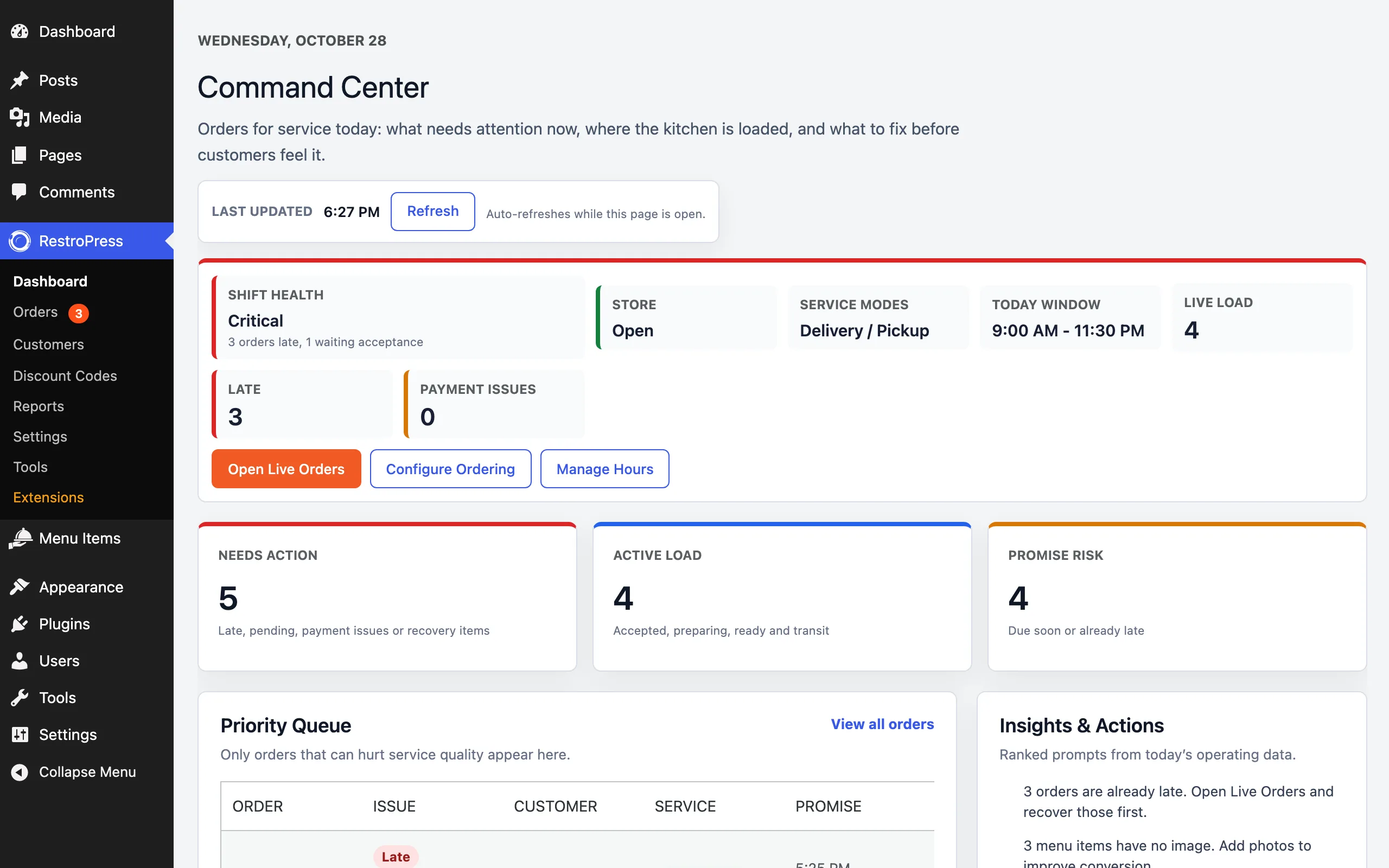
- Shift health: an overall status (for example Good, Watch or Critical) with the reason, such as how many orders are late or waiting for acceptance.
- Store, service modes, today window and live load: whether you are open, which services you offer, today's ordering hours and how many orders are in progress.
- Late and payment issues: counts of late orders and orders with payment problems.
- Needs action, active load and promise risk: orders that are late, pending or have payment issues; orders in progress; and orders due soon or already late against the time promised to the customer.
- Priority queue: only the orders that can hurt service quality, with the issue, customer, service type and promised time.
- Insights and actions: ranked prompts from today's data, for example reminders to recover late orders or to add photos to menu items that have none.
The buttons at the top of the shift card open Live Orders, Configure Ordering and Manage Hours.
Live Orders#
Open it from RestroPress › Orders › Live Orders, or from the Command Center. Leave it open on a tablet in the kitchen or at the counter.
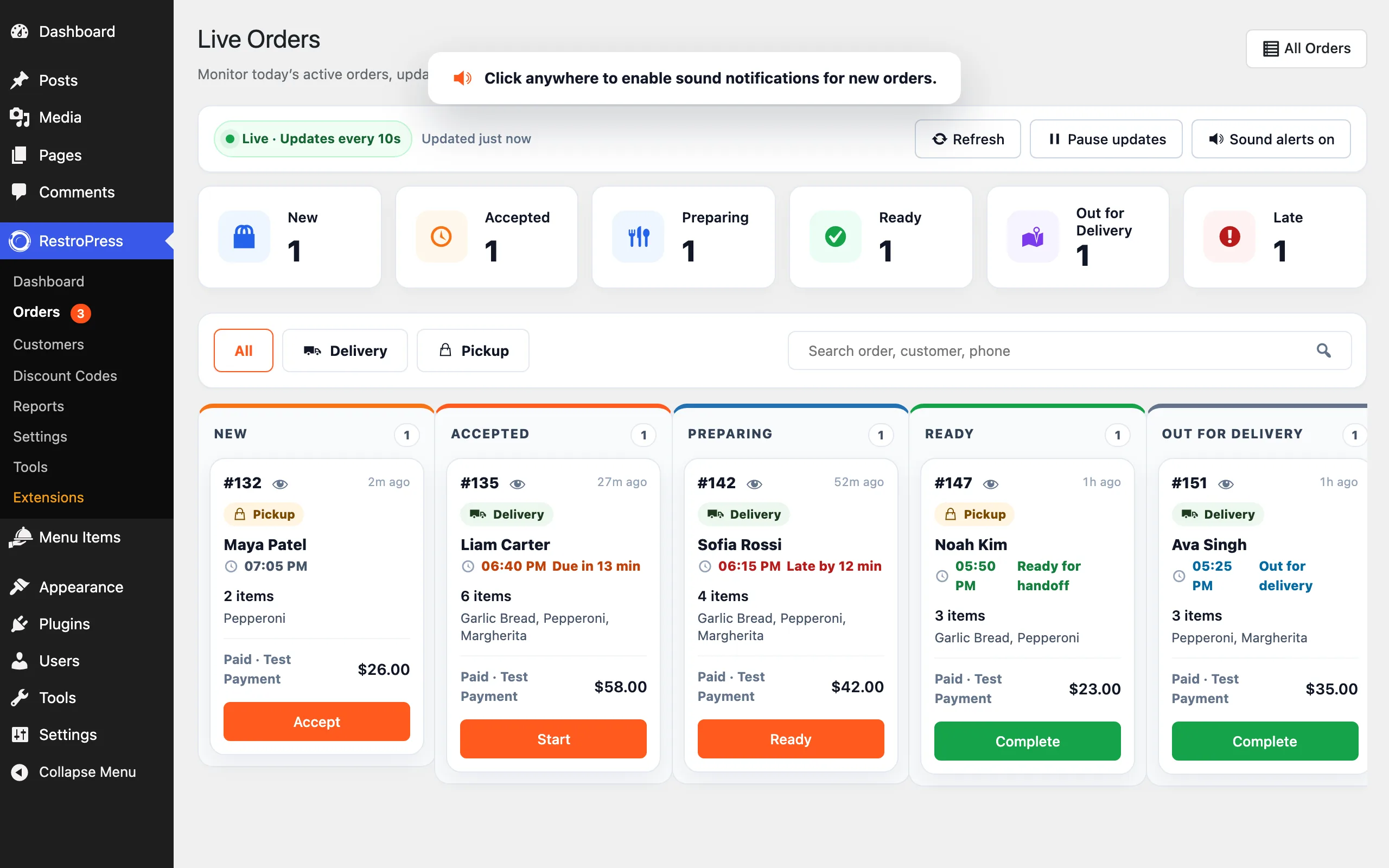
- Live updates: the board refreshes every 10 seconds. Refresh updates it now, Pause updates stops the refresh while you work, and Sound alerts plays a sound when a new order arrives. Browsers only allow sound after you click on the page once.
- Counters: New, Accepted, Preparing, Ready, Out for Delivery and Late.
- Filters: show All orders, only Delivery or only Pickup, or search by order, customer or phone.
- Cards: each order shows its number, service type, customer, due time (with how long until it is due, or how late it is), items and payment status. The eye icon opens the full order.
- One-tap progress: the button on each card moves the order to the next column: Accept (New to Accepted), Start (to Preparing), Ready, then Complete for pickup orders and orders out for delivery.
Customers see their order's progress on the order confirmation page as the status changes. All Orders returns to the Orders list.
Was this page helpful?