
RestroPress CCAvenue Payment Gateway
On this page
RestroPress CCAvenue Payment Gateway adds CCAvenue as a payment method at checkout. The customer is sent to CCAvenue to pay and returns to your site, where the plugin checks a checksum and marks the order completed or failed. It targets restaurants that use CCAvenue in India.
Status: early version. The plugin registers a gateway, settings and a return handler, but the code has not been shown to complete a payment against CCAvenue. Treat it as unfinished: use it only with the provider's sandbox until you have tested a full order yourself.
Requirements#
- RestroPress. The plugin loads only when the
RestroPressclass exists and does not check a version. - A CCAvenue account with a Merchant ID, Access Code and Working Key.
- Orders are always sent to CCAvenue in INR, whatever currency the store uses. Use this gateway only on a store whose currency is INR.
Installation#
- In WordPress go to Plugins › Add New › Upload Plugin, choose the ZIP file and install it.
- Activate RestroPress CCAvenue Payment Gateway.
- Go to RestroPress › Settings › Payment Gateways, tick CCAvenue under Payment Gateways on the General section and save.
- Open the CCAvenue section on the same tab and fill in the settings below.
The plugin has no licence key field, so there is nothing to enter under RestroPress › Settings › Licenses for it.
Settings#
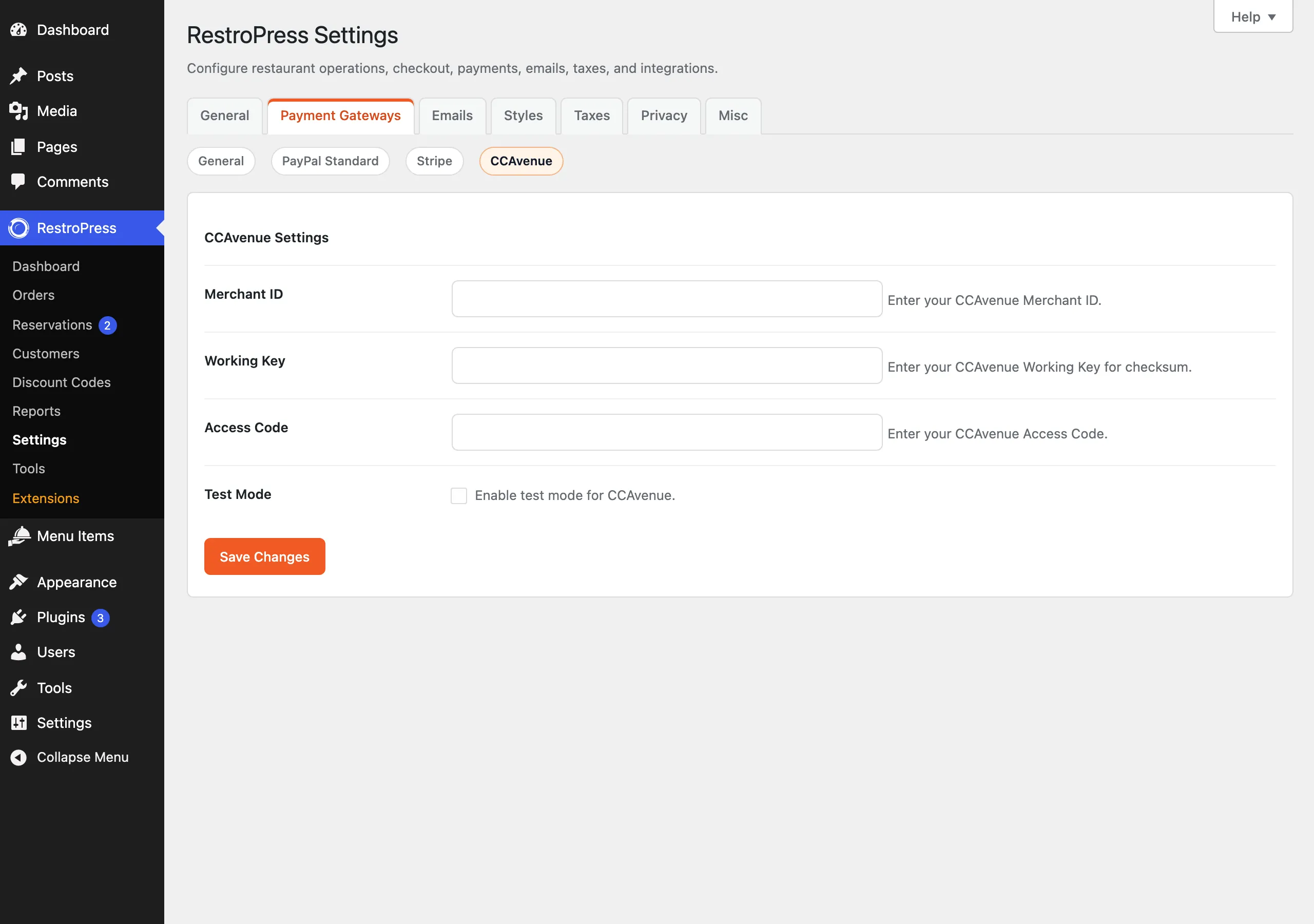
Found under RestroPress › Settings › Payment Gateways › CCAvenue, below the heading CCAvenue Settings.
| Setting | What it does | Default |
|---|---|---|
| Merchant ID | Your CCAvenue Merchant ID. Required. | Empty |
| Working Key | "Your CCAvenue Working Key for checksum." Used to build and check the checksum. Required. | Empty |
| Access Code | Your CCAvenue Access Code. Required to proceed, but the current code does not send it to CCAvenue. | Empty |
| Test Mode | Posts to test.ccavenue.com instead of secure.ccavenue.com. This is a setting of this plugin; it does not follow the main RestroPress Test Mode option. | Off |
The Working Key is an ordinary text field, so it is visible on the settings screen.
How it works#
- The customer chooses CCAvenue at checkout. No card form is shown.
- The plugin checks that Merchant ID, Working Key and Access Code are filled in; otherwise checkout shows "CCAvenue configuration is incomplete."
- It creates the order with status
pendingand gatewayccavenue, then outputs an auto-submitting form to CCAvenue containing the merchant ID, order ID, amount, currencyINR, an MD5 checksum, and redirect URL/?rpress-listener=ccavenue. The cancel URL is your checkout page. - CCAvenue posts the result back. The plugin recomputes an MD5 checksum from the Working Key, order ID, status and amount and stops with "Checksum verification failed" if it does not match.
- If
order_statusisSuccessthe order becomespublish(completed), the cart is emptied and the customer lands on the success page. Any other status sets the order tofailedand returns the customer to checkout with "Payment failed."
The returned amount is not compared with the order total, and there is no refund support. The request is sent as plain form fields with an MD5 checksum, which is not shown to be the format CCAvenue's live gateway accepts, so run a full test payment before going live.
Troubleshooting#
- CCAvenue configuration is incomplete. Merchant ID, Working Key or Access Code is empty.
- Checksum verification failed. The Working Key differs from the one CCAvenue uses, or the response is not in the format the plugin expects.
- Invalid response from CCAvenue / Payment not found. The return arrived without
order_idororder_status, or the ID is not an order. - With
WP_DEBUGon, details go to the PHP error log with the prefix[RPRESS CCAvenue]. The request log includes the checksum, so do not share it.