
Add menu items
On this page
Menu items are the dishes and drinks customers order from your menu page. This guide covers adding them one by one, importing a whole menu at once, and setting up the categories, add-on groups, tags and dietary labels that go with them.
Renamed in RestroPress 3.3: "Food Items" is now Menu Items and "Add-on Category" is now Add-on Group. Only the labels changed. Your URLs, shortcodes and data are the same.
Before you start: the menu page#
When you install RestroPress it creates an Order Online page with the [fooditems] shortcode, and selects it under RestroPress › Settings › General › Store Setup › Menu Items Page. Customers browse and order from that page, so you don't need to create one yourself.
To use a different page, add the [fooditems] shortcode or the Menu block to it, then select it as the Menu Items Page. See Shortcodes and blocks for the options.
Import your menu#
If you already have a menu, importing it is faster than typing every item. Go to Menu Items › Import and pick one of three ways in:
- AI import: upload a PDF, a photo of a printed menu or a messy spreadsheet. AI reads it into items, prices, sizes and add-ons. It works with the built-in WordPress AI, OpenAI or Google Gemini.
- Spreadsheet: upload a clean CSV or XLSX file. It is read directly, with no AI involved. Download the CSV template from the import screen to see the expected columns.
- Sample menu: load a ready-made Cafe & Bakery, Pizzeria, Burger Diner or Healthy Kitchen menu to see how RestroPress works, then edit or delete it.
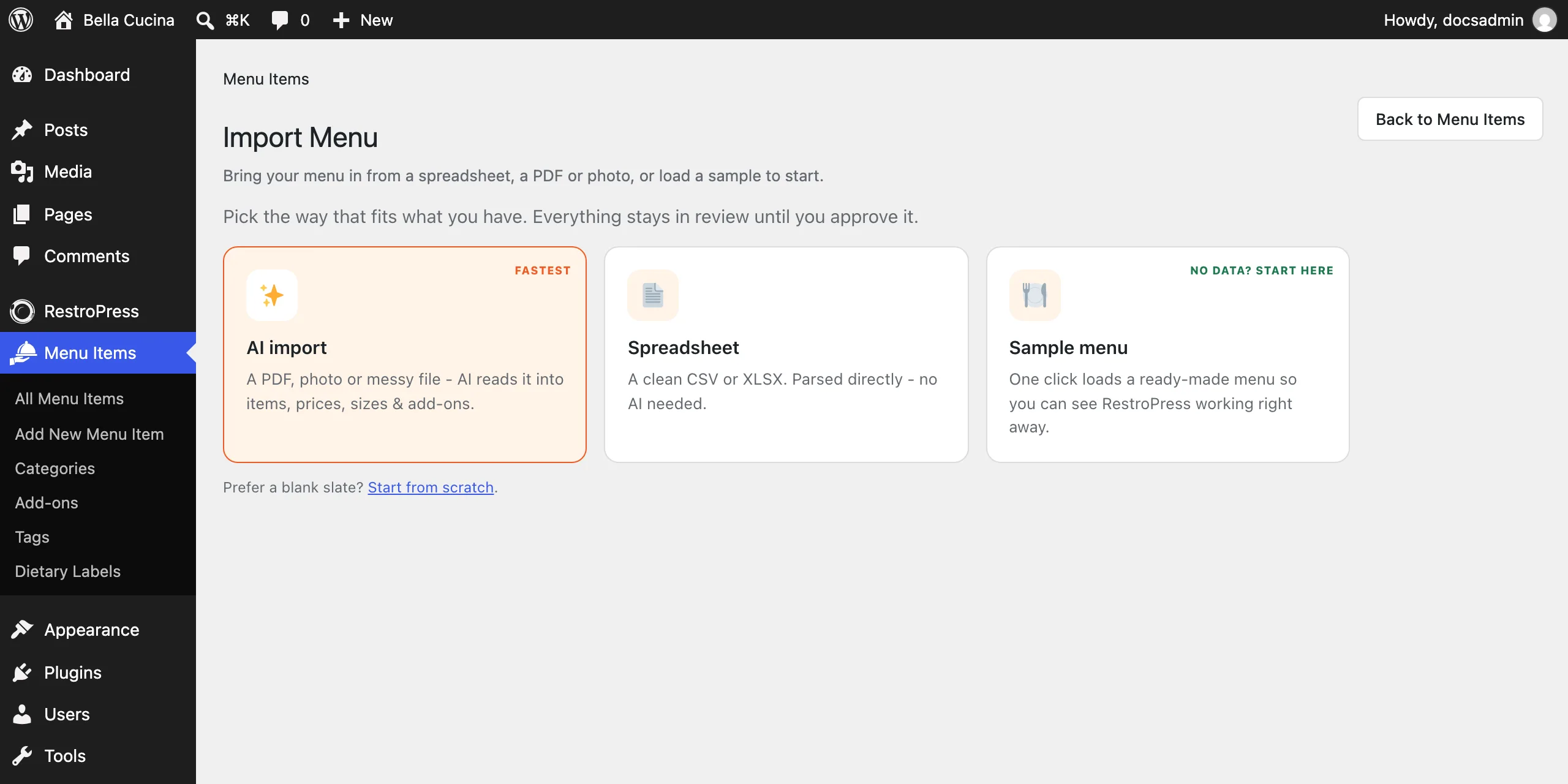
Nothing goes live straight away. Imported items wait on a review screen where you can fix names, prices, sizes, add-ons and dietary labels before you publish them. RestroPress also warns you if an uploaded file doesn't look like a menu.
The same import is offered as a step in the setup wizard that runs when you first activate RestroPress.
Add a menu item#
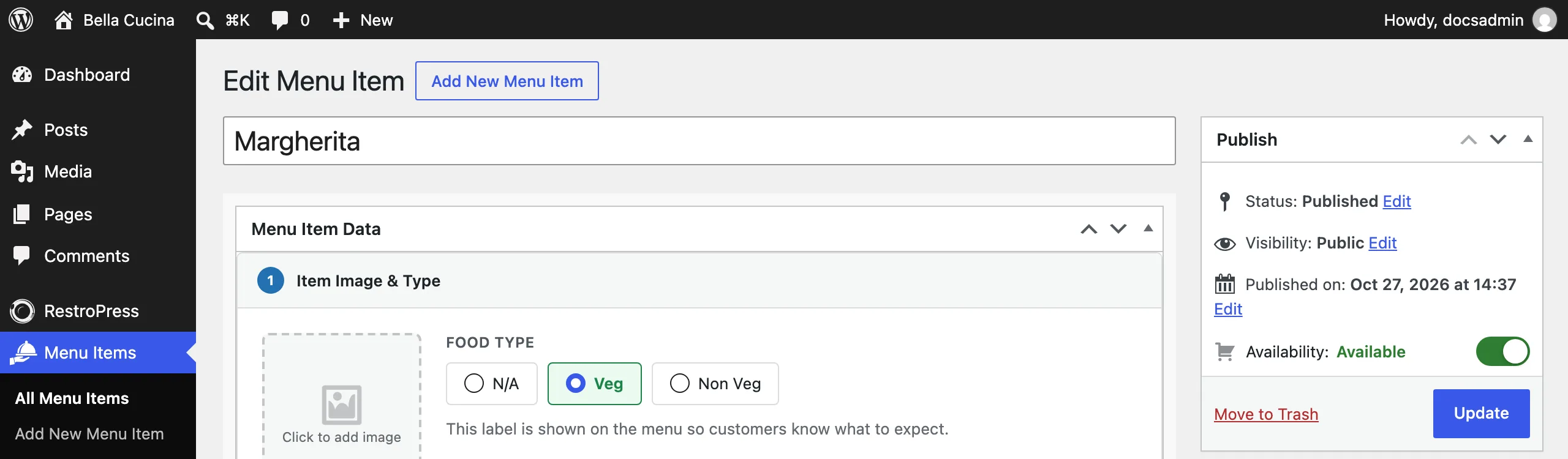
Go to Menu Items › Add New Menu Item and enter the item's name at the top. The editor is split into numbered sections, with the Publish box on the right.
1. Item Image & Type#
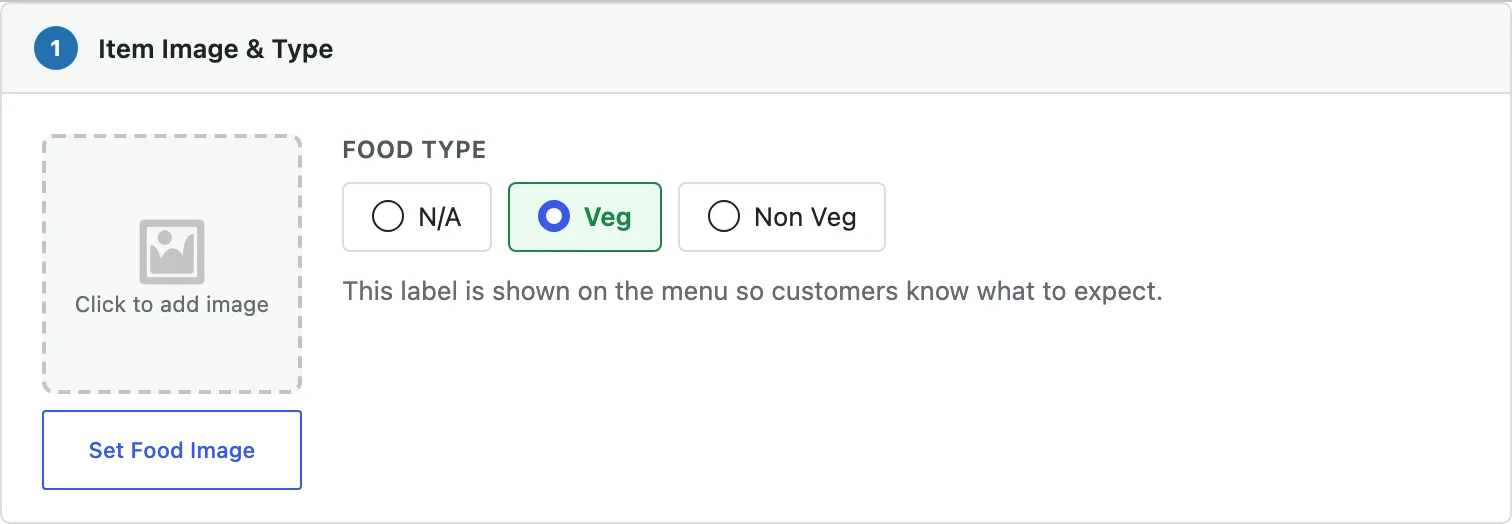
Click Set Food Image to choose the photo shown on the menu. Under Food Type, choose Veg, Non Veg or N/A. This sets the green or red Veg / Non-veg mark used in India and similar markets; leave it on N/A if you don't use the marks.
2. Description#
- Short description: shown on the menu card under the item name. Keep it to one or two lines.
- Full description: shown in the popup where customers choose sizes and add-ons. Use it for ingredients, allergens and preparation notes.
3. Pricing#
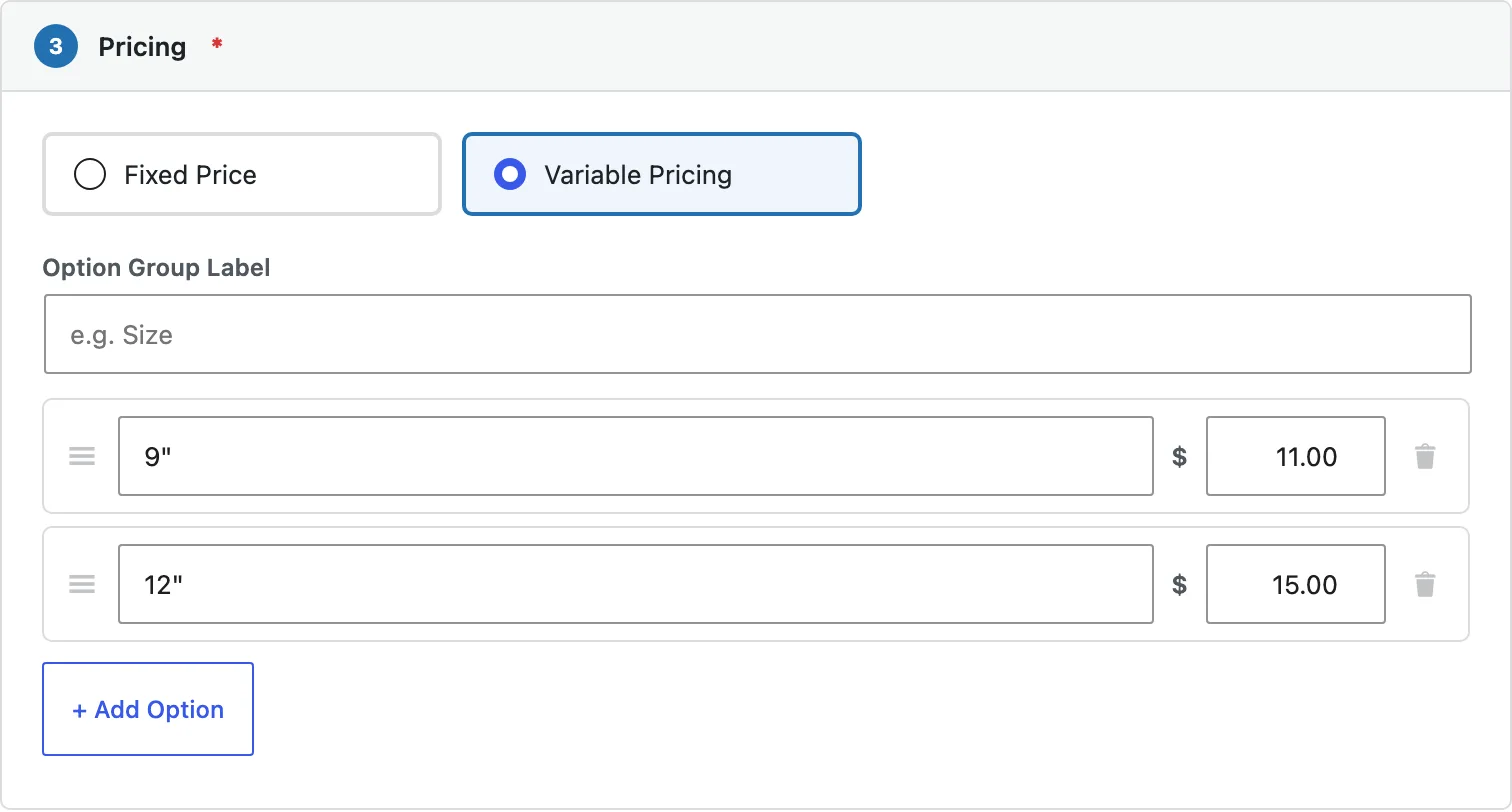
Choose Fixed Price for an item with one price, or Variable Pricing for an item that comes in sizes or portions.
For variable pricing, enter an Option Group Label such as "Size". Then add one row per option with its name and price, using + Add Option. Drag the handle on the left of a row to change the order. The menu shows the price range, for example $11.00 – $15.00.
Advanced Settings, below Pricing, holds Admin Notes: internal notes about the item that customers don't see.
4. Category, Tags & Dietary#
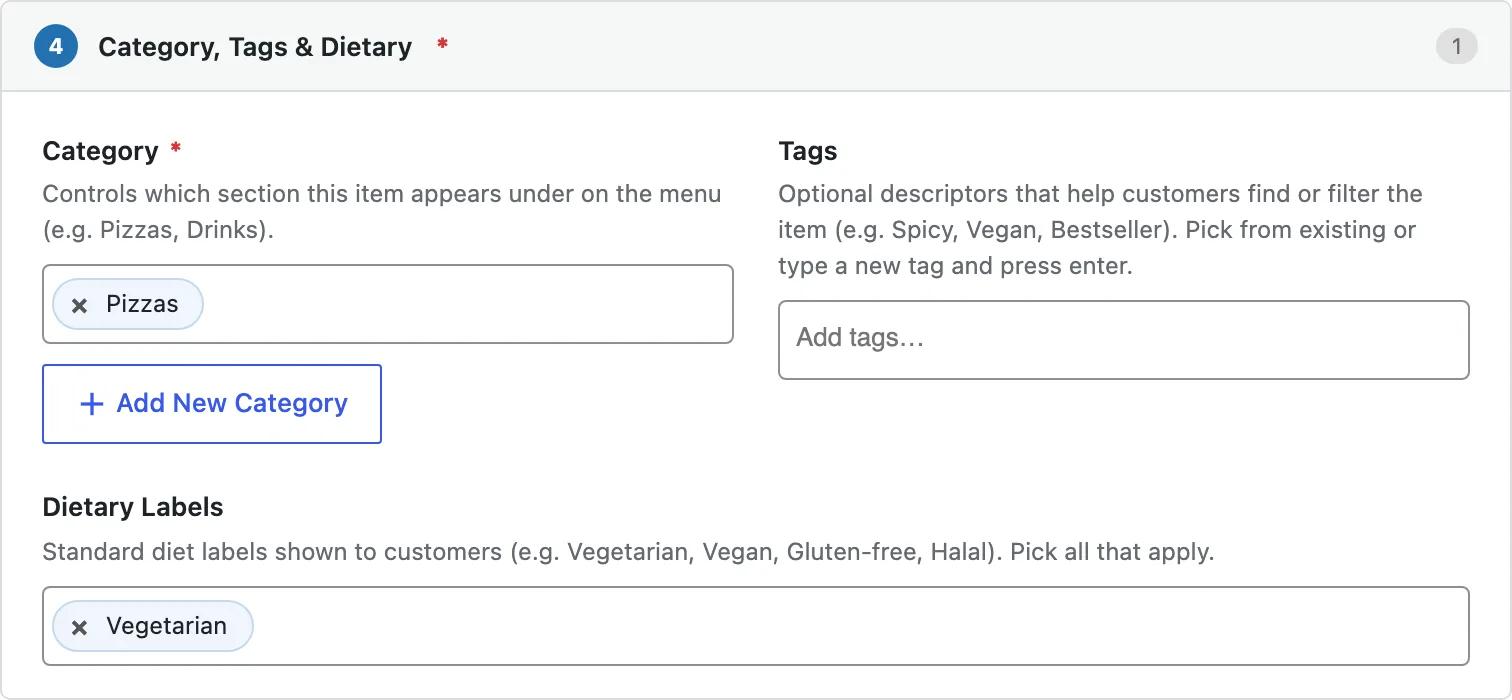
- Category (required): the section of the menu the item appears under, such as Pizzas or Drinks. Choose an existing category, or click + Add New Category to create one without leaving the editor.
- Tags: optional labels such as Spicy, New or Bestseller. Pick an existing tag, or type a new one and press Enter.
- Dietary Labels: pick all that apply. They show as small labels on the menu card.
5. Add-ons#
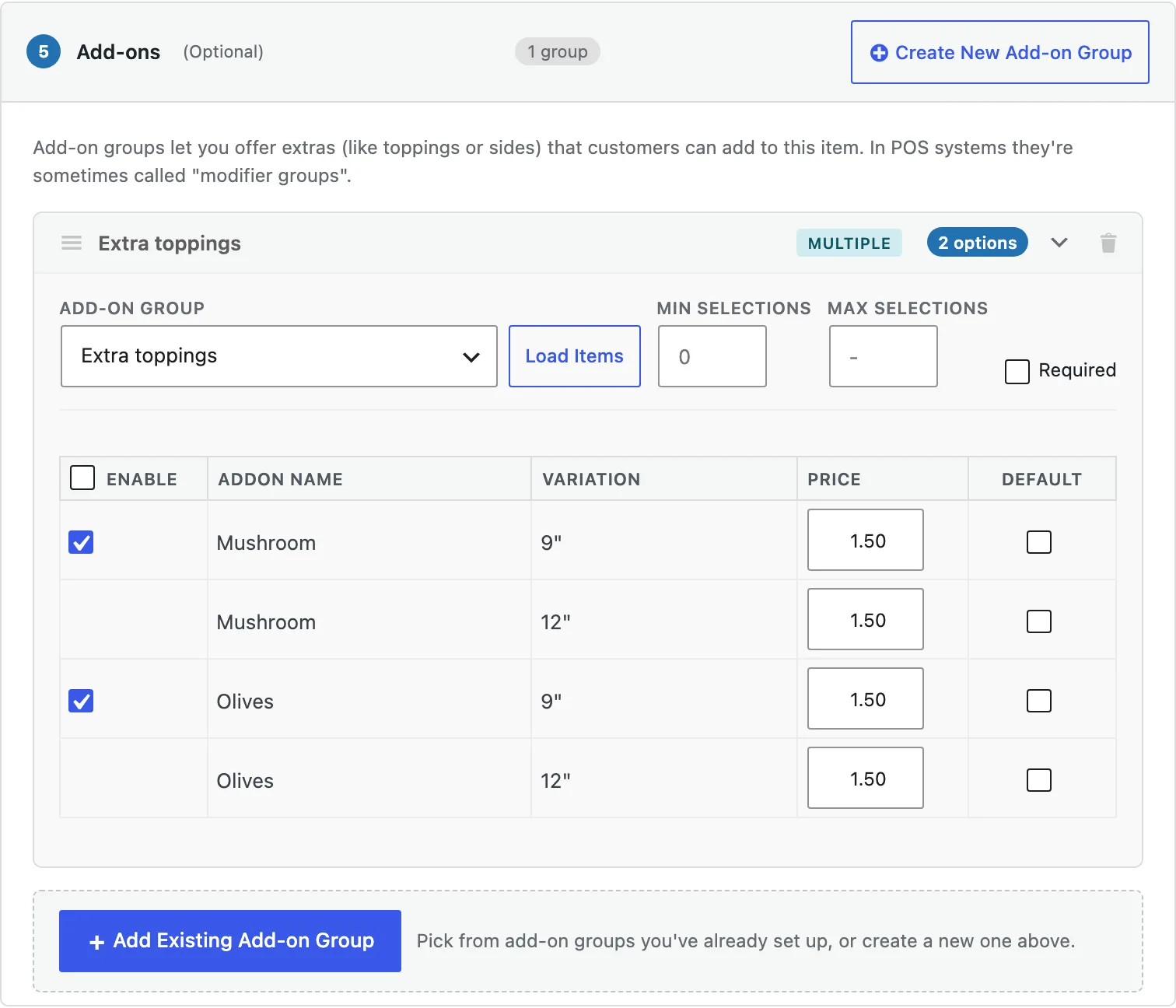
Add-on groups let customers add extras to the item, such as toppings, sides or dips. Point-of-sale systems often call these modifier groups. Use + Add Existing Add-on Group to attach a group you've already set up, or Create New Add-on Group to make one right here.
For each group attached to the item:
- Load Items lists the add-ons in the group. Tick Enable for the ones this item offers.
- Price sets what each add-on costs on this item. If the item has sizes, you can set a different price for each size.
- Default pre-selects an add-on when the customer opens the item.
- Min selections and Max selections set how many add-ons a customer must or can choose from the group.
- Required makes the customer choose from this group before adding the item to the cart.
Drag a group by its handle to change the order customers see. Use the trash icon to remove a group from this item; the group itself is not deleted.
Publish and availability#
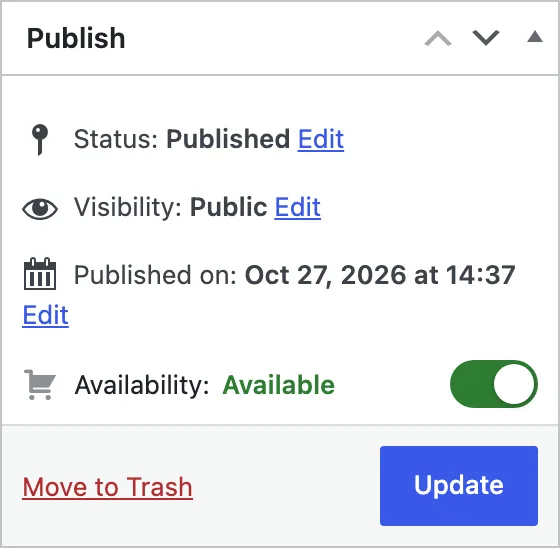
Click Publish (or Update) to save the item. The Availability switch in the Publish box marks an item as sold out without deleting or hiding it. Sold-out items show a badge on the menu and can't be added to the cart until you switch them back to Available. You can also switch availability from the Availability column in the menu items list. You don't need an extension for this.
Manage your menu items#
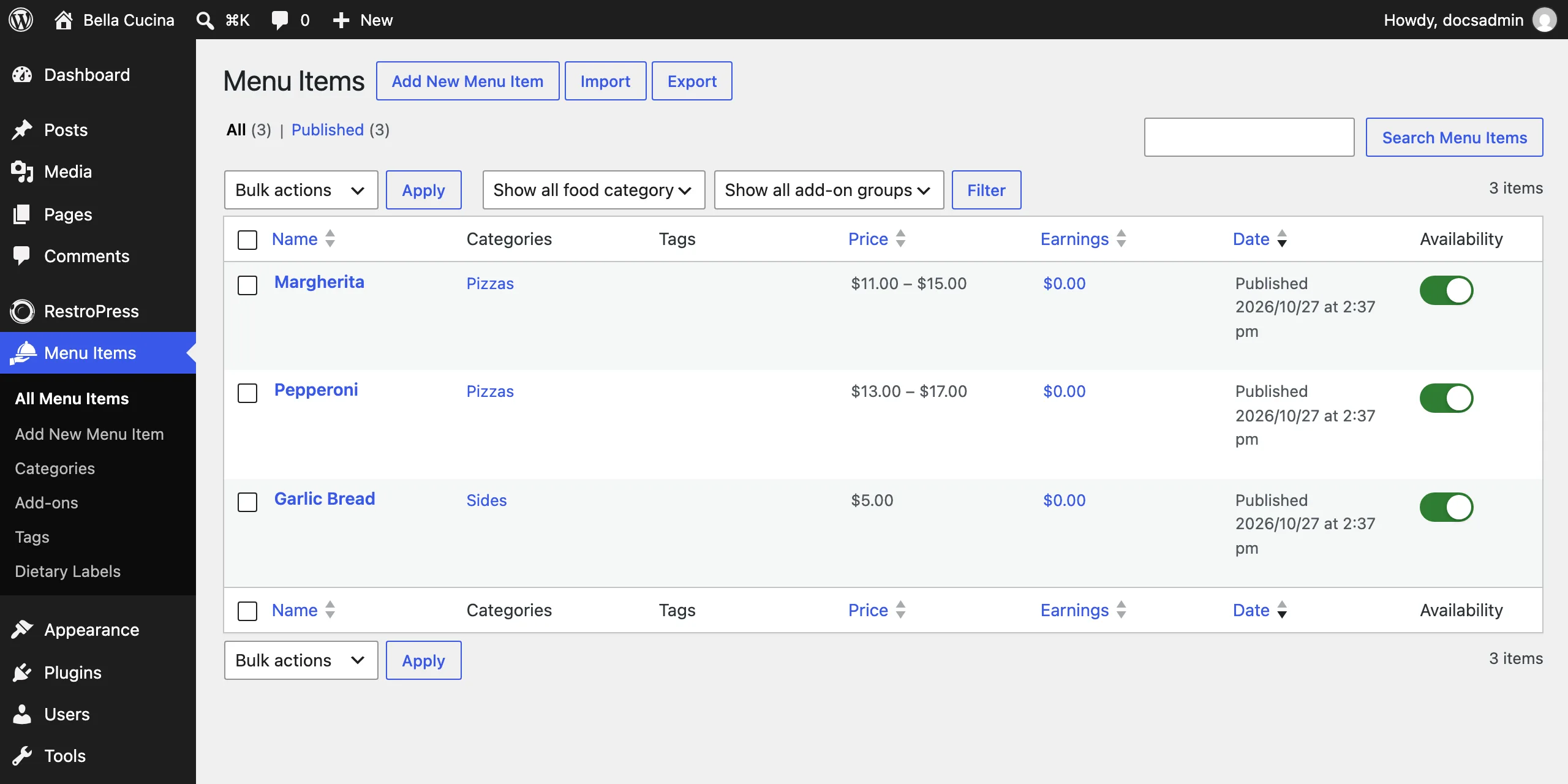
Menu Items › All Menu Items lists every item with its categories, tags, price, earnings and availability. Filter the list by category or add-on group, and use Bulk actions to edit or trash several items at once.
Categories#
Categories are the sections of your menu, such as Starters, Pizzas and Drinks. Manage them under Menu Items › Categories. To make a subcategory, choose a Parent Category when you add it.
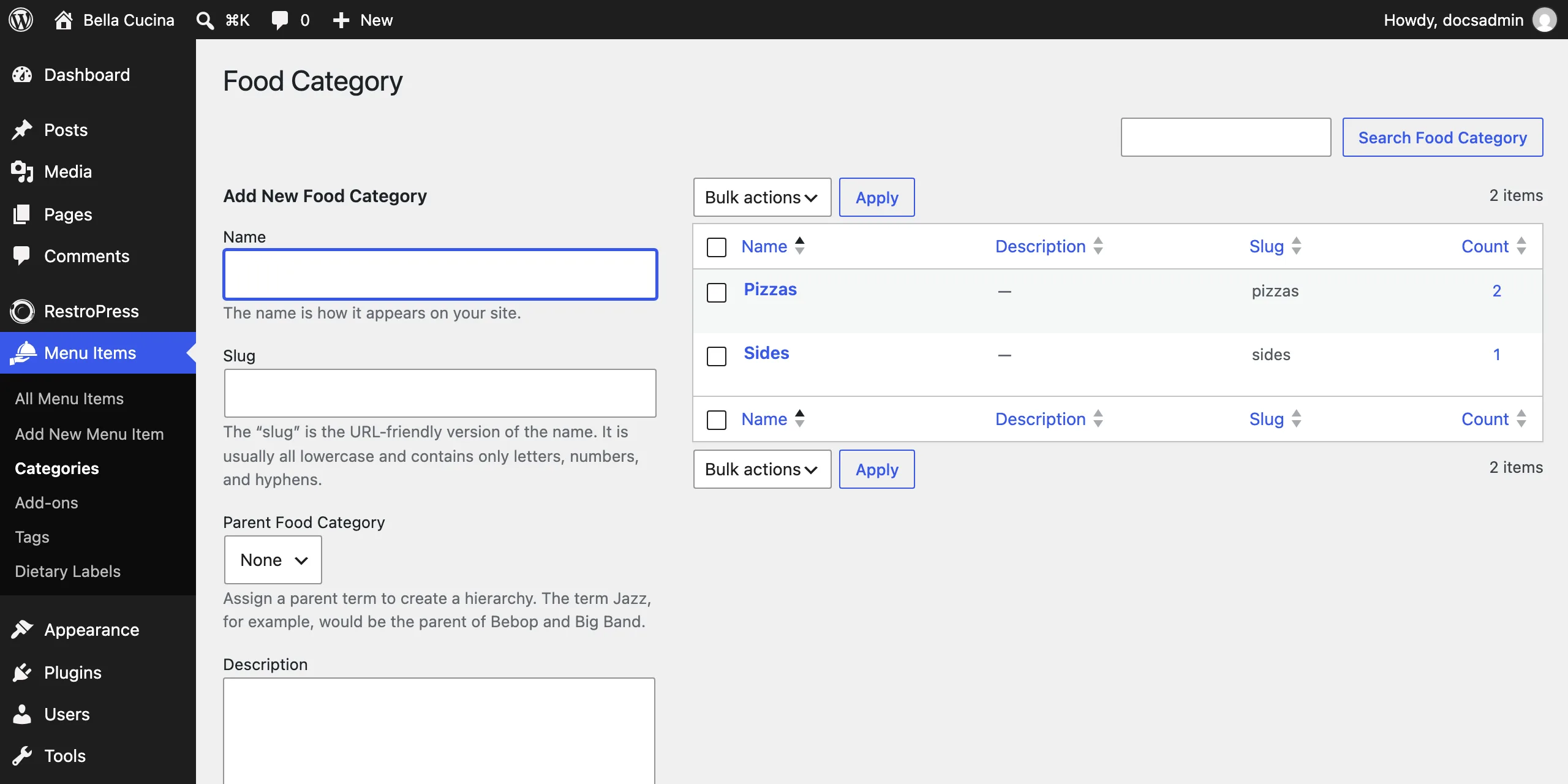
The [fooditems] shortcode can limit the menu page to certain categories and set their order. See Shortcodes and blocks.
Add-on groups#
Manage add-on groups under Menu Items › Add-ons. A group, such as "Extra toppings", holds its add-ons, such as Mushroom and Olives:
- Add the group: enter its Name and leave Parent Add-on Group set to None.
- Edit the group and choose its Addon item selection type: Single item (customers pick one) or Multiple Items (customers can pick several).
- Add each add-on: enter its Name, choose the group as the Parent Add-on Group, and enter its Price.
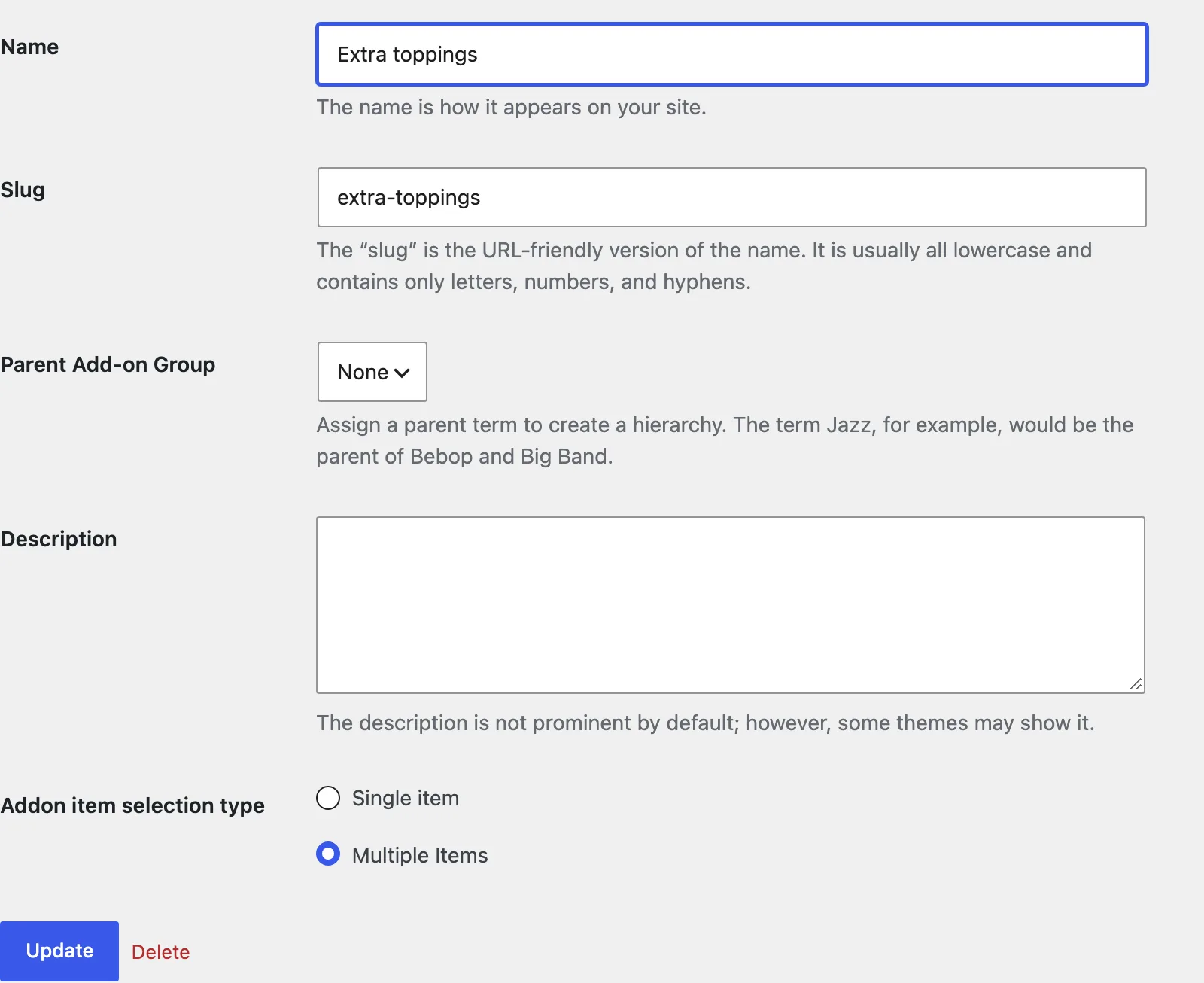
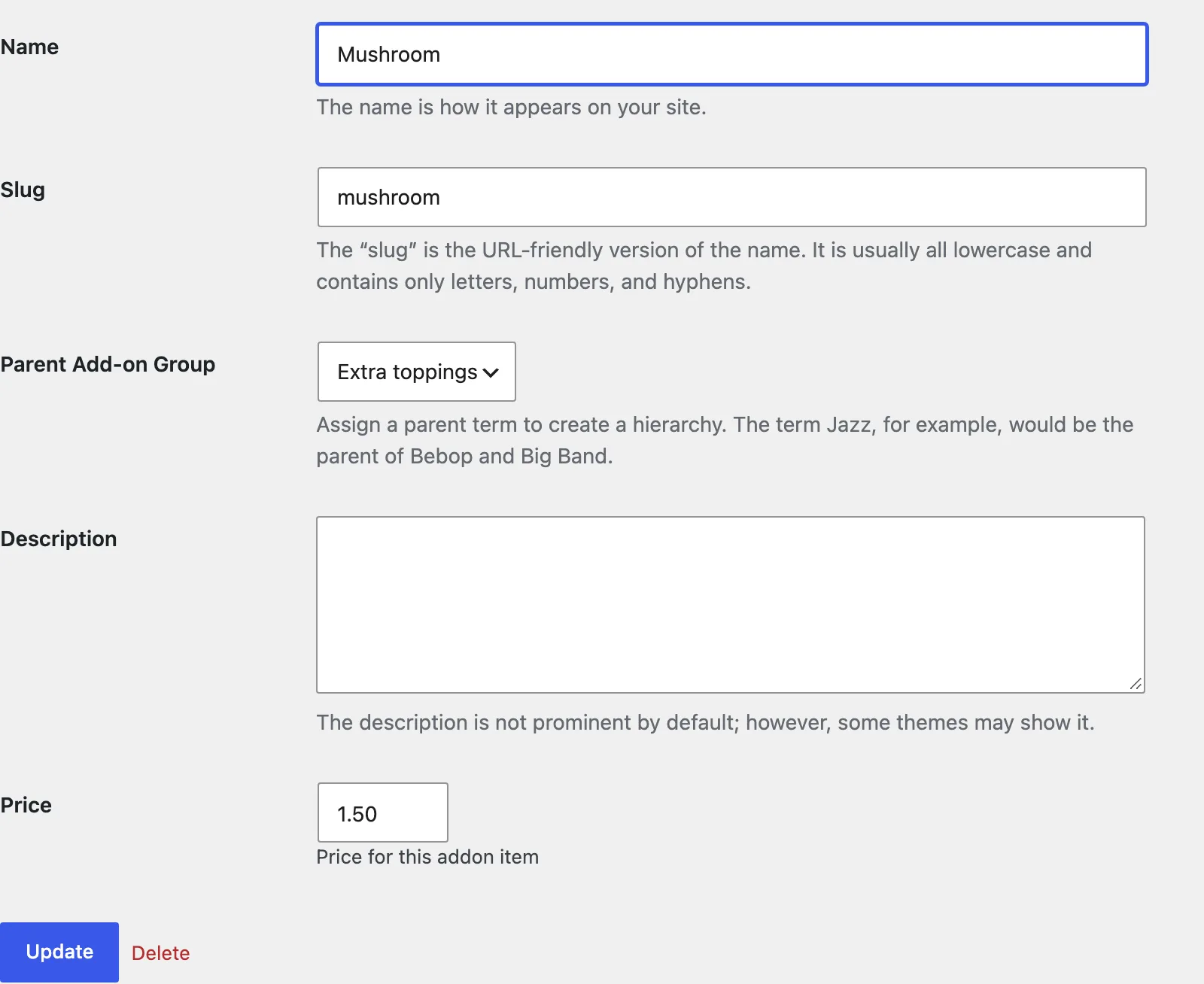
The price you set here is the default. You can change it per menu item, and per size, in the item's Add-ons section.
Tags and dietary labels#
Menu Items › Tags lists the tags you've created. You can also add tags while editing an item. To show tags on the menu, turn on Show Tags under Settings › Styles.
Menu Items › Dietary Labels comes with Vegetarian, Vegan, Gluten-free, Dairy-free, Nut-free, Halal, Kosher and Spicy. You can rename these or add your own.
Export your menu#
Menu Items › Export downloads your menu as a CSV file for a backup, for moving to another site, or for checking in a spreadsheet. Choose the columns and categories to include. The file can be imported back in through Menu Items › Import › Spreadsheet.
To move your RestroPress settings rather than your menu, use Settings › Misc › Import / Export configuration.
Check your menu page#
Open your menu page (Order Online, unless you changed it) to see your items. Customers choose delivery or pickup and a time, browse by category, search, and open an item to pick sizes and add-ons.
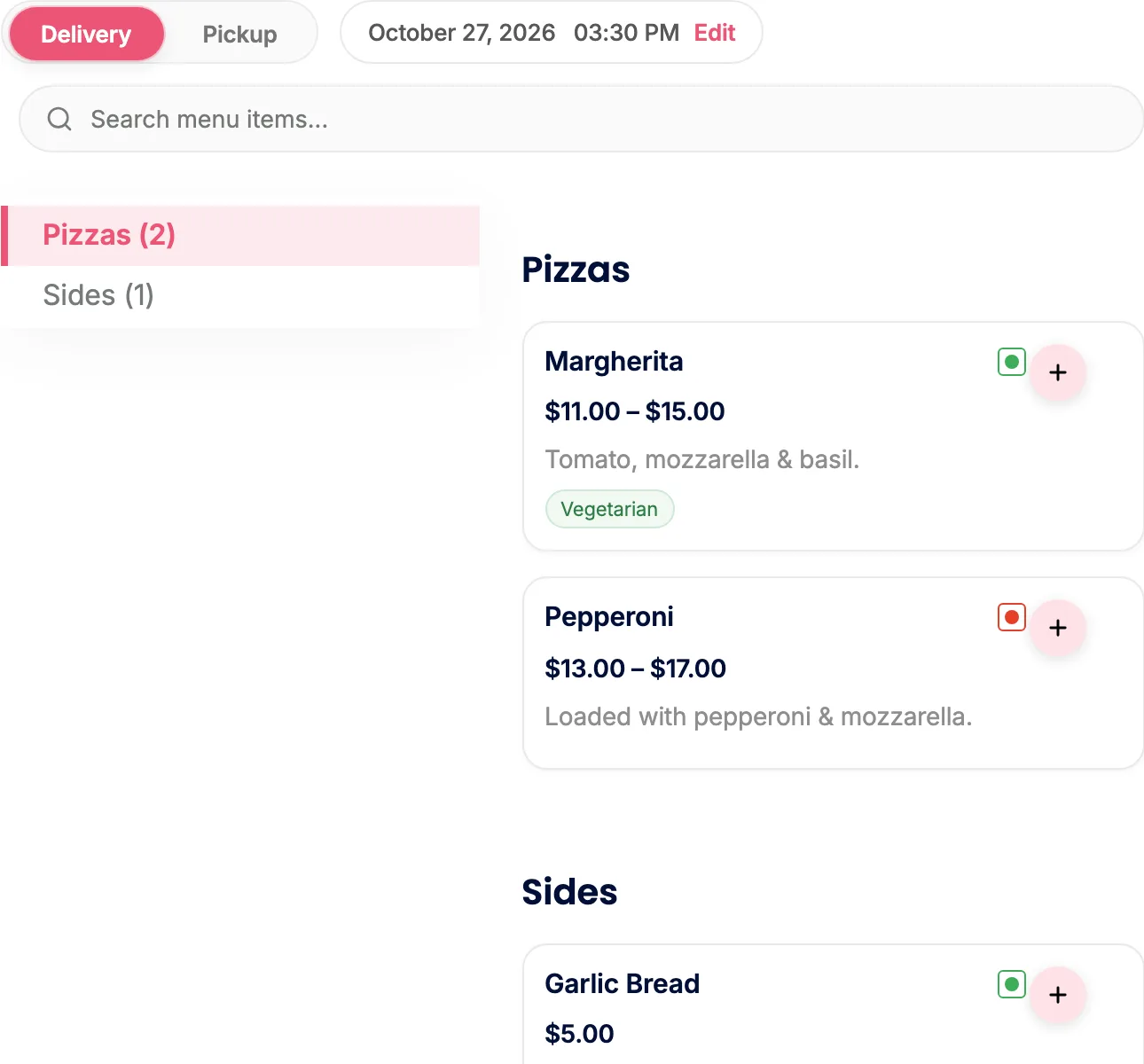
To change how the menu looks (template pack, list or grid layout, colours and buttons), go to Settings › Styles.