
Stripe Payment Gateway
On this page
Stripe is built into RestroPress 3.4.11 and uses Stripe Checkout, Stripe's own hosted payment page. When a customer chooses Stripe at checkout and places the order, RestroPress creates the order, sends the customer to a Stripe-hosted page to pay, and brings them back to your order confirmation page. Card details are entered on stripe.com, never on your site, so RestroPress does not show a card form.
Which payment methods the customer sees on the Stripe page (cards, wallets and so on) is decided by your Stripe account settings, not by RestroPress. Since the 23 Oct 2026 change, RestroPress no longer sends a fixed payment_method_types list, so Stripe's dynamic payment methods apply. Manage them in your Stripe Dashboard.
Before you start#
- A Stripe account. Create one at stripe.com if you do not have one.
- Your site should run on HTTPS. Stripe will only send webhooks to a reachable URL, and your customers are returned to your site after paying.
- The separate RestroPress Stripe extension must not be active. If it is, the built-in Stripe is switched off: the Stripe section disappears from the settings and the gateway is not offered. Customers who somehow reach it see: "Core Stripe is disabled because the RestroPress Stripe extension is active." Deactivate the extension to use the built-in gateway.
- The built-in Stripe is currently the hosted-checkout flow only. There is no on-site card form.
Set up Stripe#
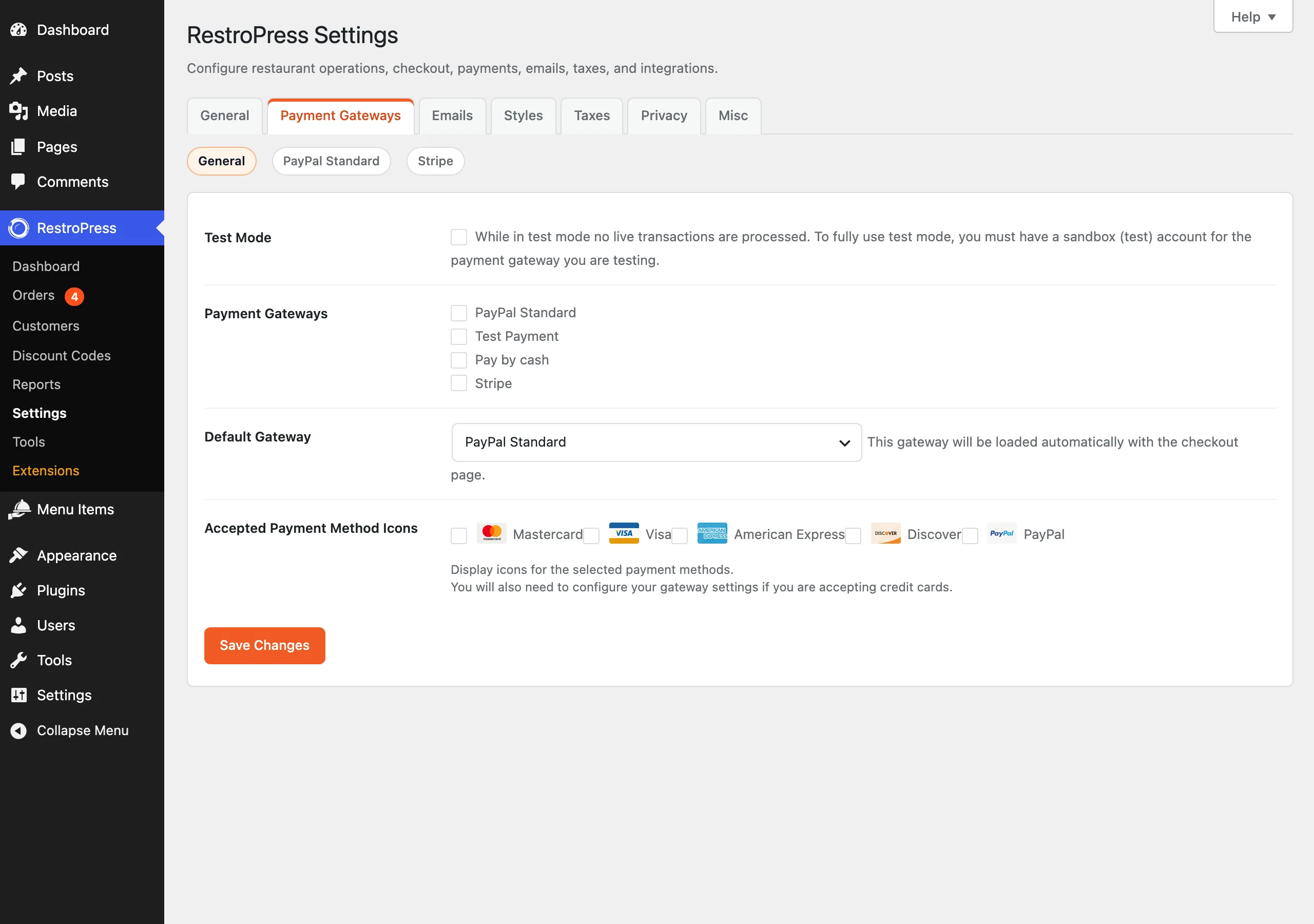
- Go to RestroPress › Settings › Payment Gateways and open the General section.
- Under Payment Gateways tick Stripe. Optionally choose it under Default Gateway ("This gateway will be loaded automatically with the checkout page."). Click Save Changes.
- Open the Stripe section (RestroPress › Settings › Payment Gateways › Stripe). The page is headed Stripe Settings.
- Make sure Stripe Self Hosted Checkout is ticked ("It will redirect to stripe.com for checkout."). It is on by default for new installs. If you untick it, customers get the error "Core Stripe only supports Stripe hosted checkout." and cannot pay.
- Copy your API keys from your Stripe Dashboard (Developers › API keys) into the fields. For testing fill Test Secret Key and Test Publishable Key. For real payments fill Live Secret Key and Live Publishable Key.
- Set up the webhook (next section) and paste its signing secret into Webhook Signing Secret.
- Click Save Changes.
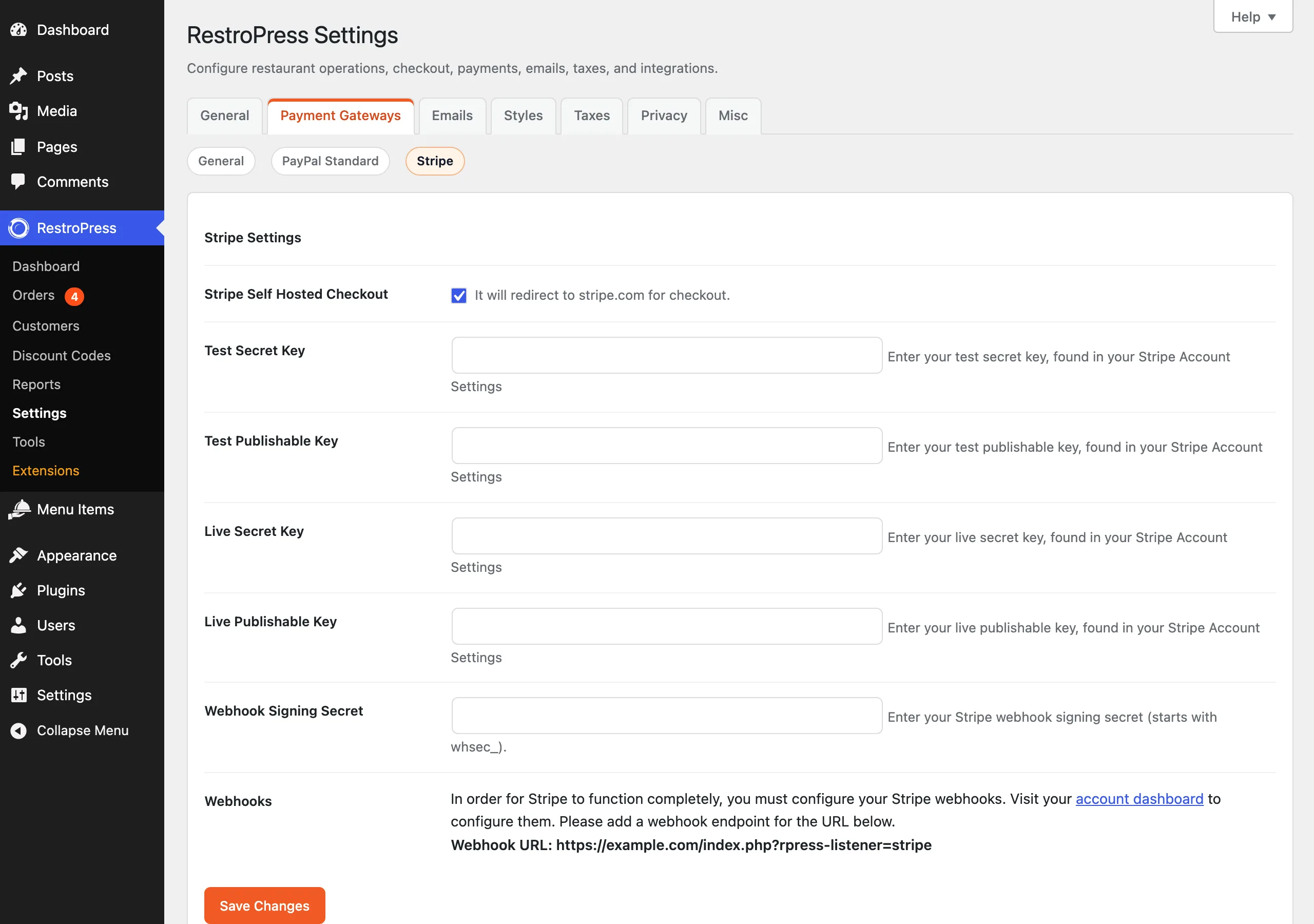
Only the secret key of the active mode is used to talk to Stripe: the test secret key when Test Mode is on, the live secret key when it is off. The publishable key fields are stored, but the built-in hosted-checkout flow does not read them. If the secret key for the active mode is empty, the customer sees "Please add your Stripe secret key before placing an order."
Webhook#
The webhook is what confirms payment reliably, for example if a customer closes the browser before returning to your site, or pays with a method that settles later. The Stripe section shows the exact URL under Webhooks ("Webhook URL"). It has this form:
https://your-site.com/index.php?rpress-listener=stripe- In the Stripe Dashboard open the webhooks page (the link in the Webhooks setting goes to dashboard.stripe.com/account/webhooks) and add an endpoint with the URL shown in your settings.
- Select these events, which are the ones RestroPress acts on:
checkout.session.completed,checkout.session.async_payment_succeeded,checkout.session.async_payment_failedandcheckout.session.expired. - Copy the endpoint's signing secret (it starts with
whsec_) into Webhook Signing Secret and save.
Test and live mode have separate webhook endpoints in Stripe, but RestroPress has a single Webhook Signing Secret field. When you switch between test and live, replace the secret with the one for the endpoint of that mode.
RestroPress rejects any webhook request with a missing or empty signing secret, a bad signature, or a timestamp more than 300 seconds old, answering HTTP 400 with the text "Invalid signature". A body that is not valid JSON with an event type gets 400 "Invalid payload". A handled or ignored event gets 200 "OK".
Test mode and going live#
- Go to RestroPress › Settings › Payment Gateways › General and tick Test Mode ("While in test mode no live transactions are processed...").
- Use the test keys and Stripe's test cards, then place an order. You are sent to Stripe's page, pay, and land on the order confirmation page. In the order, the transaction ID links to your Stripe Dashboard test payments.
- When everything works, untick Test Mode, enter the live keys and the live webhook's signing secret, and save.
What happens to the order#
- Customer clicks place order. RestroPress saves the order with a temporary private status, creates a Stripe Checkout session for the full order total (shown on Stripe as "Total Order #" followed by the order number) and redirects to Stripe. The order gets a note "Stripe Checkout Session ID: ...". The customer's email is pre-filled on the Stripe page.
- Payment succeeds. When the customer returns to your confirmation page, or when the webhook arrives, RestroPress checks the session. If Stripe reports it as paid and the amount is not below the order total, the payment status becomes Paid, a note "Stripe PaymentIntent ID: ..." is added and the PaymentIntent ID is saved as the order's transaction ID. Orders already Paid are not touched again.
- Return before payment is confirmed. While the order is still pending or private, the confirmation page shows the "payment processing" screen instead of the receipt.
- Amount too low. If Stripe reports a total lower than the order total, the order is set to Failed with the note "Stripe payment failed due to an invalid amount."
- Payment fails later (
checkout.session.async_payment_failed). The order is set to Failed with the note "Stripe checkout payment failed." - Checkout session expires (
checkout.session.expired). A note "Stripe checkout session expired." is added and the stored session ID is removed. The status is not changed by this event. - Customer cancels on Stripe. They are returned to the checkout page with Stripe selected. Nothing else changes on the order.
- API error when starting payment. The error is logged (title "Stripe Error"), the order is set to Failed and the customer sees Stripe's message, or "Unable to create a Stripe checkout session." if none came back.
If the Order Auto Accepted option is on (RestroPress › Settings › General), a Stripe order is only auto-accepted after it has been marked Paid.
Refunds#
The built-in Stripe gateway has no refund code. Refund the payment in your Stripe Dashboard (the order's transaction ID links straight to it). Then update the order in RestroPress by setting its payment status to Refunded. Changing the status in RestroPress does not send money back by itself.
Common problems#
- "Please add your Stripe secret key before placing an order." The secret key for the current mode is empty. Check whether Test Mode is on and fill the matching key.
- "Core Stripe only supports Stripe hosted checkout." Tick Stripe Self Hosted Checkout.
- "Core Stripe is disabled because the RestroPress Stripe extension is active." Deactivate the extension.
- The Stripe section is missing. The same cause: the extension is active.
- Orders stay on the processing screen or never become Paid. The webhook is not reaching your site or the signing secret is wrong. Check the endpoint URL, the selected events, and the delivery log in your Stripe Dashboard. Responses of 400 mean the secret or signature failed.
- Other Stripe messages (for example an invalid API key or an unsupported currency) are passed through as Stripe returns them, and are also recorded in the gateway error log.
- Amounts are sent in the smallest currency unit. Zero-decimal currencies such as JPY are handled by the plugin.
Developer notes#
- Filter
rpress_core_stripe_settingschanges the Stripe settings fields. - Filter
rpress_core_stripe_secret_keyoverrides the secret key in use. - Filter
rpress_core_stripe_webhook_tolerancechanges the 300 second signature tolerance (0 disables the check). - Filter
rpress_core_stripe_extension_plugin_pathslists plugin files treated as the Stripe extension. - Action
rpress_gateway_stripeprocesses the order for this gateway. Webhook endpoint:?rpress-listener=stripe. - Filter
rpress_payment_confirm_stripecontrols the confirmation page content while payment is pending. - Order meta:
_stripe_checkout_sessions_key(session ID until paid) and_rpress_stripe_customer_id(when Stripe returns a customer). - Generic gateway hooks also apply:
rpress_payment_gateways,rpress_enabled_payment_gateways,rpress_settings_gateways,rpress_settings_sections_gateways.