
Orders
Every order placed on your site appears under RestroPress › Orders. A red number next to the menu name shows how many orders need attention. This guide covers the order list, the order screen, statuses and notes. For the kitchen board, see Command Center and Live Orders.
The Orders list#
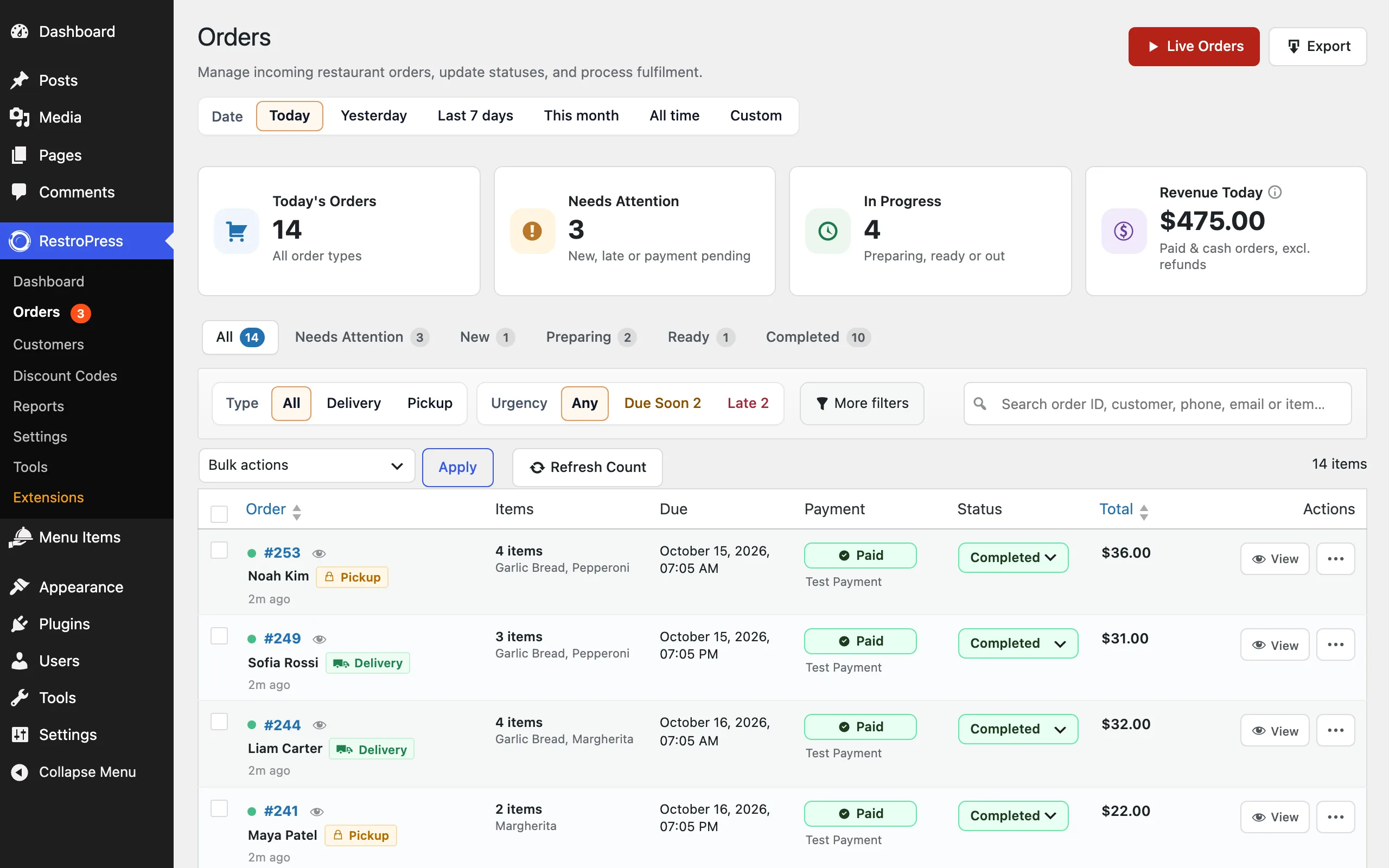
- Date: Today, Yesterday, Last 7 days, This month, All time or a Custom range.
- Summary cards: Today's Orders, Needs Attention (new, late or payment pending), In Progress (preparing, ready or out for delivery) and Revenue Today (paid and cash orders, excluding refunds).
- Status tabs: All, Needs Attention, New, Preparing, Ready and Completed, each with a count.
- Filters: Type (All, Delivery or Pickup), Urgency (Any, Due Soon or Late), More filters, and a search box that matches order ID, customer name, phone, email or item.
- Bulk actions: select orders with the checkboxes, choose an action and click Apply. Refresh Count recalculates the tab counts.
- Columns: order number and customer with a Delivery or Pickup tag, items, due date and time, payment status and gateway, order status, total and actions. The Order status drop-down changes the status right in the list. View opens the order.
The Live Orders button opens the live board, and Export exports orders. See Reports.
Order statuses and payment statuses#
RestroPress tracks two separate things for every order.
| Order status | Meaning |
|---|---|
| Pending | The order has been received and not yet accepted. |
| Accepted | The restaurant has accepted the order. |
| Processing | The kitchen is preparing the order. |
| Ready | The order is ready for pickup or for the rider. |
| Out for delivery | A delivery order is on its way. Pickup orders skip this status. |
| Completed | The order has been handed over or delivered. |
| Cancelled | The order was cancelled. |
| Payment status | Meaning |
|---|---|
| Pending | Waiting for payment, or for cash to be collected. |
| Paid | Payment received. |
| Processing | The gateway is still processing the payment. |
| Failed | The payment did not go through. |
| Abandoned | The customer left checkout without paying. |
| Refunded | The payment was refunded. |
Extensions can add statuses. The customer is emailed as the status changes, depending on your email settings.
The order screen#
Click View on an order, or its number, to open it.
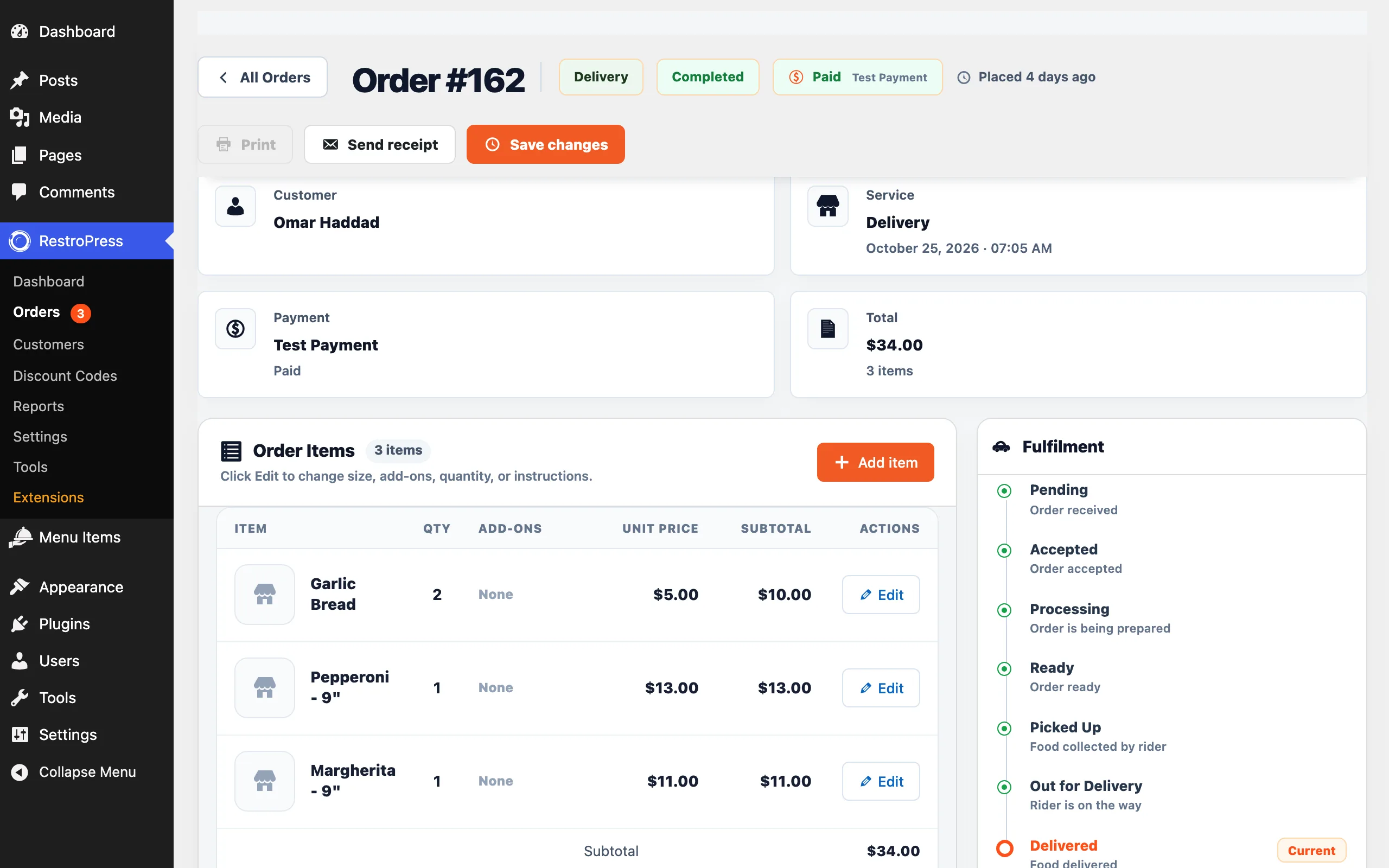
- Header: the order number with its service type, order status, payment status and when it was placed. Print prints the kitchen ticket, Send receipt emails the receipt to the customer and Save changes saves any edits.
- Order items: every item with quantity, add-ons, unit price and subtotal, and totals including tax. Edit changes the size, add-ons, quantity or instructions of a line, and Add item adds another menu item to the order.
- Fulfilment: the steps the order has been through. Use Change status to move it on.
- Payment: the payment status (editable), gateway, transaction ID and payment key, and the billing address.
- Customer and service details: the customer's name, phone and email, a link to their profile, and the service type, date, time and delivery address. Edit details changes them.
- Order notes: a timeline of system updates, such as status changes. Use Add a team note for internal notes. They are not sent to the customer.
- Danger zone: Move to trash removes the order. You can restore it from the Trash view.
Click Save changes after editing an order. Editing items recalculates the totals.
Was this page helpful?