
Order time slots
The times customers can choose at checkout, and whether the store counts as open right now, come from one place in RestroPress 3.5, the slot engine. It replaces several separate calculations that could disagree with each other. It is for any store that uses weekly hours, a prep time or order time slots. There is nothing new to set up: it reads the settings you already have.
What changed from 3.4.11#
- The list of order times, the open or closed check and the choice of service date now use the same code. In 3.4.11 each worked it out on its own.
- Overnight hours. A window such as 6:00 pm to 2:00 am works. Slots after midnight are listed under the next calendar date.
- Close at 11:59 pm. A closing time of 11:59 pm is treated as the end of the business day, so a day that runs 12:00 am to 11:59 pm joins the next day without a gap. Slots still stop at the closing time you set.
- Midnight rollover. When today has no slots left but the store keeps taking orders across midnight (always open, or hours that run past midnight), tomorrow becomes the order date, so ASAP and the next slots stay available without pre-ordering. A store that closes at midnight does not roll over; it stays closed until it opens again.
- Always open no longer shows as closed late at night.
- Closed message. A closed store now adds when it takes orders again, for example "Sorry, we are closed for ordering now. Next available: tomorrow at 9:00 am."
- Daylight saving. Times that do not exist on a spring-forward day are skipped, and repeated times on a fall-back day are listed once.
- No new settings were added. The settings below already existed.
Set it up#
Go to RestroPress › Settings › General › Service & Hours. These settings feed the engine:
- Weekly store hours and Holidays: when you are open and the days you are closed. See Settings & Options.
- Enable Always Order Option: accept orders at any time. Closed days and holidays are ignored, but the slot list still follows each day's open and close times.
- Order time slot interval (minutes): the gap between slots. Default 30, minimum 5, in steps of 5. An empty or invalid value is treated as 30.
- Cooking Time/Prep Time(minutes): the first slot offered is later than now plus this time. Default 30. If it is empty, 30 is used.
- Store Time Format: 12 or 24 hour labels for the slots. Default 12 Hrs Format.
- Store closed message: the text shown when ordering is not possible. Default "Sorry, we are closed for ordering now."
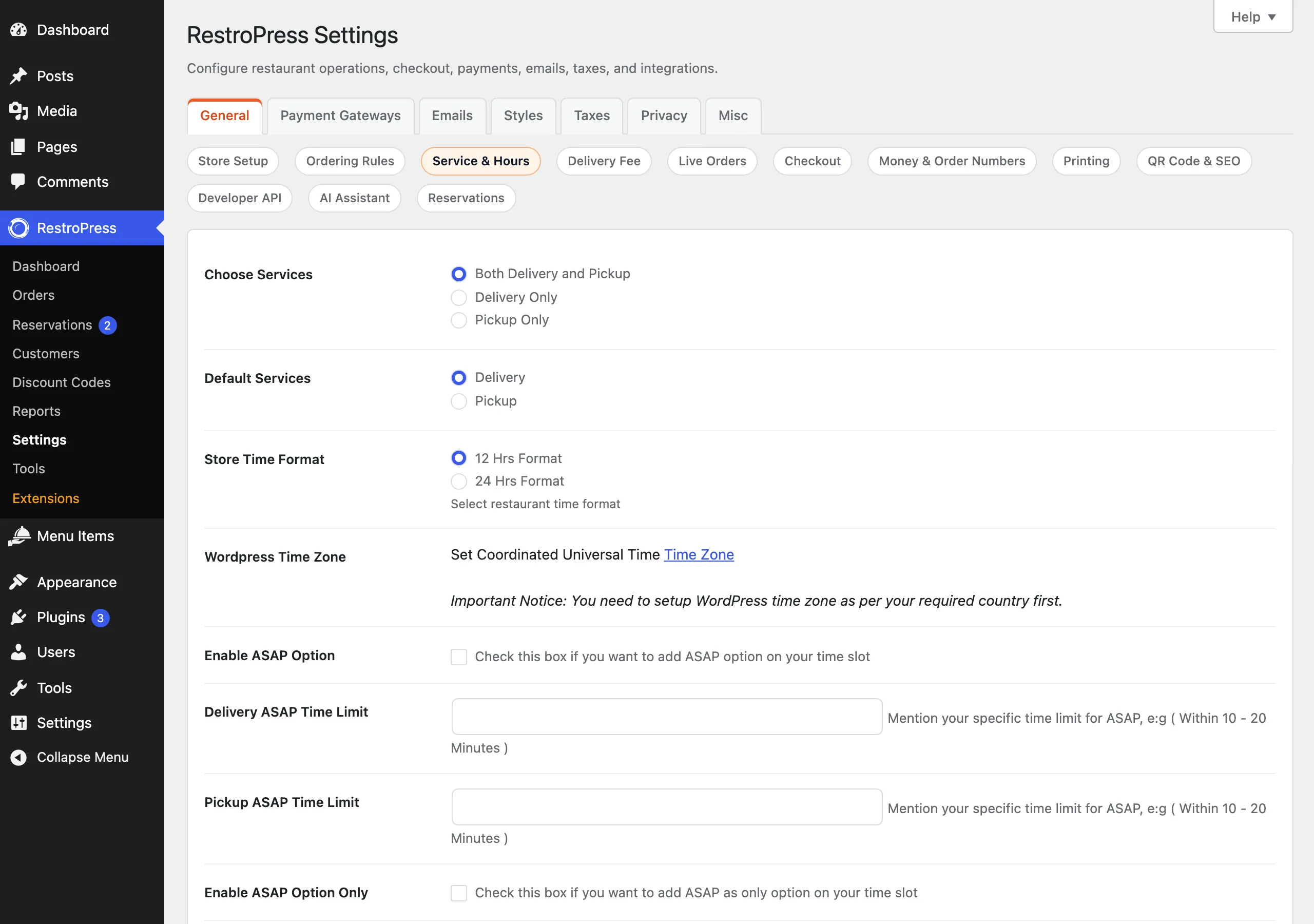
Set the time zone in Settings › General in WordPress first. All times follow it.
How it works#
For each date the engine takes that day's open and close times and lists a slot every interval from opening to closing, both included. A slot is hidden when it is not later than the current time plus the prep time. On future dates the same rule trims only the earliest slots, for example when a date has just taken over at midnight.
- Store open or closed. For today, the store is open between the day's open and close times (or always, with Always Order on). For a later date the store counts as open only when pre-orders are on and that date has hours.
- Pre-order days. Future dates are only offered when pre-ordering is enabled, which core reads from the Pre-Order setting or the Store Timing & Delivery Cutoff extension. If a day limit is set, dates beyond it are not offered.
- Next opening. Where RestroPress shows "today at", "tomorrow at" or a date and time for when the store opens again, it looks up to 14 days ahead for the first available slot.
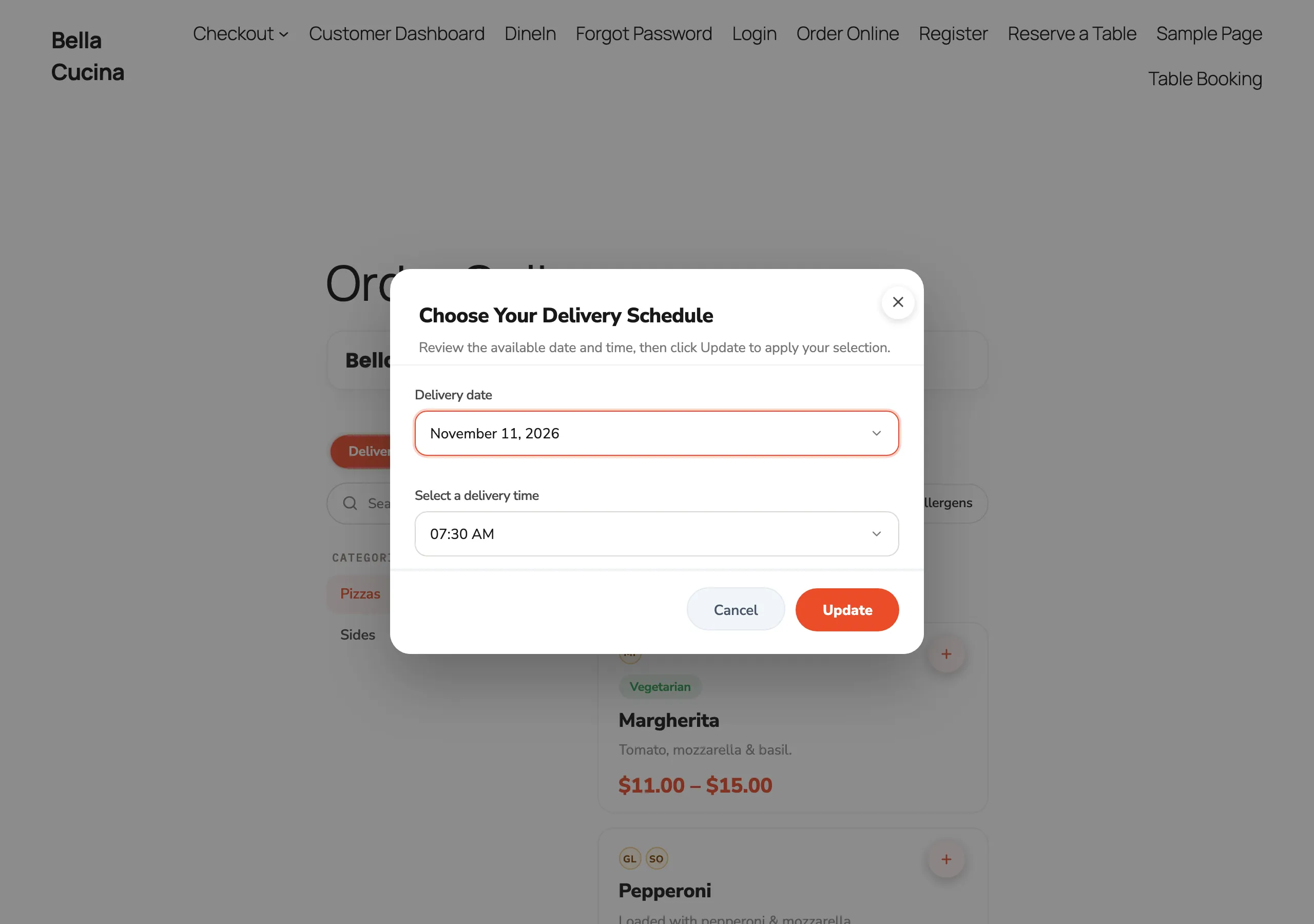
- Customer view. The customer sees these times in the date and time picker on the menu page and at checkout, and the store card from Ordering on phones uses the same next-opening text.
Good to know#
- The engine is active when core's basic weekly hours are in use. If the Store Timing & Delivery Cutoff extension is active, it owns the schedule and RestroPress uses the previous calculation, because that extension adjusts its output. The slot interval is still read from Order time slot interval (minutes) unless the Order Time, Intervals & Limits extension supplies its own.
- Opening and closing times must be valid times such as 9:00am or 21:30. A day with the same open and close time is treated as closed.
- A closing time earlier than the opening time means the store closes the next day.
- With Always Order on, a store that has hours of 9:00 am to 11:30 pm still lists slots only inside those hours. Orders are accepted at any time, but there are no slots outside them.
For developers#
| Name | Type | Purpose |
|---|---|---|
rpress_use_service_hours_engine | filter | Return false to switch the engine off and use the previous code. |
rpress_service_hours_instance | filter | Replace the RPRESS_Service_Hours object. |
rpress_service_hours_settings | filter | Change the resolved interval, prep time, always-open and pre-order values for a service. |
rpress_service_hours_window | filter | Change the open and close window that starts on a date. |
rpress_service_hours_slots | filter | Change the slots for a date and service. |
rpress_service_hours_rollover_date | filter | Change the date that takes over after midnight. |
rpress_service_hours_available_dates | filter | Change the list of dates with at least one slot. |
rpress_service_hours_closed_message_next_open | filter | Return false to keep the plain closed message without "Next available". |
rp_store_time_interval | filter | Change the slot interval, per service type. |
rpress_timing_for_today | filter | Return false to get raw timestamps instead of formatted times. |
rpress_is_store_open | filter | Final open or closed result. |
rpress_service_hours_engine_enabled(), rpress_service_hours() | functions | Whether the engine is on, and a service hours object. |
RPRESS_Service_Hours | class | Methods get_slots(), is_open_at(), next_open_at(), next_available_slot(), get_available_dates(), get_rollover_date(), is_date_bookable(). |