
AI menu assistant
On this page
The AI menu assistant helps you write and tidy your menu from inside the menu item editor. It can write or improve the short and full description of a dish, suggest dietary labels and allergens, draft alt text for a food photo, and fill in missing descriptions for many items at once. It is for restaurant owners and staff who maintain the menu. Everything the assistant writes is shown to you first. Nothing is published automatically and prices are never changed.
Turn it on#
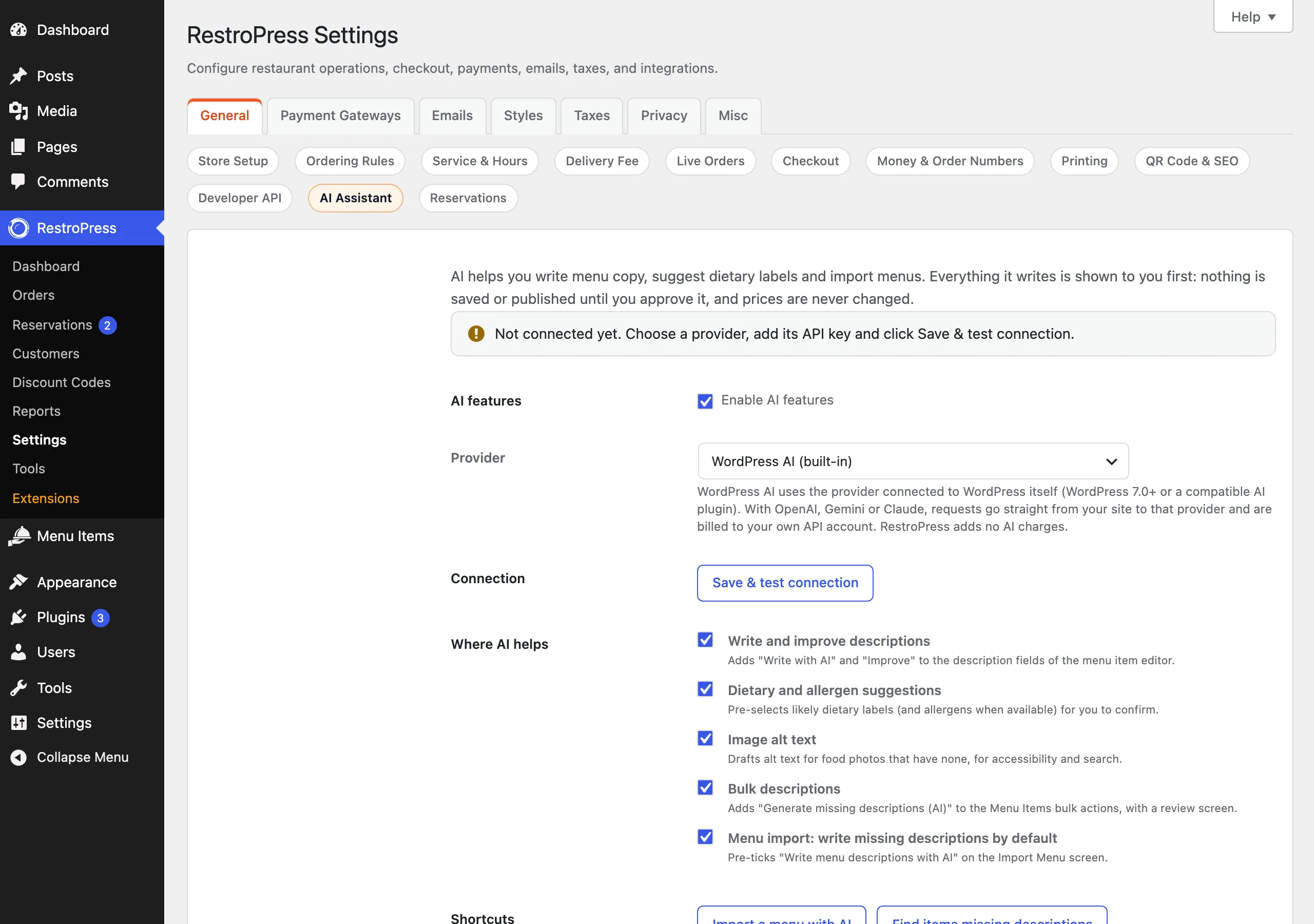
The assistant is on by default (Enable AI features is ticked), but it does nothing until a provider is connected. Go to RestroPress › Settings › General › AI Assistant. A status box at the top shows Not connected yet until a provider works, and Connected with the provider name once it does.
Only users who can manage shop settings can change the provider or the API key. Staff who can edit menu items can use the editor tools once a provider is connected.
Set it up#
- Open RestroPress › Settings › General › AI Assistant.
- Under Provider, choose WordPress AI (built-in) (the default), OpenAI (your key), Google Gemini (your key) or Anthropic Claude (your key). WordPress AI uses the AI provider connected to WordPress itself (WordPress 7.0 or later, or a compatible AI plugin); if WordPress has no connected provider, the connection test says so. With the other three, requests go straight from your site to that provider and are billed to your own API account. RestroPress adds no AI charges.
- For OpenAI, Gemini or Claude, paste your key into API key. The key is stored in your site database and is only sent to the provider you chose. After saving, the field shows only the last four characters of the key. Leave it blank to keep the saved key, or tick Remove the saved key for this provider to delete it. Each provider keeps its own key.
- Optionally enter a Default model. If you leave it blank, the field shows the model used:
gpt-4o-minifor OpenAI,gemini-3.5-flash-litefor Gemini andclaude-haiku-4-5for Claude. The model is remembered per provider. - Click Save & test connection. This saves the settings and sends a small test request. A success message reads "connected and ready"; a failure explains what to fix.
- Under Where AI helps, untick any part you do not want (see the table at the end of this page).
The Shortcuts row has Import a menu with AI, which opens the menu import screen, and (when bulk descriptions are on) Find items missing descriptions, which opens the review screen described below.
How it works#
Write or improve descriptions#
In Menu Items › Add New Menu Item (or when editing an item), the Short description and Full description fields each get two buttons.
- Write with AI writes new text. The short description is one line of at most 15 words. The full description is two or three sentences of at most 60 words.
- Improve rewrites the text already in the field, keeping its facts and fixing grammar. It needs existing text.
Both need the item name filled in first. The assistant also uses the item's categories, its price (only as background, it is told never to mention it) and the text already in the other description field. It writes in the language of your site locale. The result is placed in the field for you to edit. It is not saved until you click Publish or Update.
Suggest dietary labels and allergens#
Next to the dietary labels field, Suggest dietary labels looks at the item name and descriptions and pre-selects the labels from your own Dietary Labels list that clearly apply. If the item's Food Type is still N/A, it may also set it to Veg or Non Veg. Next to the allergens field, Suggest allergens does the same for your allergen list. Suggestions are added to what is already selected, they do not replace it. Anything the assistant mentions that is not in your list is shown as text only, and you add it yourself if it is correct.
The message under the button always says these are suggestions only. Check them with your kitchen, then click Update to save. The assistant judges only from the name and descriptions, so a dish with a short or vague description will often get no suggestion.
Image alt text#
Under the food image, Generate alt text appears when the item has a featured image that has no alt text yet. The assistant drafts alt text from the item name and description (it does not look at the photo itself). Edit it in the Image alt text (review before saving) box and click Save alt text. Unlike the other helpers, this one saves straight to the image in your media library, without waiting for you to click Update.
Generate missing descriptions in bulk#
- In Menu Items › All Menu Items, tick the items you want (or none), choose Generate missing descriptions (AI) from Bulk actions and apply. With nothing ticked, use Find items missing descriptions on the AI Assistant settings page instead.
- The Generate missing descriptions screen lists items that have no short description or no full description, up to 100 at a time. Published, draft, pending, private and scheduled items are included.
- Click Generate drafts. The assistant sends one request per item, so a long list takes a little while and counts toward your provider bill.
- Read each draft. Edit it in place if needed and tick Accept, or use Accept all.
- Click Save accepted. Only the accepted rows are saved, and only into fields that are still empty. Existing text, prices and publish status are not touched.
Menu import#
The AI menu import screen has a Write menu descriptions with AI option. The setting Menu import: write missing descriptions by default controls whether it starts ticked. See Add menu items for the import itself.
Good to know#
- What is sent to the provider. Each request includes the item name, its categories, its price, and the text currently in the descriptions. Nothing about customers or orders is sent.
- Review comes first. Editor results land in the form, bulk results land on a review table. Nothing reaches your live menu until you save.
- Dietary and allergen suggestions share one switch. The Dietary and allergen suggestions option turns both suggestion buttons on or off together.
- Allergens are your responsibility. The assistant is told never to invent allergens in descriptions. Treat its allergen suggestions as a prompt to check, not as a guarantee.
- WordPress AI status is cached. Whether WordPress has a connected provider is remembered for about ten minutes, so a change may take a little while to show.
- Switching it all off. Untick Enable AI features to hide every editor helper and the bulk action. Saved keys stay in place.
Settings reference#
| Setting | What it does | Default |
|---|---|---|
| Enable AI features | Master switch for every part of the assistant. | On |
| Provider | Which AI service answers the requests. | WordPress AI (built-in) |
| Write and improve descriptions | Adds Write with AI and Improve to the description fields of the menu item editor. | On |
| Dietary and allergen suggestions | Adds the suggestion buttons for dietary labels and allergens. | On |
| Image alt text | Adds Generate alt text for food photos that have none. | On |
| Bulk descriptions | Adds Generate missing descriptions (AI) to the Menu Items bulk actions. | On |
For developers#
The assistant adds no public hooks or filters. Its settings are stored in the rpress_ai_settings option, which the menu import screen shares. The service class RPRESS_AI offers the static methods below.
| Name | Type | Purpose |
|---|---|---|
RPRESS_AI::get_settings() | function | Returns the normalised settings. |
RPRESS_AI::save_settings() | function | Saves provider, key, model and the feature switches. |
RPRESS_AI::get_status() | function | Returns whether a provider is connected and ready. |
RPRESS_AI::is_ready() | function | True when AI is enabled and a provider is configured. |
RPRESS_AI::feature_enabled() | function | Checks one of writer, dietary, alt_text, bulk. |
RPRESS_AI::generate_text() | function | Sends a prompt and returns text or a WP_Error. |
RPRESS_AI::extract_structured() | function | Sends a prompt with a JSON schema and returns structured data. |