
Ordering on phones
On this page
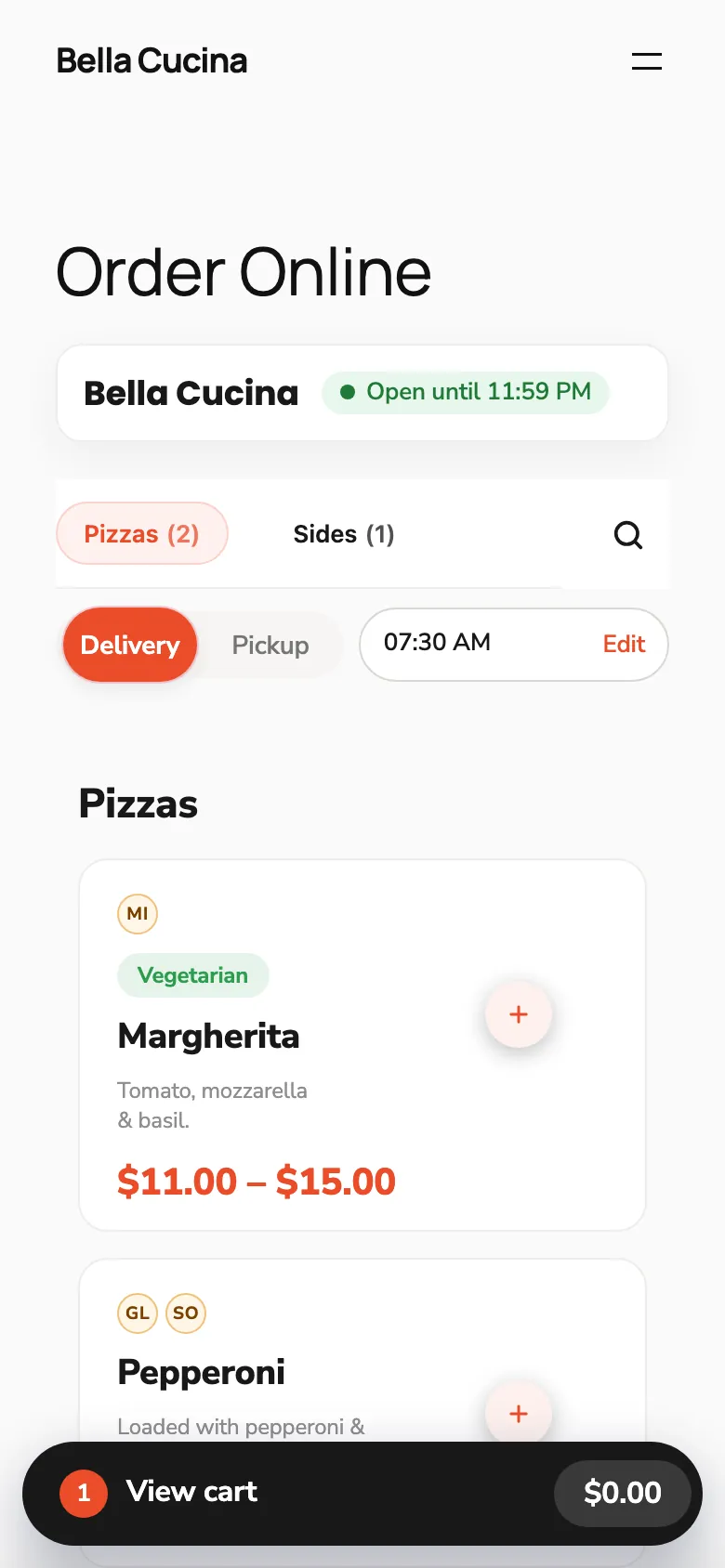
RestroPress 3.5 reworks the menu page for ordering on a phone. A store card at the top says whether you are open, the cart is one "View cart" bar that opens as a bottom sheet, dishes already in the cart get a quantity stepper, and the item popup labels every option group as Required or Optional. It is for restaurants whose customers mostly order from their phones. It changes how the existing menu is presented; the add-to-cart, cart and checkout flows work as before.
Turn it on#
There is no setting to switch on. The phone ordering layer loads by itself on any page that shows the menu (the [fooditems] shortcode or the food menu block). Two settings decide how much of it you get:
- Legacy Ordering Flow (RestroPress › Settings › Styles › General, off by default). While it is on, the new menu layer is not loaded. Only the item popup part (the Required / Optional labels and the phone bottom sheet) is used.
- Choose a template pack (RestroPress › Settings › Styles › General, default Classic). The store card above the menu only appears with the Modern pack, so a site on Classic keeps its 3.4 look at the top of the menu. The rest of the layer works with either pack.
On a menu page the layer applies the phone changes at screen widths up to 767 px. The "View cart" bar also shows on tablets up to 1024 px, where the sidebar cart takes over above that. On desktop the menu keeps its layout.
How it works#
Store card#
With the Modern pack, a card above the menu shows the store name and its status for the service the customer is ordering for (Delivery or Pickup):
- Open now, or Open until followed by today's closing time. With Enable Always Order Option on it says Open now.
- Closed. The card then says "<Service> is closed right now. We open <today / tomorrow / date> at <time>." If no opening time can be worked out it shows your Store closed message instead.
- A Schedule for later button when the store is closed, an opening time is known and pre-orders are on for that service. It opens the date and time picker.
- Short facts: Ready in ~N min (pickup) or Prepared in ~N min (other services) from the prep time, the delivery fee for delivery when a flat fee is set, and Min. order when a minimum order applies to the service.
The card replaces the Modern pack's own store header, so only one shows. It refreshes itself when the page loads and whenever the customer changes service or time, so a page served from a cache does not show an old status.
On phones#
- The Delivery/Pickup switch and the time sit on one compact row. Tapping the time opens the date and time picker. A date of tomorrow is shown as "Tomorrow".
- Search moves into the sticky category bar behind a search button. The allergen filter, when allergens are enabled, moves into the same drop-down.
- Tapping anywhere on a dish card (not only the Add button) opens the item popup.
- Once a dish has exactly one line in the cart, its Add button turns into a - n + stepper. At 1 the minus becomes a bin and removes the dish. A dish with several lines in the cart (for example two different sizes) keeps its Add button and shows no stepper. On desktop the Add button stays and a small count shows instead.
- A full-width View cart bar shows the number of items and the total. Tapping it opens the cart as a bottom sheet with the Checkout button. Close the sheet by tapping outside it, pressing Escape, or dragging it down from the top.
- When a minimum order is set and the cart is below it, the bar carries a strip such as "Add 40.00 more for pickup" with a progress line. See Checkout and upsells.
Item popup and Required / Optional groups#
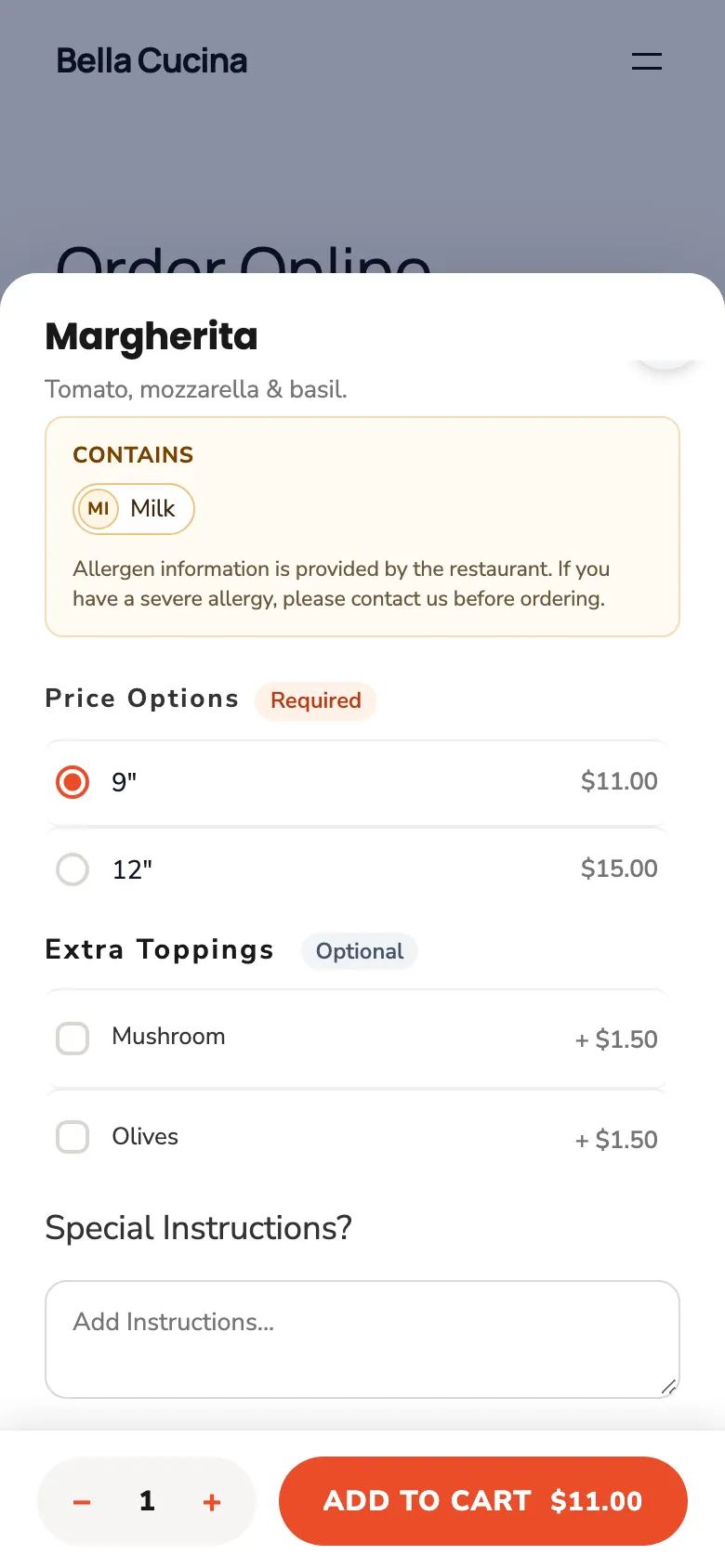
When a customer opens a dish, each group of choices has a label next to its heading:
| Group | Label shown |
|---|---|
| Sizes (a dish with variable prices) | Required. One size is always chosen. |
| Add-on Group with Required on | Required. If its minimum is 2 or more, or the minimum and maximum are both 1, it adds the count, for example Required · pick 2. |
| Add-on Group with Required off | Optional. If a maximum is set it adds it, for example Optional · up to 3. |
The labels follow the group's settings on the menu item: Required, Min selections and Max selections. These are set in the item's Add-ons section; see Add menu items. On phones the popup is a bottom sheet you can drag down to close, and the title stays pinned while you scroll.
If the customer taps Add to cart while a required group is still empty, that group is outlined in red, scrolled into view and shows a message under its heading: "Please choose an option.", "Please choose at least N." (when the minimum is above 1) or "Please choose no more than N.". The message clears as soon as an option is picked.
Edit in the cart now closes the cart sheet while the item popup is open and brings the cart back, with the changes, when the popup closes.
Good to know#
- The store card is for the Modern pack only. If you do not see it, check Choose a template pack under RestroPress › Settings › Styles › General.
- With Legacy Ordering Flow on, you get the Required / Optional labels and the phone bottom sheet for the item popup but not the store card, View cart bar or stepper.
- The item popup labels and bottom sheet also appear on the checkout page when the upsell row is on, and on pages built with the block storefront.
- The "Category Button (Mobile)" floating button (RestroPress › Settings › Styles › General) now only appears when the Category Menu bar is hidden with Category Menu. The sticky category bar already lists the categories, so showing both was removed.
- The stepper and View cart bar rely on the menu page's cart, so they need the regular RestroPress menu markup. A theme that replaces the menu templates may not show them.
For developers#
| Name | Type | Purpose |
|---|---|---|
rpress_mobile_ordering_enabled | filter | Turn the whole layer on or off. Default: on unless Legacy Ordering Flow is on. |
rpress_mobile_ordering_popup_only | filter | Whether legacy-menu stores get the item popup part only. |
rpress_mobile_ordering_show_store_card | filter | Show the store card. Default true for the Modern pack only; receives the pack id. |
rpress_mobile_ordering_store_state | filter | Change the card's status text, facts and scheduling flag for a service. |
rpress_mobile_ordering_store | AJAX action (public) | Returns the current store card HTML; takes an optional service. |
rpress_mobile_ordering_store_state(), rpress_mobile_ordering_store_card_html(), rpress_mobile_ordering_next_open() | functions | Build the card state, its markup and the "tomorrow at 10:00" text. |