
RestroPress - Pre Order
On this page
RestroPress - Pre Order adds a date drop-down to the delivery and pickup service options so a customer can choose a service date from today up to a number of days ahead. The extension is small: it adds one settings group, renders the date list, and relies on RestroPress itself to store the chosen date with the order.
It is meant for restaurants that accept orders for a later day, such as catering or next-day pickup.
Requirements#
- RestroPress (free plugin) active. The readme lists WordPress 5.4 or newer and says it was tested up to WordPress 7.1.
- It cannot be activated while RestroPress - Store Timing & Delivery Cutoff is active. Activation stops with the message "RestroPress - Pre Order is not usable while RestroPress - Store Timing & Delivery Cutoff is active. Please deactivate Store Timing extension first."
Installation#
- Go to Plugins › Add New › Upload Plugin, choose the ZIP file and select Install Now.
- Select Activate Plugin.
- Open RestroPress › Settings › General › Pre Order and turn the feature on.
The plugin has no licence field and no update code of its own, so there is nothing to enter under RestroPress › Settings › Licenses.
Settings#
Settings are in RestroPress › Settings › General › Pre Order, under the heading "Pre order Setting".
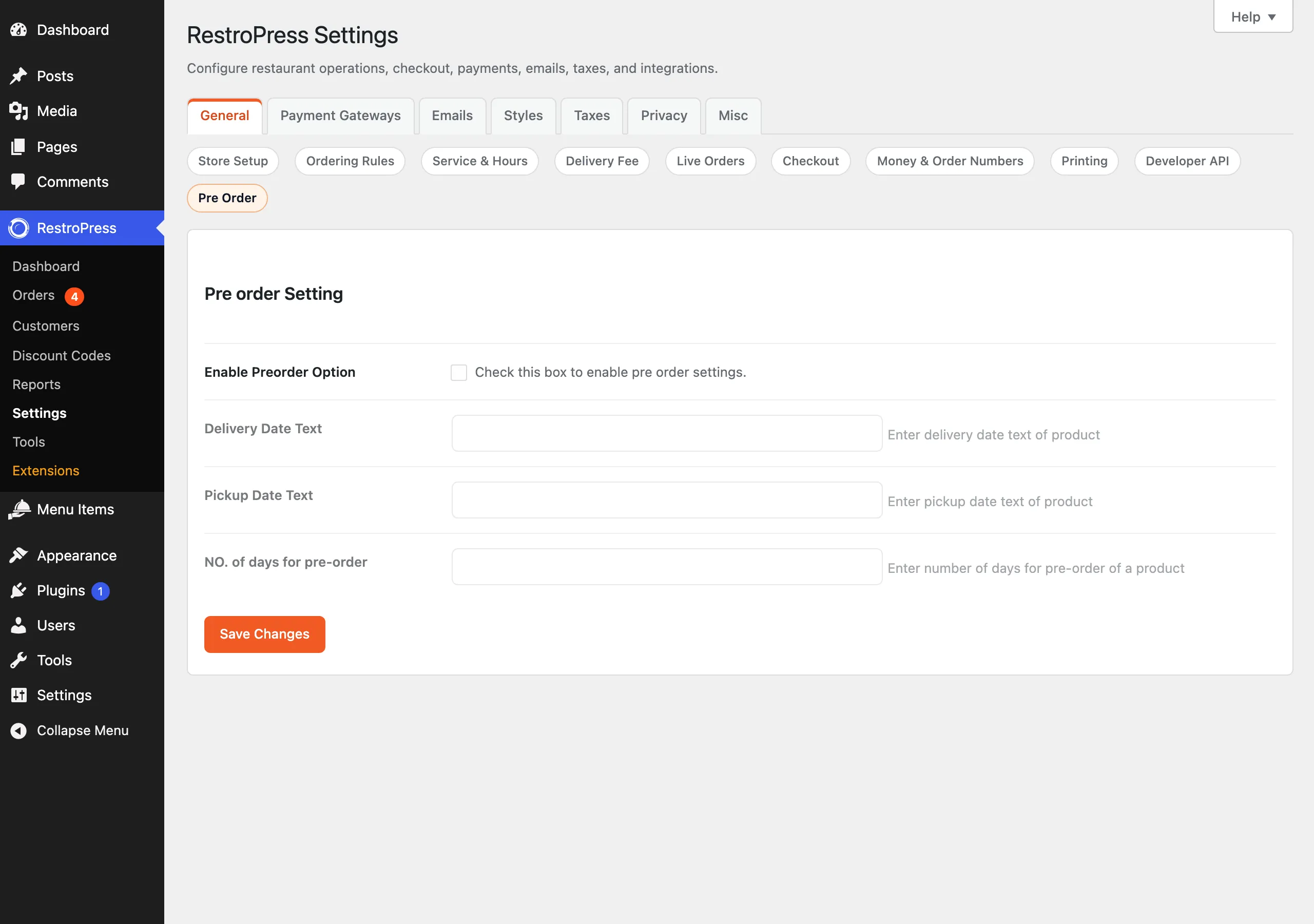
| Setting | What it does | Default |
|---|---|---|
| Enable Preorder Option | Master switch. When it is off, no date drop-down is shown and the extension's scripts and styles are not loaded. The three fields below are disabled in the screen until it is ticked. | Off |
| Delivery Date Text | Label shown above the date drop-down for delivery. HTML is stripped. | Empty, which shows "Select a delivery date" |
| Pickup Date Text | Label shown above the date drop-down for pickup. HTML is stripped. | Empty, which shows "Select a pickup date" |
| NO. of days for pre-order | How many dates the drop-down lists, counting today as the first. A value below 1 is treated as 1. | Empty, which behaves as 1 (today only) |
Because an empty value behaves as one day, the drop-down only offers today until you set a larger number.
How it works#
- RestroPress fires
rpress_before_service_timein the delivery tab, the pickup tab and the date/time pop-up. Pre Order hooks that action. - If the feature is enabled and the service is delivery or pickup, it prints the label and a drop-down. Each option is a day in the WordPress timezone, starting at today and running for the configured number of days. Option labels use the date format from Settings › General in WordPress.
- If the customer already has a service date saved in the
service_dateordelivery_datecookie, that date is pre-selected. - When the customer changes the date, the extension's script clicks the existing "update" button of the service options, so RestroPress saves the date the same way it does without the extension. RestroPress then stores the date (cookie
service_date) and sends it with checkout asrpress_service_date.
The extension does not add an admin screen or column of its own. The service date is recorded by RestroPress core, as it is for any order.
The extension lists every day for the configured number of days. It does not skip closed days and does not apply store opening hours. Opening hours and time slots are still handled by RestroPress.
Developer reference#
The extension fires no hooks of its own. It uses one RestroPress action:
| Hook | Type | Parameters | Purpose |
|---|---|---|---|
rpress_before_service_time | action (core) | $service_type (delivery or pickup) | Pre Order prints the date label and drop-down here. |
Settings are stored in the rpress_settings option under the keys enable_preorder, po_delivery_date_text, po_pickup_date_text and po_days.
Troubleshooting#
- No date drop-down appears. Check that "Enable Preorder Option" is ticked and saved. The drop-down is also only printed where RestroPress fires
rpress_before_service_time, so a custom theme template that replaces the service option templates may omit it. - Only today is listed. Set "NO. of days for pre-order" to a number above 1.
- Activation is refused. RestroPress - Store Timing & Delivery Cutoff is active. Deactivate it first. When Store Timing is active and Pre Order is switched off, Pre Order removes Store Timing's own pre-order date selector.
- The date does not stick after a cached page load. The selected date is read from cookies on the server. Make sure the checkout and menu pages are excluded from full-page caching.
Changelog highlights#
- 1.0.4: pre-order admin fields stay enabled when the toggle is checked, and re-apply when switching settings tabs.
- 1.0.3: activation is blocked when Store Timing & Delivery Cutoff is active; the enable toggle controls front-end rendering and asset loading.
- 1.0.2: WordPress timezone and date-format compatibility fixes in the date selection.