
Square Payment Gateway
On this page
RestroPress Square adds payments through Square to your checkout. Customers can pay by card in a secure Square card form on your checkout page, or with Google Pay or Apple Pay. Each of the three is a separate payment method that you switch on individually. It is for restaurants that already use Square and want to take online orders on their website.
Requirements#
- RestroPress, active. If it is not, an admin notice appears and the extension deactivates itself. No minimum RestroPress version is checked in the code.
- A Square developer account with an application, its access tokens and a location. You need the Application ID, the Access Token and the Location ID from the Square Developer Dashboard, for the sandbox and for production.
- A site served over HTTPS. Square's card fields are loaded from Square's own servers.
- WordPress 4.0 or later (from
readme.txt). The readme states the extension works on multisite.
Installation#
- In WordPress go to Plugins › Add New › Upload Plugin, choose the ZIP file and install it.
- Activate RestroPress - Square. A Settings link is added to the plugin's row on the Plugins screen.
- Open RestroPress › Settings › Payment Gateways › Square and fill in the settings below.
- Go back to the General section of the same tab and tick the Square payment methods you want in the list of gateways. Save.
The plugin has no licence key field, so there is nothing to enter under RestroPress › Settings › Licenses for it.
Provider account steps#
- In the Square Developer Dashboard create an application. Copy the Sandbox Application ID and Sandbox Access Token for testing, and the Production Application ID and Access Token for live orders.
- Copy the ID of the Square location that should receive payments. Square location IDs are different for sandbox and production; the plugin has one Location ID field, so replace it when you change from test to live.
- No webhook or return URL is needed. The extension sends the payment request when the order is placed and reads the result straight away.
- For Apple Pay, Square requires you to verify your domain with Square. The extension contains no code for this; do it in the Square Developer Dashboard.
Settings#
Found under RestroPress › Settings › Payment Gateways › Square.
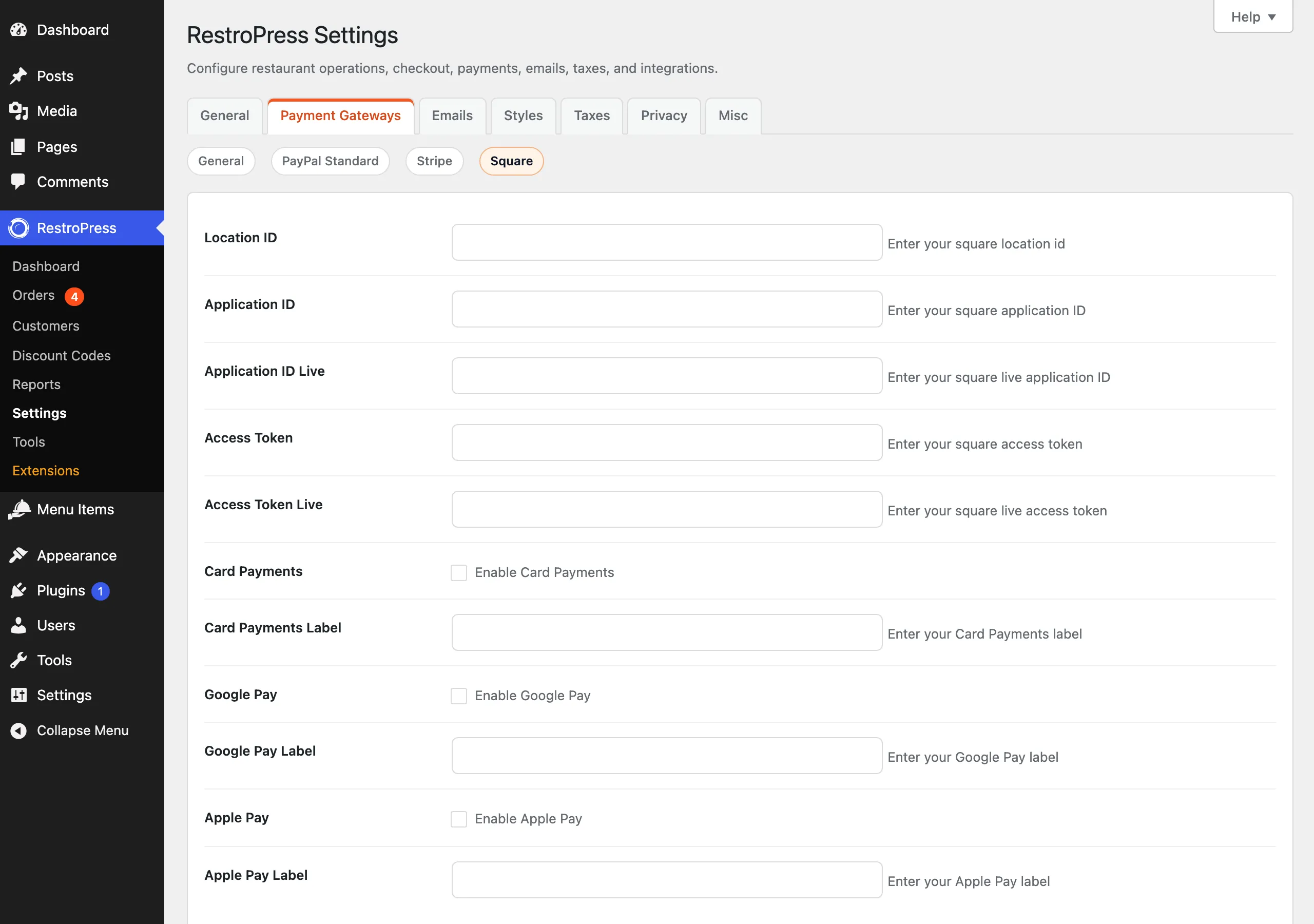
| Setting | What it does | Default |
|---|---|---|
| Location ID | Your Square location ID. Required in both test and live mode. | Empty |
| Application ID | Sandbox application ID. Used while RestroPress Test Mode is on. | Empty |
| Application ID Live | Production application ID. Used when Test Mode is off. | Empty |
| Access Token | Sandbox access token. Used while Test Mode is on. | Empty |
| Access Token Live | Production access token. Used when Test Mode is off. | Empty |
| Card Payments | Tick "Enable Card Payments" to offer the card form. | Off |
| Card Payments Label | Name shown at checkout for the card method. If empty, "Card Pay" is used. | Empty |
| Google Pay | Tick "Enable Google Pay" to offer Google Pay. | Off |
| Google Pay Label | Name shown at checkout. If empty, "Google Pay" is used. | Empty |
| Apple Pay | Tick "Enable Apple Pay" to offer Apple Pay. | Off |
| Apple Pay Label | Name shown at checkout. If empty, "Apple Pay" is used. | Empty |
The access tokens are ordinary text fields, so anyone who can open this screen can read them.
Test mode is the main RestroPress Test Mode option, not a setting of this plugin. In test mode the extension sends requests to Square's sandbox (connect.squareupsandbox.com) and loads Square's sandbox script; otherwise it uses connect.squareup.com.
How it works#
- The customer picks a Square method at checkout. A panel appears with a loading indicator while Square's script prepares the card fields, or the Google Pay or Apple Pay button. The normal Place Order button is hidden while a Square method is selected; the panel has its own button.
- For a card, the customer types the card number in Square's secure fields. For a wallet, the button appears only if Square reports that the device and browser support it, otherwise the panel says "This wallet is unavailable on your current device or browser."
- The browser turns the card or wallet into a one-time token and submits it with the order. Card data does not reach your server.
- The plugin sends a payment request to Square for the cart total, with
autocompleteon so the amount is charged immediately. The purchase key is used as the idempotency key and reference. When RestroPress billing fields are enabled, the buyer's email and billing address are included. - If Square returns a completed payment, the plugin creates the order with status Completed, stores the Square receipt number, order ID and source type on it, saves the Square payment ID as the transaction ID, empties the cart and shows the success page.
- If Square returns an error, the customer goes back to checkout with Square's error text. No order is created for a failed payment.
Currency is your store currency, and the country passed to the wallet buttons is the RestroPress base country.
Refunds#
The extension has no refund code. Changing an order to Refunded in RestroPress only changes its status; issue the refund in the Square Dashboard.
Troubleshooting#
- "Square payment settings are incomplete. Please contact the site administrator." The access token for the current mode, or the Location ID, is empty. Check that the keys match the active test or live mode.
- "Square payment authorization failed. Please try again." The browser did not send a token. Reload checkout and retry; check the browser console for script errors, and make sure a caching plugin is not delaying Square's script.
- "We could not verify your payment details. Please check the information and try again." Shown when Square rejects the card or tokenisation fails.
- "Error: your payment could not be recorded. Please try again" Shown when Square's response has no completed payment.
- Card fields do not load. The Application ID or Location ID for the active mode is missing or wrong. Sandbox and production IDs cannot be mixed.
- Google Pay or Apple Pay button missing. The button is shown only when Square detects support in the customer's browser and wallet. Apple Pay also needs your domain verified with Square.
- Payments are the wrong size for currencies without cents (for example JPY). The plugin multiplies the total by 100 for every currency.
Changelog highlights#
- 2.3. Respects the RestroPress "Enable Billing Fields" option; passes buyer email, ZIP and address to Square; fewer false failures in sandbox; tokenisation completes before checkout submits; credentials no longer exposed to front-end scripts; Square assets load only on checkout.
- 2.2. Fixed a live transaction issue.
- 2.1. Class name changed to match the old extension.