
RestroPress Pro
On this page
RestroPress Pro is a companion plugin for customers on a paid RestroPress plan. You enter one plan licence key, and the plugin installs, activates and updates the extensions and apps your plan includes from inside wp-admin, so you do not download each ZIP or enter a key per extension. It also adds three storefront template packs: Onyx, Ember and Saffron.
Requirements#
- RestroPress active. The plugin header declares it as a required plugin and shows an admin notice if RestroPress is missing.
- A RestroPress plan licence key from your account on restropress.com.
- For the template packs, a RestroPress version that has the template pack registry (3.4 or newer).
- The server must be able to reach restropress.com. The plugin talks to
https://www.restropress.com/wp-json/restropress-server/v2.
Installation#
- Install the ZIP from Plugins › Add New › Upload Plugin and activate it. Activation schedules a daily licence recheck.
- Open RestroPress › Pro.
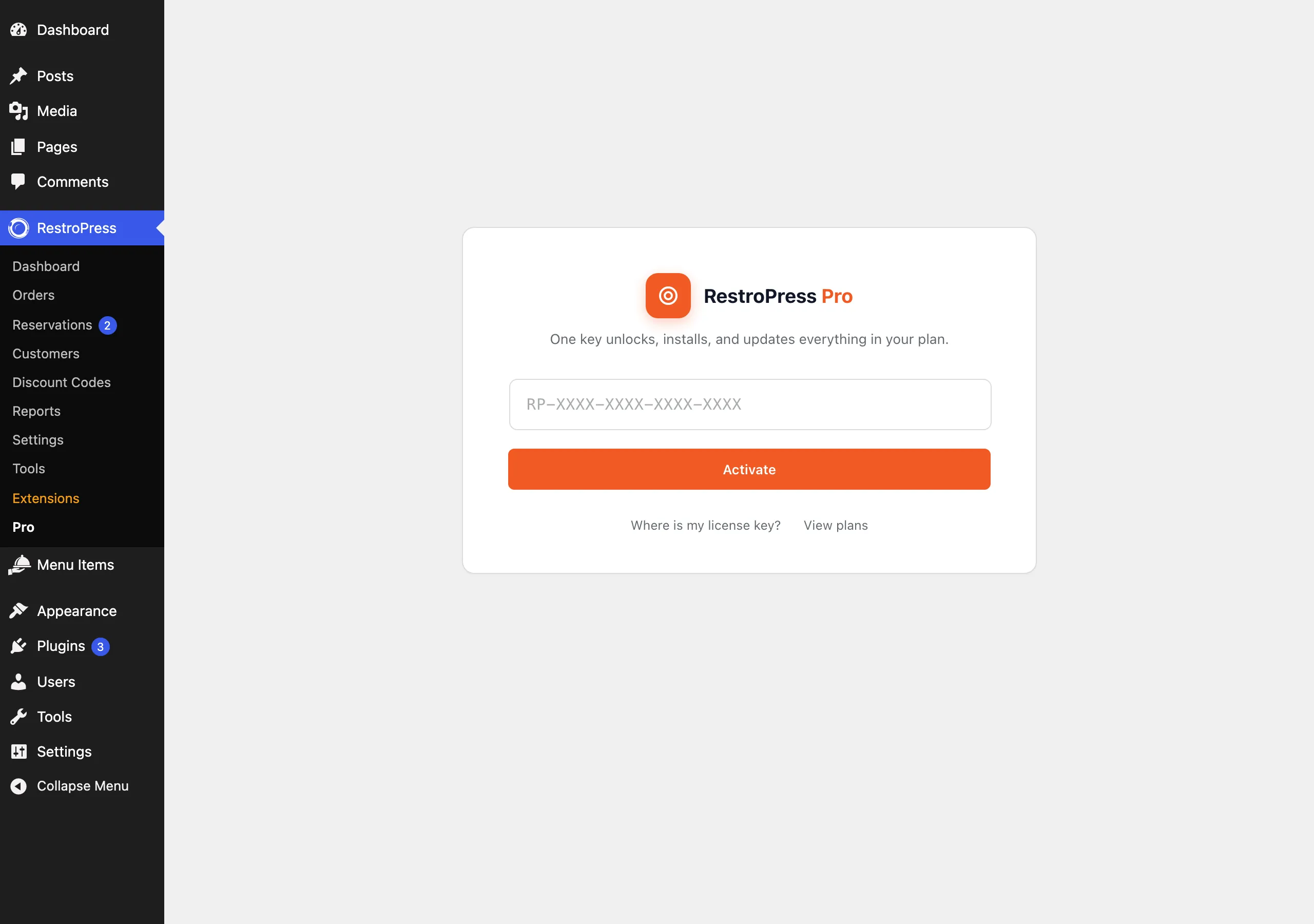
- Paste your key into the field (the placeholder is
RP-XXXX-XXXX-XXXX-XXXX) and click Activate.
This plugin has one licence key for the whole plan. The key is not entered under RestroPress › Settings › Licenses. It is stored in the option rpress_pro_license_key, and once the plan is active, the plugin also writes the licence-status option that each entitled extension checks, so those extensions do not ask for their own key.
Settings#
The plugin has no settings page of its own. Everything is on RestroPress › Pro, which has three states.
Activation screen#
Shown until a licence is active. It has the key field, the Activate button, and the links Where is my license key? (your restropress.com account) and View plans. Errors shown for a failed activation are: "This license key has expired.", "This license key has been disabled.", "License key not found.", "This license has reached its site activation limit." and "Too many attempts. Try again in a few minutes."
Thank-you screen#
Shown once after activation. It lists the plan name, renewal date, sites used and what the plan includes, with the buttons Set up my extensions and Manage license.
The hub#
The normal screen once licensed. It shows the plan, the renewal date and a Manage license panel with Status, Plan, Sites and renewal date plus Renew now and Deactivate buttons. Below are three tabs: Extensions (extensions and payment gateways), Apps and Template packs. A search box and filters (All, Installed, Active, Not installed, Not in plan) narrow the list, and each row has Install, Activate or Deactivate as appropriate. Install all my extensions installs everything in your plan that is not yet installed.
How it works#
- Licence. Activating posts the key and your site URL to the store. The reply (status, expiry, plan, activation limit and count, entitled product IDs) is cached in
rpress_pro_license_dataand refreshed once a day. - Catalogue. The product list comes from the store and is cached for 12 hours. Products not in your plan show as "Not in plan".
- Install. Install requests a short-lived signed download link, installs with WordPress's own plugin upgrader and then activates the plugin. If the plugin folder already exists, it only activates it. If the host needs FTP credentials, the message "This site needs filesystem credentials to install plugins" appears with the download link for a manual install.
- Updates. Installed, catalogue-listed plugins are checked against the store and any newer version appears as a normal update on the Plugins screen.
- Expiry. Thirty days or less before expiry a warning banner shows ("Your plan renews in N days."). After expiry the banner "Installs, activations, and updates are paused until you renew." appears and the install and activate buttons are disabled.
- Deactivating the licence on a site frees its activation slot and removes the stored key; plugins already installed keep working.
Template packs#
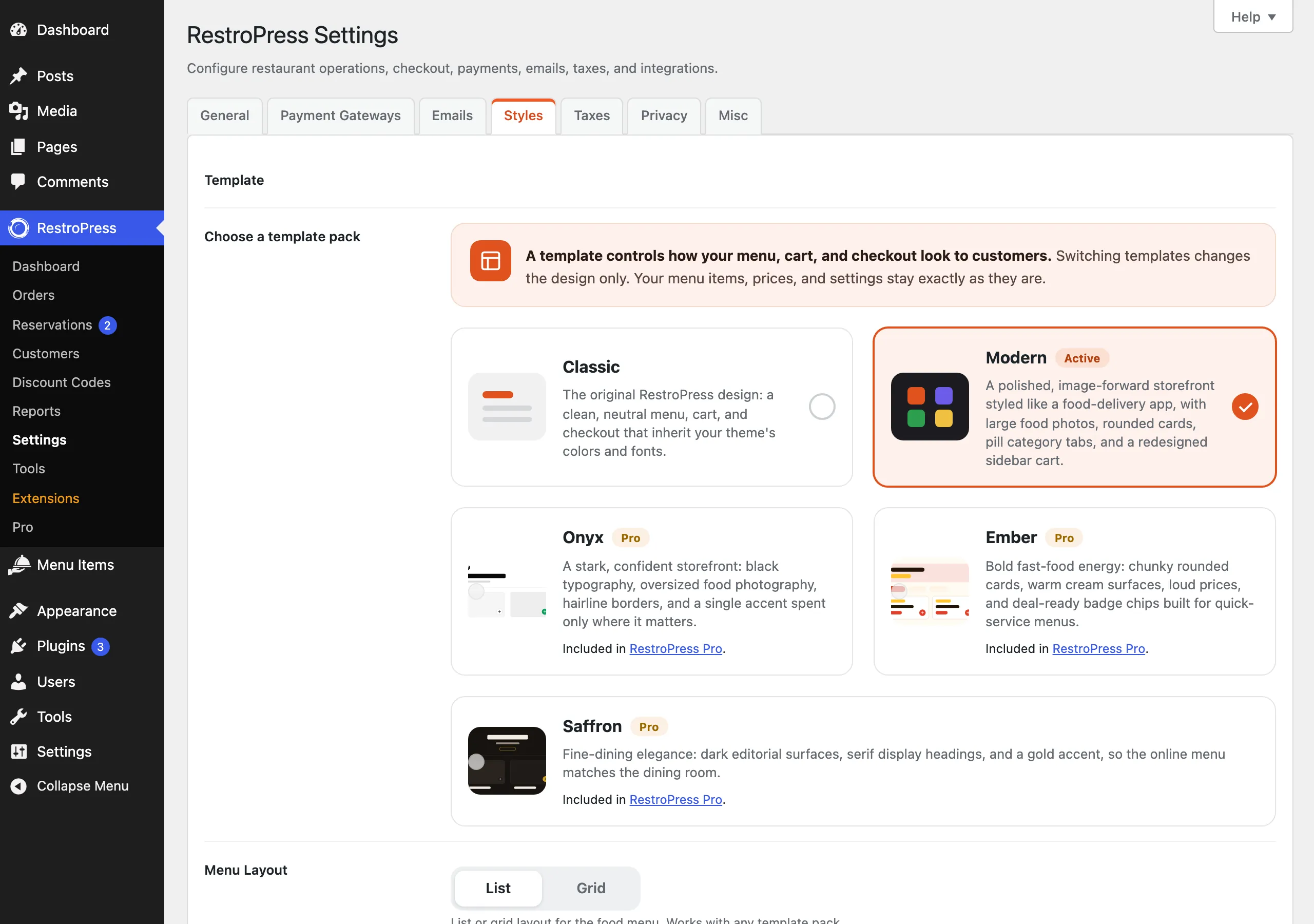
With an active licence, Onyx, Ember and Saffron are registered with RestroPress. Without one they appear locked in the selector and the storefront loads none of their assets. Choose a pack under RestroPress › Settings › Styles › Choose a template pack; each pack has a List and a Grid variant.
| Pack | Described as |
|---|---|
| Onyx | Black typography, large food photography, hairline borders, one accent colour. |
| Ember | Rounded cards on warm cream surfaces, large prices and badge chips for quick-service menus. |
| Saffron | Dark surfaces, serif headings and a gold accent. |
Colours follow the merchant's primary colour setting. While a Pro pack is active, a store header appears at the top of the menu page with the store name, an open or closed line ("Open until ...", "Open 24 hours", "Currently closed"), "Ready in ~N min" and "Min order ..." when set, and a "... delivery on this order" line when a flat delivery fee is configured. The packs load fonts from Google Fonts. If the licence lapses while a Pro pack is selected, the menu falls back to the Classic look.
Developer reference#
| Hook | Type | Parameters | Purpose |
|---|---|---|---|
rpress_pro_write_legacy_license_options | filter | bool $write (default true) | Return false to stop the plugin writing the per-extension {slug_with_underscores}_license_status options. |
rpress_pro_template_packs_entitled | filter | bool $entitled | Override whether the Pro packs are unlocked (default: the licence is active). |
rpress_pro_daily_recheck | action (cron) | none | Daily licence status refresh. |
The constant RPRESS_PRO_API_BASE can be defined in wp-config.php before the plugin loads to point at a different store API.
add_filter( 'rpress_pro_template_packs_entitled', '__return_true' );Troubleshooting#
- "RestroPress Pro requires the RestroPress plugin to be active." Activate RestroPress first.
- "Could not load your extensions". The site could not reach restropress.com. Check outbound HTTP and press Retry.
- "Nothing in your plan yet". The key is valid but has no products attached.
- "This product is not installable automatically yet." The catalogue entry has no plugin slug or main file; install that one manually.
- "Template packs need RestroPress 3.4 or newer." Shown when the Activate button on the Template packs tab cannot find the core function it calls. Use the selector under Settings › Styles instead.