
Order reminder emails
On this page
The order reminder is a customer email for orders placed for a later pickup or delivery time. A set number of minutes before the scheduled time, the customer receives one email such as "Your order #123 will be ready at 7:30 pm". It helps customers who ordered earlier in the day, and it is useful for you because fewer people forget a pickup. ASAP orders are never reminded.
Turn it on#
The reminder is listed with your other order emails at RestroPress › Settings › Emails › Order Notifications as Order Reminder (scheduled orders), with the recipient shown as Customer. Click Manage to turn it on or off.
Whether it is on before you save its settings depends on the store:
- New installs: on.
- Stores that already existed when 3.5 first loaded (an upgraded site, or one that already has orders): off, so an update never starts emailing customers without notice. Turn it on yourself when you want it.
This starting state is decided once and stored, so it does not change later. After you save the Manage screen, the Enable this email notification tick box is what counts.
Set it up#
- Open RestroPress › Settings › Emails › Order Notifications and click Manage next to Order Reminder (scheduled orders).
- Tick Enable this email notification.
- Set Send before to the number of minutes before the scheduled pickup or delivery time (5 to 1440, default 30).
- Edit the Subject, Email heading and Email Content if you want different wording, then save.
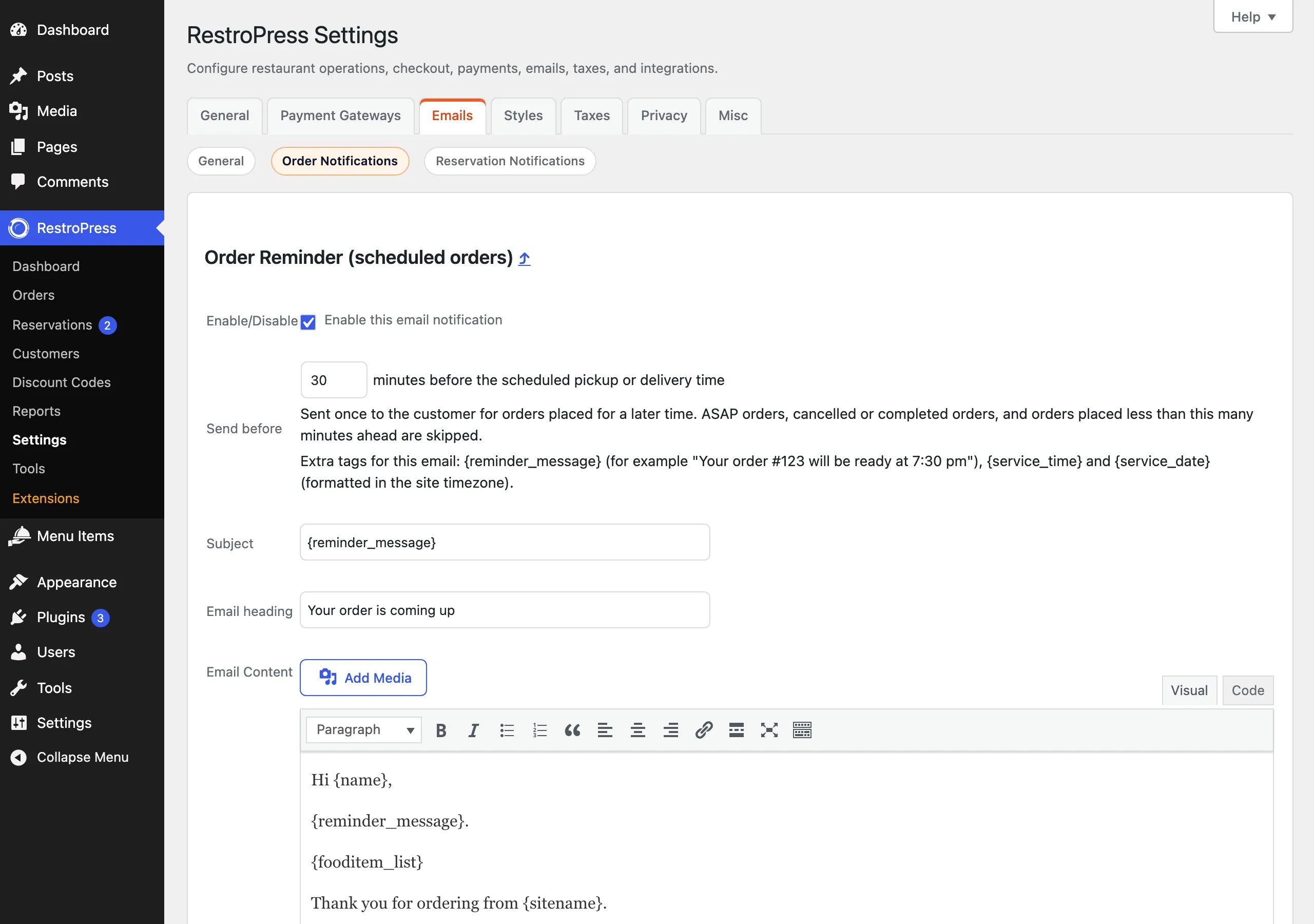
| Field | Default |
|---|---|
| Send before | 30 minutes. Values are kept between 5 and 1440. |
| Subject | {reminder_message} |
| Email heading | Your order is coming up |
| Email Content | "Hi {name}," then {reminder_message}., then {fooditem_list}, then "Thank you for ordering from {sitename}." |
A field left empty falls back to the default. Besides the usual order email tags listed on the screen, the reminder has three of its own:
{reminder_message}: a sentence worded for the service. Pickup orders read "Your order #123 will be ready at 7:30 pm"; delivery orders read "Your order #123 is scheduled for delivery at 7:30 pm".{service_time}: the scheduled time in your site time zone and WordPress time format.{service_date}: the scheduled date in your site time zone and WordPress date format.
How it works#
When an order is placed, completed or changed, RestroPress works out the scheduled time and sets up one email for it. If the time or status of the order changes later, the email is re-planned. The email is sent with the store's email template, From Name and From Email. If WPML is active, it is sent in the language the order was placed in. After sending, an order note reads "Order reminder email sent to the customer." and the order is marked so it is never reminded twice.
An order is skipped, with no email, when any of these is true:
- It is an ASAP order, or has no usable scheduled date and time. A time slot given as a range such as "7:30 PM - 8:00 PM" counts from its start.
- The payment is not paid and live: only orders with a published, processing or complete payment status qualify, so unpaid, failed, refunded or abandoned payments are skipped.
- The order status is Cancelled, Completed, Refunded or Failed.
- It was placed less than the Send before time ahead of the scheduled time. The receipt already covers that case.
- The scheduled time has already passed.
- The customer has no valid email address.
Good to know#
- WP-Cron: each reminder is a single WP-Cron event. As a backup, every 5 minutes at most RestroPress also checks orders scheduled for today (and for tomorrow shortly before midnight) and sends any that are due, so reminders still go out on sites where WP-Cron is disabled. The check runs on site requests, so a very quiet site may send a few minutes late.
- Moving an order to a later time before the reminder is sent re-plans it. Once the reminder has been sent, changing the time does not send another.
- If sending fails, it is retried on a later check while the order is still inside its window.
- The reminder is for food orders. For table bookings see Table Reservations, which has its own reminder.
For developers#
| Name | Type | Purpose |
|---|---|---|
rpress_reminder_default_enabled | filter | On or off state before settings are saved. |
rpress_reminder_settings | filter | The resolved settings (enabled, minutes, subject, heading, content). |
rpress_reminder_current_time | filter | The clock used for the checks. |
rpress_reminder_payment_statuses | filter | Payment statuses that qualify (default publish, processing, complete). |
rpress_reminder_skip_order_statuses | filter | Order statuses that are skipped (default cancelled, completed, refunded, failed). |
rpress_reminder_check_order | filter | Final decision for an order (state send, wait, sent, skip or disabled). |
rpress_reminder_message | filter | The {reminder_message} sentence. |
rpress_reminder_headers | filter | Email headers. |
rpress_reminder_email_message | filter | Final message body. |
rpress_reminder_sent | action | After a reminder is sent (argument: order ID). |
rpress_reminder_batch_size, rpress_reminder_max_pages, rpress_reminder_fallback_interval | filter | Tuning for the backup check (default 100 orders, 10 pages, 300 seconds). |
rpress_send_order_reminder | action | The cron event for one order (argument: order ID). |
rpress_order_notification_extra_emails, rpress_order_notification_manage_fields | filter, action | The mechanism used to list the email and add the Send before field. |