
Pause orders and late-order alerts
On this page
Pause orders and busy mode let kitchen staff slow down or stop incoming online orders without leaving the Live Orders screen. You can pause new orders for 15, 30 or 60 minutes, or until you resume, and you can add extra preparation time to every order for the rest of the day. A companion feature, missed-order protection, makes sure a new order that nobody has accepted does not go unnoticed: the Live Orders board keeps ringing, and RestroPress can email you when an order waits too long.
Turn it on#
Pause orders has no setting to switch on. The controls appear at the top of RestroPress › Orders › Live Orders for every user who can open that screen (the edit_shop_payments capability). Nothing is paused and no extra prep time is added until someone clicks a button.
Missed-order protection settings are in RestroPress › Settings › General › Live Orders, under the heading Missed-order protection. The repeating sound is always active on the Live Orders board. The unattended-order email is on by default for stores installed fresh with RestroPress 3.5 and off for stores that were already running an earlier version (see "Good to know").
Pause new orders#
On Live Orders, the panel above the board shows the current state: Taking orders, Paused until a clock time, or Paused until resumed.
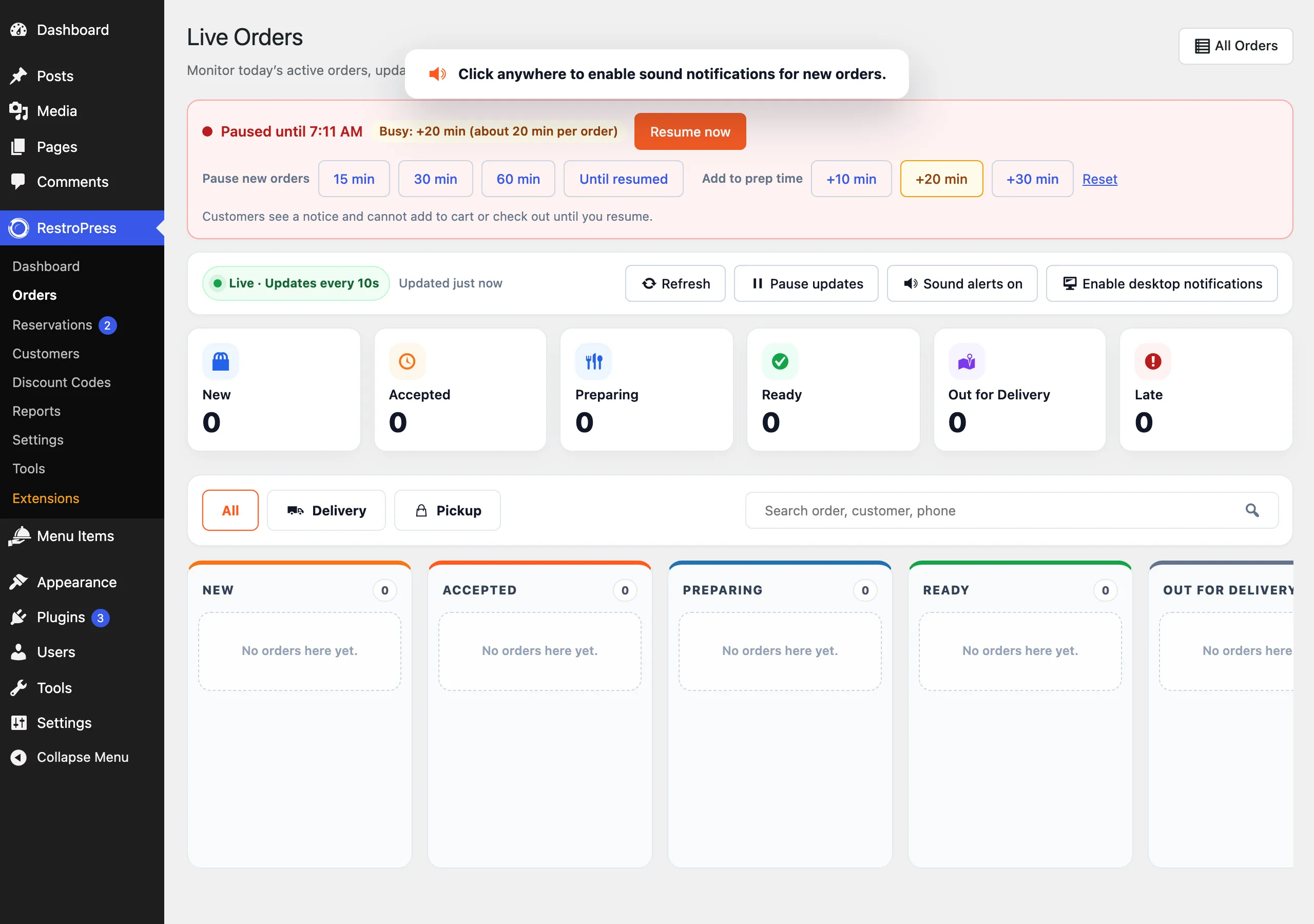
- Under Pause new orders click 15 min, 30 min, 60 min or Until resumed. Until resumed asks you to confirm: "Pause new orders until you resume them?"
- The panel changes to the paused state and shows a Resume now button. A timed pause ends by itself at the time shown. Nothing needs to run in the background: the pause is checked each time it is read.
- To end a pause early, click Resume now.
Orders that are already placed are not affected. The pause only stops new ones.
Add to prep time#
When the kitchen is busy, you can make the time customers are quoted longer instead of stopping orders.
- Under Add to prep time click +10 min, +20 min or +30 min. The active button is highlighted.
- The panel shows, for example, "Busy: +20 min (about 50 min per order)". The second figure is your saved prep time plus the extra minutes.
- Click Reset to go back to the normal prep time.
The extra minutes are added to the Cooking Time/Prep Time(minutes) setting (RestroPress › Settings › General › Service & Hours, default 30) for customers on the storefront only. It moves the "as soon as possible" estimate and the earliest time slot. The saved setting itself is not changed, and the settings screen still shows your normal value. Busy mode clears itself at midnight in your site's time zone, so the next day starts with the normal prep time.
What customers see#
While orders are paused or busy, a notice appears above the menu and above the checkout. It is added to the [fooditems] and [fooditem_checkout] shortcodes and to the menu and checkout blocks (rpress/food-menu and rpress/checkout).
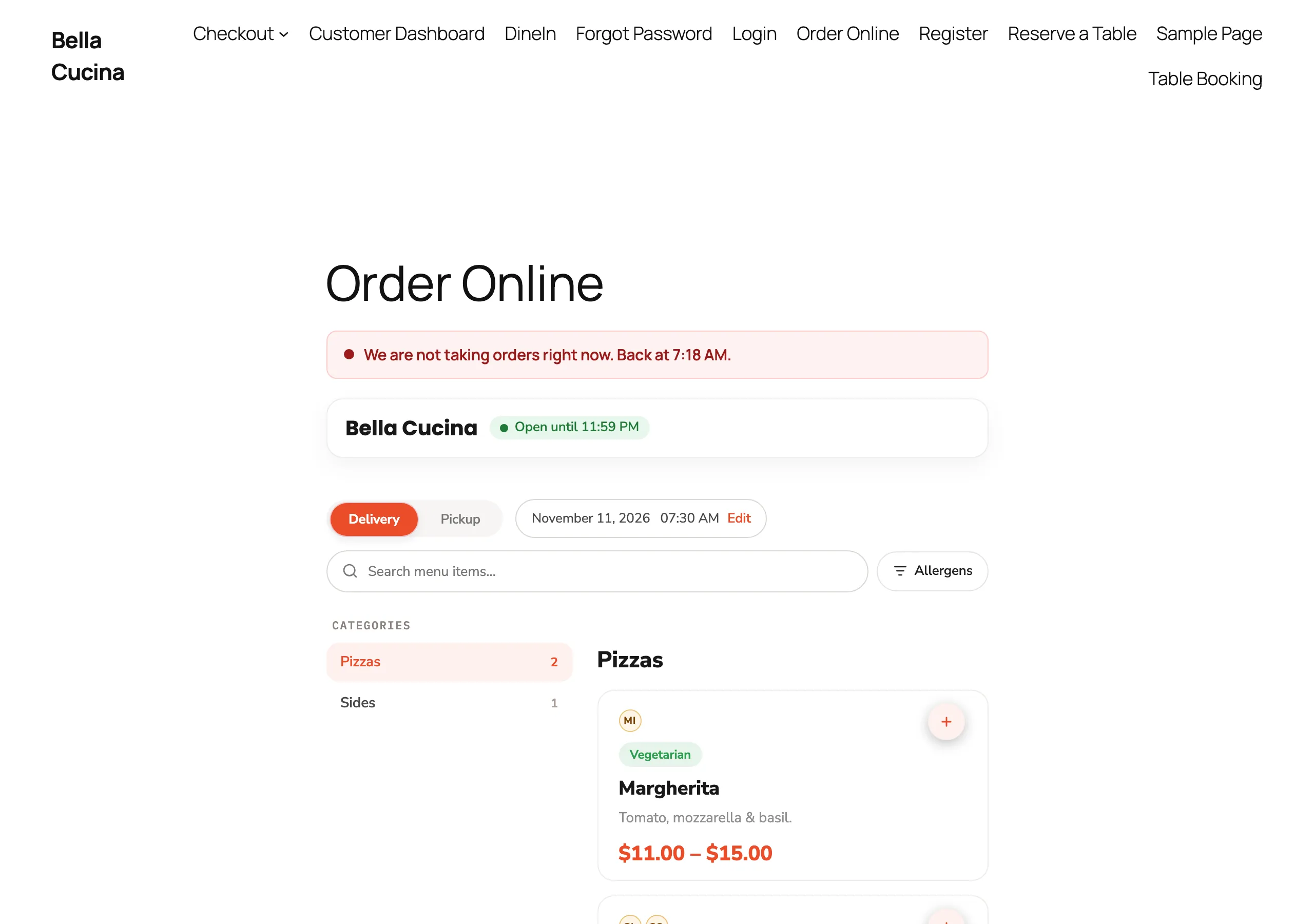
- Paused for a set time: "We are not taking orders right now. Back at 7:30 PM." (the time is your resume time in your store time format).
- Paused until resumed: "We are not taking orders right now. Please check back soon."
- Busy: "Busy: orders take about 50 minutes." (saved prep time plus the extra minutes). This notice only shows when orders are not paused.
What a paused store allows depends on whether pre-orders (ordering for a later date or time) are available for the customer's service type:
- No pre-orders: the service picker, the item popup and Add to cart are blocked with "We are not taking new orders right now. Please try again after 7:30 PM." (or "Please check back soon." when paused until resumed). Checkout is blocked as well.
- Pre-orders available: the notice adds "You can still schedule an order for later." Customers can still build a cart. ASAP is refused with "We are not taking ASAP orders right now. Please choose a time after 7:30 PM." Only times at or after the end of a timed pause are offered. If the pause is until resumed, nothing is offered for today and later dates stay open.
The same rule is enforced on the server at checkout, so a customer with an old page open cannot place an order through the pause. Orders created through the REST API orders endpoint are refused the same way, with the HTTP status 409 and the error code orders_paused.
Whether pre-orders count as available is decided by RestroPress' pre-order check, which is on when the standalone Pre-Order extension option or the Store Timing and Delivery Cutoff extension allows it. Core RestroPress 3.5 has no pre-order setting of its own that this page can point you to.
Missed-order protection#
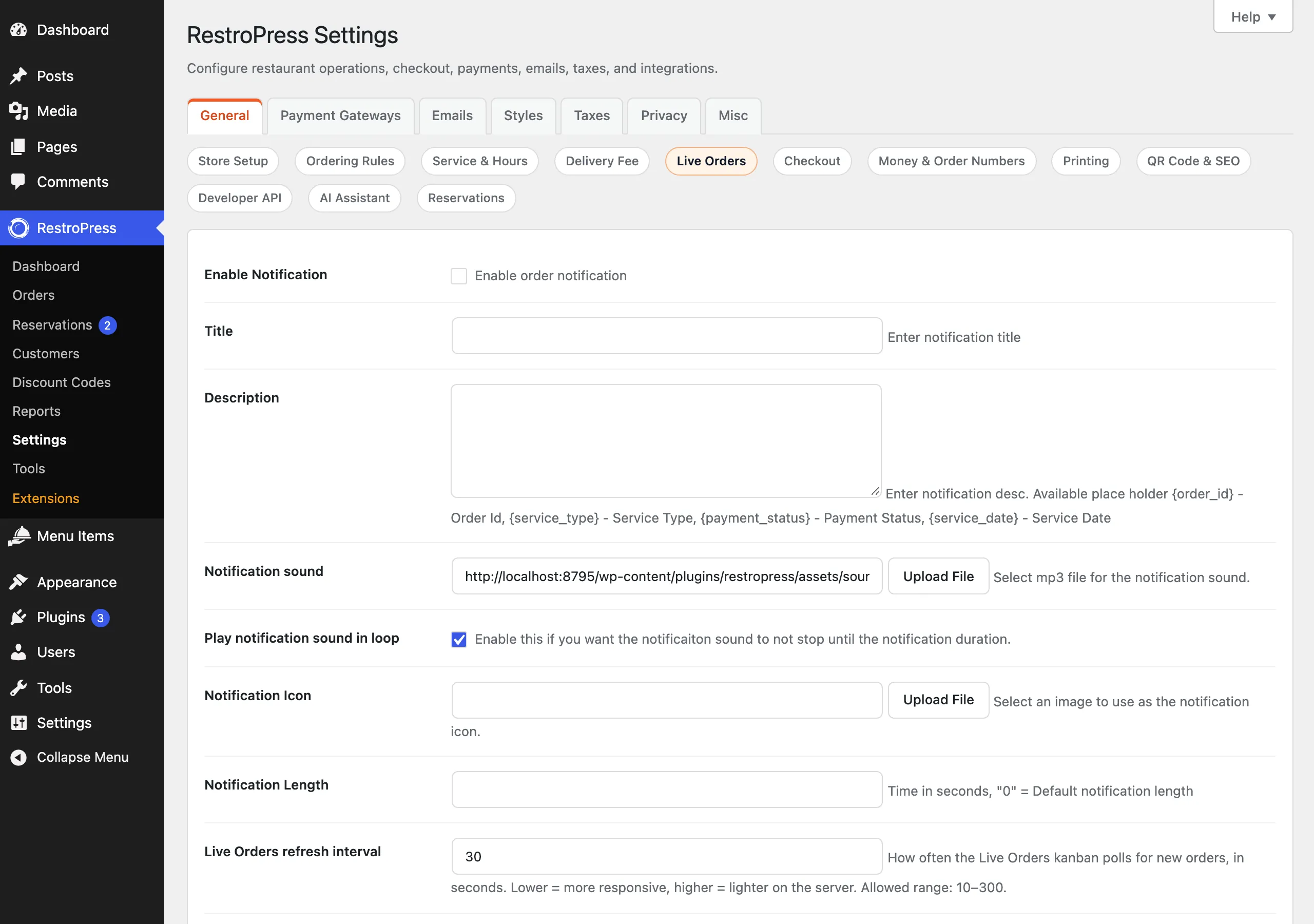
These settings are in RestroPress › Settings › General › Live Orders under Missed-order protection. A fragment for the settings reference lists every field with its default.
On the Live Orders board#
- Repeating sound. The new-order sound repeats every Repeat new-order sound every seconds (default 10, allowed 5 to 300) while at least one new order is unaccepted and not acknowledged. It stops when the order is accepted or rejected, or when someone clicks Acknowledge on the card. The sound only plays if the board's Sound alerts toggle is on and the browser has been allowed to play audio.
- Visual alert. The card and the New column pulse, and the browser tab title flashes "(1) New order" or "(2) New orders".
- Acknowledge. The button stops the sound for that order on that screen only. The card then reads Acknowledged. The acknowledgement is remembered in the browser, not on the server, so another tablet keeps ringing.
- Desktop notifications. A button labelled Enable desktop notifications asks the browser for permission. When allowed, a notification titled "New order #123" appears for orders that arrive while the Live Orders tab is open in the background. If the browser has blocked notifications the button reads Notifications blocked and the help text says to allow them in the browser's site settings and reload.
- Unpaid online orders do not ring. Only orders with payment status Paid or Processing raise alerts. An online order still waiting for its payment does not ring until payment is confirmed.
Auto-print and print status#
- When Auto-print new orders is ticked and printing is enabled (RestroPress › Settings › General › Printing), a new order is printed automatically from the browser while Live Orders is open. Two open boards do not both print the same order.
- When printing is enabled, each card shows a badge: Printed with the time, Print failed or Not printed, with a button to Reprint, Retry or Print. "Printed" means the browser's print dialog was used. The browser cannot confirm that paper came out.
Unattended-order email#
If a new order stays unaccepted for the time set in Send the email after (default 5 minutes, allowed 1 to 240), RestroPress sends one email per order to the admin notification recipients. It works even if nobody has the Live Orders screen open.
- The subject is "Order #123 has not been accepted for 5 minutes" and the heading is "Order waiting to be accepted". The body shows the customer, the service type, the number of items, the total, up to 20 item lines, and links to Open Live Orders and View order.
- The recipients are the same addresses used for the admin new-order notification (RestroPress › Settings › Emails, order notifications), falling back to the site admin email.
- A note is added to the order: "Order not accepted within 5 minutes: unattended-order email sent to the admin recipients." If the email could not be sent the note says so.
- Each order is escalated once. Only orders still in the New (pending) state count, so an order that was accepted automatically (Order Auto Accepted) or by staff does not trigger it.
The check runs from WordPress' scheduled tasks every 5 minutes, and an open Live Orders board also asks for a check at most once a minute. The email is never sent from inside the board's own refresh request.
Good to know#
- Existing stores. If your store was running before RestroPress 3.5, Unattended-order email starts as Off, and a one-time notice on the Settings screen offers Enable unattended-order email or No thanks. Fresh installs start with it On.
- Only newer orders. Only orders placed after the email was switched on are checked, and only orders from the last 24 hours.
- Scheduled orders. An order for later is skipped until its service time is within the Live Orders look-ahead (3 hours by default). ASAP orders count as due now.
- Browser-only features. The repeating sound, desktop notifications and auto-print only work while a Live Orders tab is open. The email is the only part that works with no screen open.
- WordPress scheduled tasks. The 5 minute check relies on WP-Cron. On a very quiet site with WP-Cron disabled, emails may be late.
- Pause is store-wide. There is one pause for the whole site. It does not close individual services.
For developers#
| Name | Type | Purpose |
|---|---|---|
rpress_pause_orders_durations | Filter | Pause lengths in minutes (default 15, 30, 60, 0; 0 means until resumed). |
rpress_pause_orders_busy_steps | Filter | Extra prep minute steps (default 10, 20, 30). |
rpress_pause_orders_busy_until | Filter | Timestamp when busy mode clears (default next midnight). |
rpress_pause_orders_error_message | Filter | The message shown when an order is blocked. |
rpress_pause_orders_banner_message | Filter | The storefront notice text. |
rpress_pause_orders_capability | Filter | Capability needed to pause (default edit_shop_payments). |
rpress_pause_orders_changed | Action | Fires after the pause or busy state is saved. |
rpress_order_alerts_repeat_interval | Filter | Seconds between sound repeats. |
rpress_order_alerts_escalation_minutes | Filter | Minutes before the unattended-order email. |
rpress_order_alerts_escalation_enabled | Filter | Turn the unattended-order email on or off. |
rpress_order_alerts_escalation_recipients | Filter | Email recipients. |
rpress_order_alerts_escalation_subject | Filter | Email subject. |
rpress_order_alerts_escalation_message | Filter | Email body HTML. |
rpress_order_alerts_escalation_lookback_hours | Filter | How far back orders are checked (default 24). |
rpress_order_alerts_escalation_batch | Filter | Orders per query (default 50). |
rpress_order_alerts_escalation_query_args | Filter | The WP_Query arguments used to find orders. |
rpress_order_alerts_payment_statuses | Filter | Payment statuses that raise alerts (default publish, processing). |
rpress_order_alerts_capability | Filter | Capability for the board features (default edit_shop_payments). |
rpress_order_alerts_now | Filter | Current time used by the checks. |
rpress_order_alerts_escalated | Action | Fires after an unattended order is escalated (order ID, sent flag, minutes). |
rpress_order_print_status_updated | Action | Fires when a print status is recorded (order ID, status, message, source). |
rpress_get_order_print_status(), rpress_set_order_print_status() | Functions | Read or record an order's print status (printed, failed, not_attempted) from a printing integration. |