
Apple Pay, Google Pay and PayPal updates
On this page
RestroPress 3.5 adds Apple Pay and Google Pay buttons to checkout through Stripe, makes the Stripe webhook stricter and broader, shows one Paid or Not paid label on every order screen, and fixes a security problem in the PayPal payment notification (release 3.5.0.1). This page describes what changed. The basic setup of each gateway is in the Stripe and PayPal guides.
Apple Pay and Google Pay#
When Stripe is the selected payment method, checkout can show an Apple Pay or Google Pay button above the card option, separated by the line "or pay by card". The customer approves the payment in their phone or browser wallet and RestroPress creates the order and charges it through Stripe without sending the customer to the Stripe page. Card payment by hosted Stripe Checkout works as before.
Turn it on#
The button is on by default once Stripe is working. All of the following must be true:
- Stripe is ticked under RestroPress › Settings › Payment Gateways › General and the Stripe extension is not active (the built-in Stripe steps aside when the extension is active).
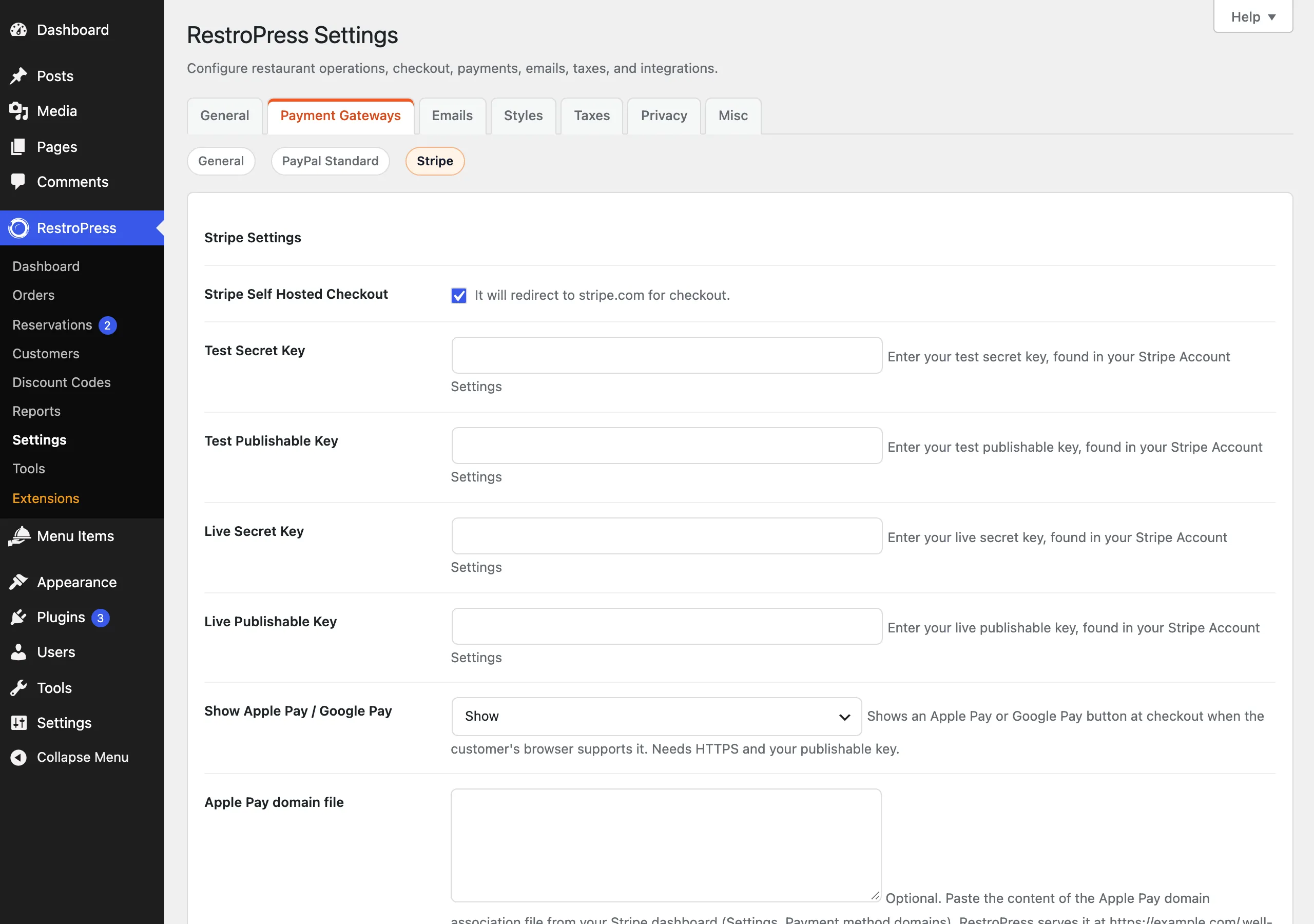
- The publishable key and secret key for the current mode are filled in (Test Publishable Key and Test Secret Key in test mode, Live Publishable Key and Live Secret Key in live mode) under RestroPress › Settings › Payment Gateways › Stripe.
- Show Apple Pay / Google Pay is set to Show (the default). Set it to Hide to remove the button.
- The site is on HTTPS. The settings text says the feature "Needs HTTPS and your publishable key".
- The customer's browser and device actually have a wallet that Stripe can use. The button stays hidden otherwise, and also when the cart total is zero.
Set it up for Apple Pay#
Google Pay needs no file. Apple Pay needs your domain to be verified in Stripe:
- In your Stripe dashboard open Settings, then Payment method domains, add your site's domain and download the Apple Pay domain association file.
- In RestroPress open RestroPress › Settings › Payment Gateways › Stripe, paste the file's content into Apple Pay domain file and click Save Changes.
- RestroPress serves the content at
https://your-site.com/.well-known/apple-developer-merchantid-domain-association. Go back to Stripe and verify the domain.
Only printable characters are kept when you save the field. Verification only works on a live HTTPS domain. The file is served only when requests for that path reach WordPress: if a real file exists at that path, or your web server blocks folders that start with a dot, the pasted content is not used.
What the customer sees and what happens to the order#
- The customer fills in the checkout form as usual and taps the wallet button. If the form is invalid, the browser's own validation messages appear instead of the wallet sheet.
- The wallet sheet shows your site name and the cart total. The total follows the cart, including service type, tip, discount and tax.
- After approval RestroPress checks the checkout form, confirms that the total the customer approved still matches the order, creates the order as hidden and starts the Stripe payment. If the total changed, the customer sees "Your order total changed. Please check it and try again."
- If Stripe confirms the payment, the order becomes Paid with the note "Stripe payment pi_... confirmed (wallet checkout)." and the customer lands on the order confirmation page.
- If the bank asks for extra authentication (3D Secure) it is completed in the browser, then the confirmation page or the Stripe webhook marks the order paid. If authentication is cancelled or fails, the order is set to Failed.
- If Stripe declines the payment, the order is set to Failed, the note "Wallet payment failed: ..." is added and the customer sees the reason.
The order is saved with the gateway Stripe and the order meta _rpress_stripe_wallet. The order notes show "Apple Pay / Google Pay PaymentIntent: pi_...".
Stripe webhook changes#
The Stripe section now shows a Webhook URL field with a Copy button, the list of events to select, and a warning when no signing secret is saved ("No signing secret saved yet: webhooks are rejected until you add one."). Add the URL as an endpoint in the Stripe dashboard (the link goes to dashboard.stripe.com/webhooks) and paste its signing secret into Webhook Signing Secret.
Select these seven events:
checkout.session.completedcheckout.session.async_payment_succeededcheckout.session.async_payment_failedcheckout.session.expiredpayment_intent.succeededpayment_intent.payment_failedcharge.refunded
How RestroPress handles each delivery:
- Signature and age. A missing signing secret, a bad signature or a timestamp more than 300 seconds off is refused with HTTP 400. Each has its own text: "Webhook signing secret is not configured", "Invalid signature", "Missing or malformed Stripe-Signature header", "Timestamp outside the tolerance zone". An unreadable body gets "Invalid payload".
- Repeated events. RestroPress remembers the last 500 event IDs from the last 7 days and answers 200 "Duplicate event ignored" to a repeat.
- Several sites, one Stripe account. Each payment is tagged with a short key of your site. Events tagged for another site are ignored, as are events from the other mode (test events on a live order and the reverse).
payment_intent.succeededmarks the order Paid, unless the amount received is lower than the order total or the currency differs. In that case the order is left as it is and a note asks for review: "Stripe PaymentIntent ... succeeded for ... which does not match the order total. Please review before accepting."payment_intent.payment_failedsets the order to Failed with the decline reason in a note, unless it is already Paid, Refunded or Failed.charge.refundedsets the order to Refunded for a full refund, which cancels the order. A partial refund only adds the note "Stripe partial refund: ... refunded so far."
You still issue the refund in the Stripe dashboard. With the charge.refunded event selected, RestroPress updates the order for you.
Paid and Not paid labels#
Live Orders, the admin order screen, the customer's order page and the receipt now use one label for the money state of an order:
| Label | When |
|---|---|
| Paid | The payment is complete. A cash (offline) order also counts as paid once the order is Completed. |
| Not paid yet | A cash order, or one with no gateway, that has not been collected yet. |
| Awaiting payment | An online order whose payment the gateway has not confirmed yet. |
| Refunded | The order is refunded or partially refunded. |
| Payment failed | The payment failed or was revoked. |
| Abandoned | The order was abandoned. |
PayPal security update (3.5.0.1)#
RestroPress 3.5.0.1 fixes a security problem in the PayPal payment notification (IPN). The notification compared the paid amount with the order total as formatted text. On orders of 1,000 or more in your currency, a customer who lowered the amount on PayPal could pay less and still have the order marked Paid. Amounts are now compared as whole cents (numbers). The same comparison is used to tell a full PayPal refund from a partial one. If you use PayPal, update to 3.5.0.1 or later. Check recent PayPal orders of 1,000 or more for a received amount lower than the total.
Other PayPal changes in 3.5:
- Return from PayPal. If PayPal's payment data transfer (PDT) is used, which needs the legacy identity token, RestroPress now only applies it when the transaction belongs to that order: the order was placed with PayPal, the order number, invoice (order key) and currency match, the payment went to your connected PayPal account, and the transaction is not already linked to another order. Otherwise the order is left alone and a note is added: "PayPal PDT not applied: ... The order stays as it is until PayPal sends its IPN."
- Certificate checks. RestroPress now verifies the TLS certificate when it contacts PayPal to verify notifications. A server with an outdated certificate store may fail the check, so orders stay Pending until it is fixed.
- The total sent back by PDT is only taken from the PayPal fields for the amount. A missing total no longer falls back to the value in the return URL.
Good to know#
- Test the wallet in Test Mode with test keys. Apple Pay verification and a real wallet need a live HTTPS domain.
- The wallet button charges only in your store currency, using the card payment type.
- If your Stripe account sends webhooks to more than one site, add the endpoint for each site, since each site only acts on its own payments.
For developers#
| Name | Type | Purpose |
|---|---|---|
rpress_core_stripe_settings | Filter | Stripe settings fields (the wallet fields are added through it). |
rpress_core_stripe_publishable_key | Filter | The publishable key used by the wallet button. |
rpress_payments_stripe_wallets_enabled | Filter | Turn the wallet button on or off. |
rpress_core_stripe_webhook_tolerance | Filter | Seconds a webhook timestamp may differ (default 300; 0 disables the check). |
rpress_payments_stripe_webhook_unhandled | Filter | Result for an event type RestroPress does not handle. |
rpress_payment_paid_state | Filter | The money state (paid, unpaid, refunded, failed, abandoned). |
rpress_payment_paid_label | Filter | The Paid or Not paid label text. |
rpress_gateway_stripe | Action | Gateway processing; the wallet branch runs first and answers in JSON. |
rpress_get_payment_paid_state(), rpress_get_payment_paid_label() | Functions | Read the state or label of an order. |
rpress_paypal_amount_in_cents(), rpress_paypal_pdt_mismatch() | Functions | PayPal amount comparison and PDT ownership check. |
rpress_stripe_processed_events | Option | Processed Stripe event IDs. |