
Discount codes
On this page
Discount codes let customers save money at checkout. Manage them under RestroPress › Discount Codes. The list shows each code's name, code, amount, uses, start date, expiration and status, with filters for All, Active and Inactive.
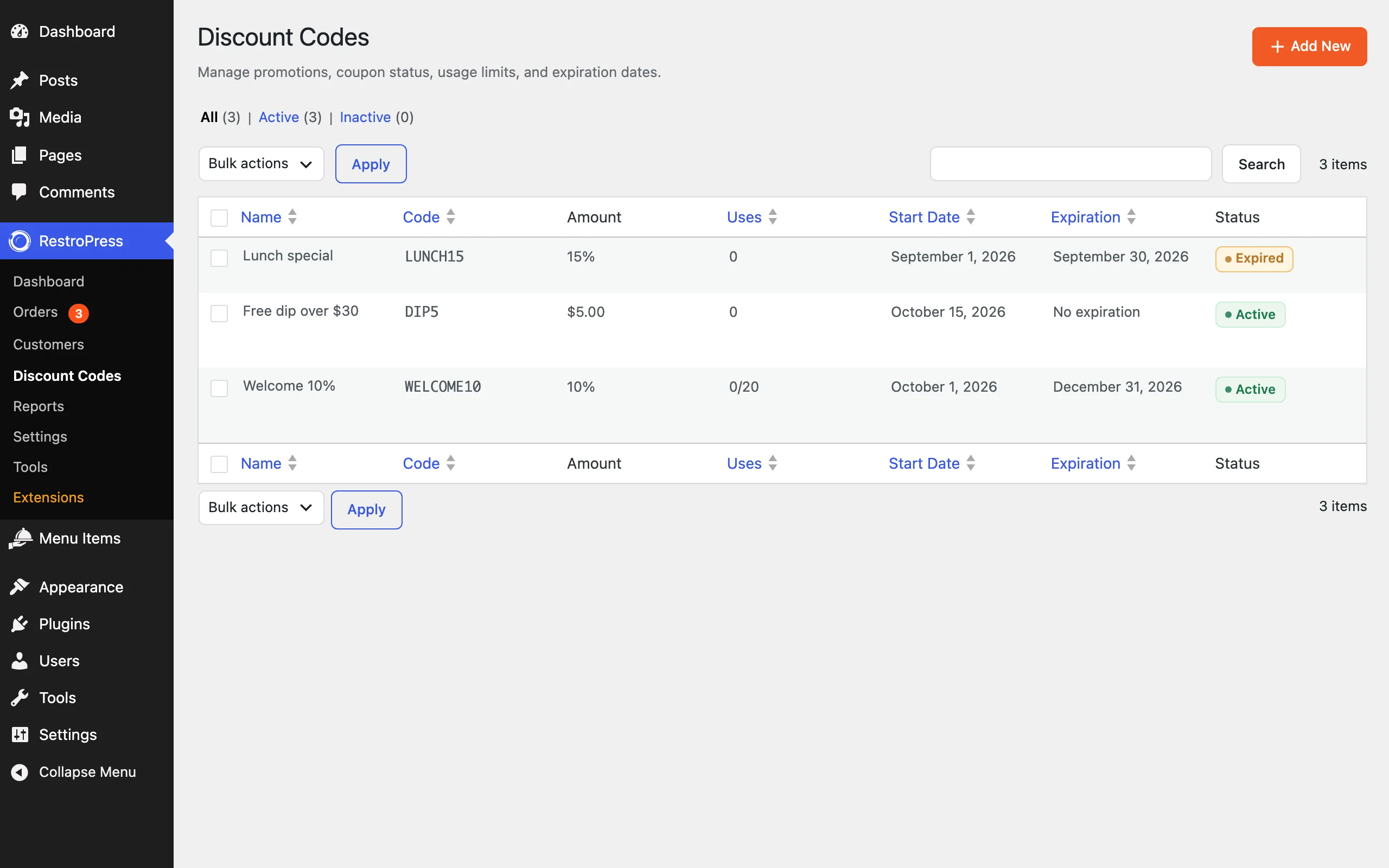
Add a discount code#
- Click Add Discount.
- Fill in the fields below, then click Add Discount Code.
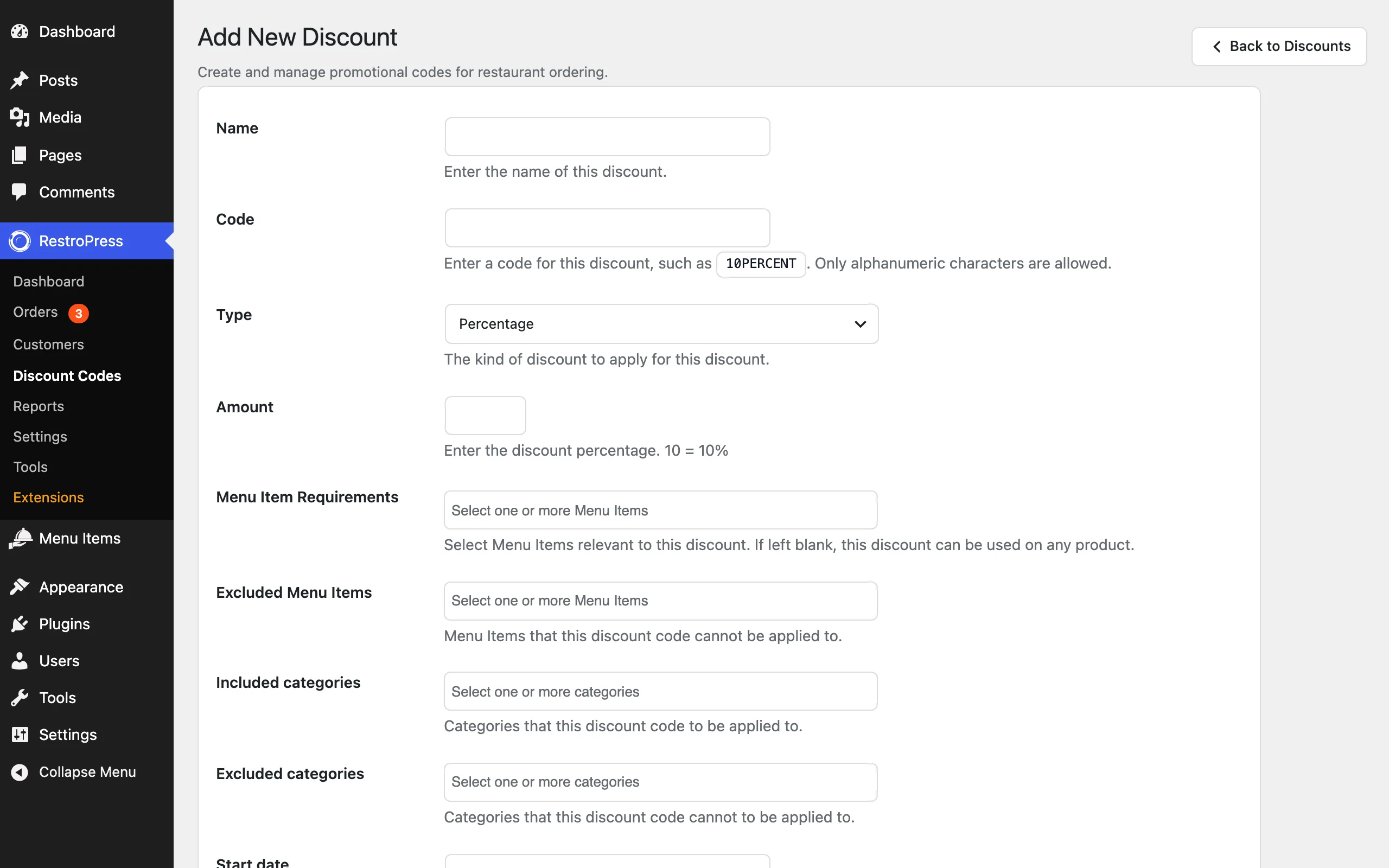
| Field | What it does |
|---|---|
| Name | A name for your own use, such as "Summer promo". |
| Code | The code customers type, such as 10PERCENT. Only letters and numbers are allowed. |
| Type | Percentage or Flat amount. |
| Amount | The discount: a percentage (10 means 10%) or an amount in your currency. |
| Menu Item Requirements | Choose the menu items the discount applies to, and whether the cart must contain all of them or only one or more of them. Leave blank to allow any item. |
| Excluded Menu Items | Items the code cannot be applied to. |
| Included categories | Limit the discount to certain categories. |
| Excluded categories | Categories the code cannot be applied to. |
| Start date | When the code starts to work. |
| Expiration date | When the code stops working. Leave blank for no expiry. |
| Minimum Amount | The least the cart must be worth before the code works. Leave blank for no minimum. |
| Max Uses | The total number of times the code can be used. Leave blank for unlimited. |
| Use Once Per Customer | Limits the code to one use for each customer. |
Customers enter the code in the discount box on the checkout page, and it appears as a line in the order summary. The discount shows on the order and in the receipt. To switch a code off without deleting it, edit it and set Status to Inactive.
For developers#
Discounts are stored as the rpress_discount post type. The helper functions, such as rpress_get_discount() and rpress_is_discount_valid(), are in the Discount functions reference.
Was this page helpful?