
Setup wizard
On this page
When you activate RestroPress for the first time, a setup wizard opens and takes you from an empty site to a store that can take orders. It has six steps, shows a live preview of your storefront, and saves your progress as you go, so you can leave and come back.
If you leave the wizard, open it again at any time from RestroPress › Dashboard, or go straight to wp-admin/admin.php?page=rpress-setup. You can also jump to any step in the left-hand list instead of going in order. Everything you set here can be changed later under RestroPress › Settings.
1. Restaurant profile#
The basics that your storefront, receipts, emails and taxes use.
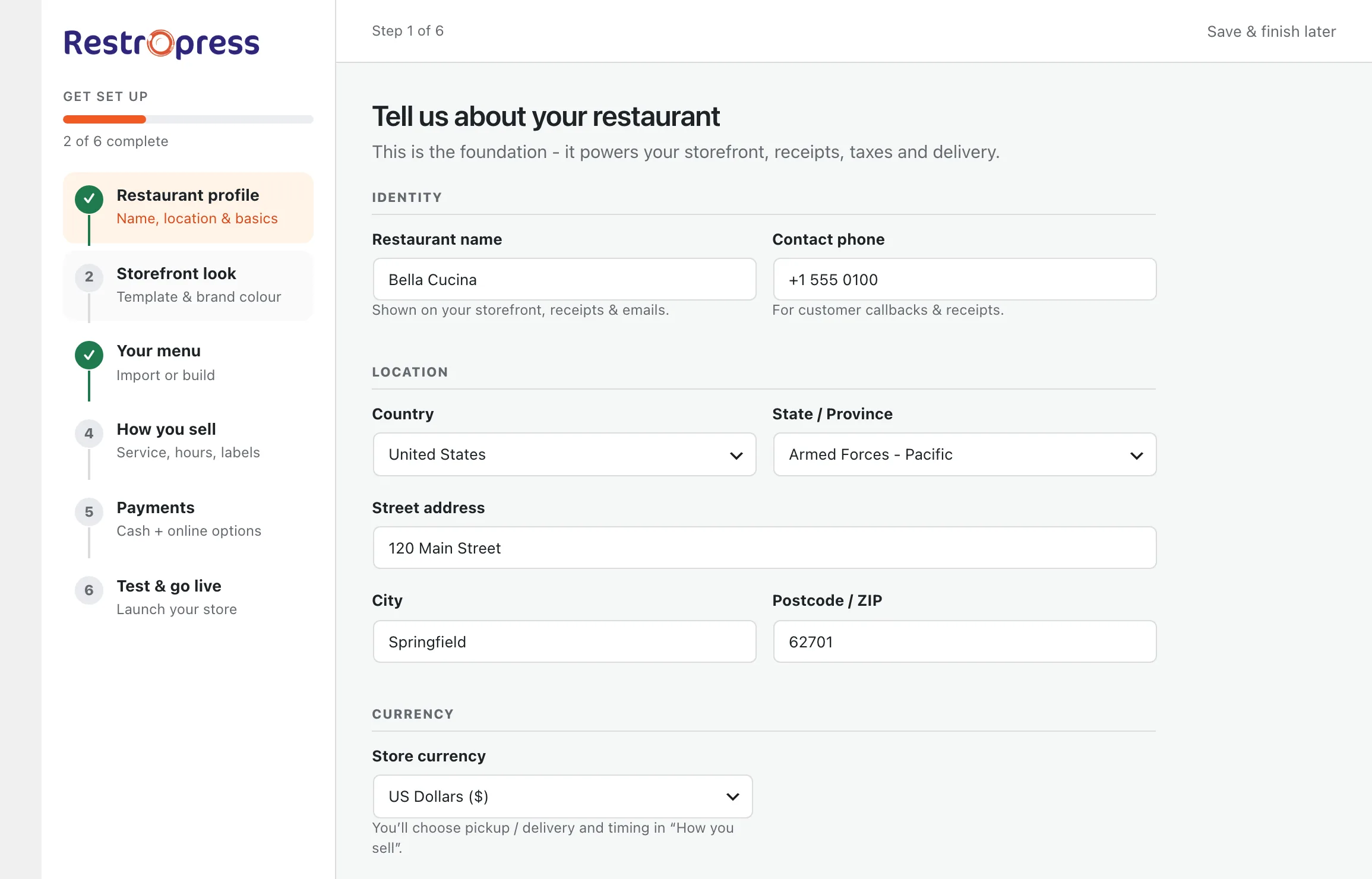
- Identity: restaurant name and contact phone number.
- Location: country, state or province, street address, city and postcode.
- Currency: the store currency. Whether you offer pickup, delivery or both is chosen in step 4.
- Time and clock: your timezone and time format (1:30 PM or 13:30). These are saved as your WordPress timezone and time format, so they apply across the whole site.
2. Storefront look#
Choose how your menu page looks. You can change all of this later under Settings › Styles.
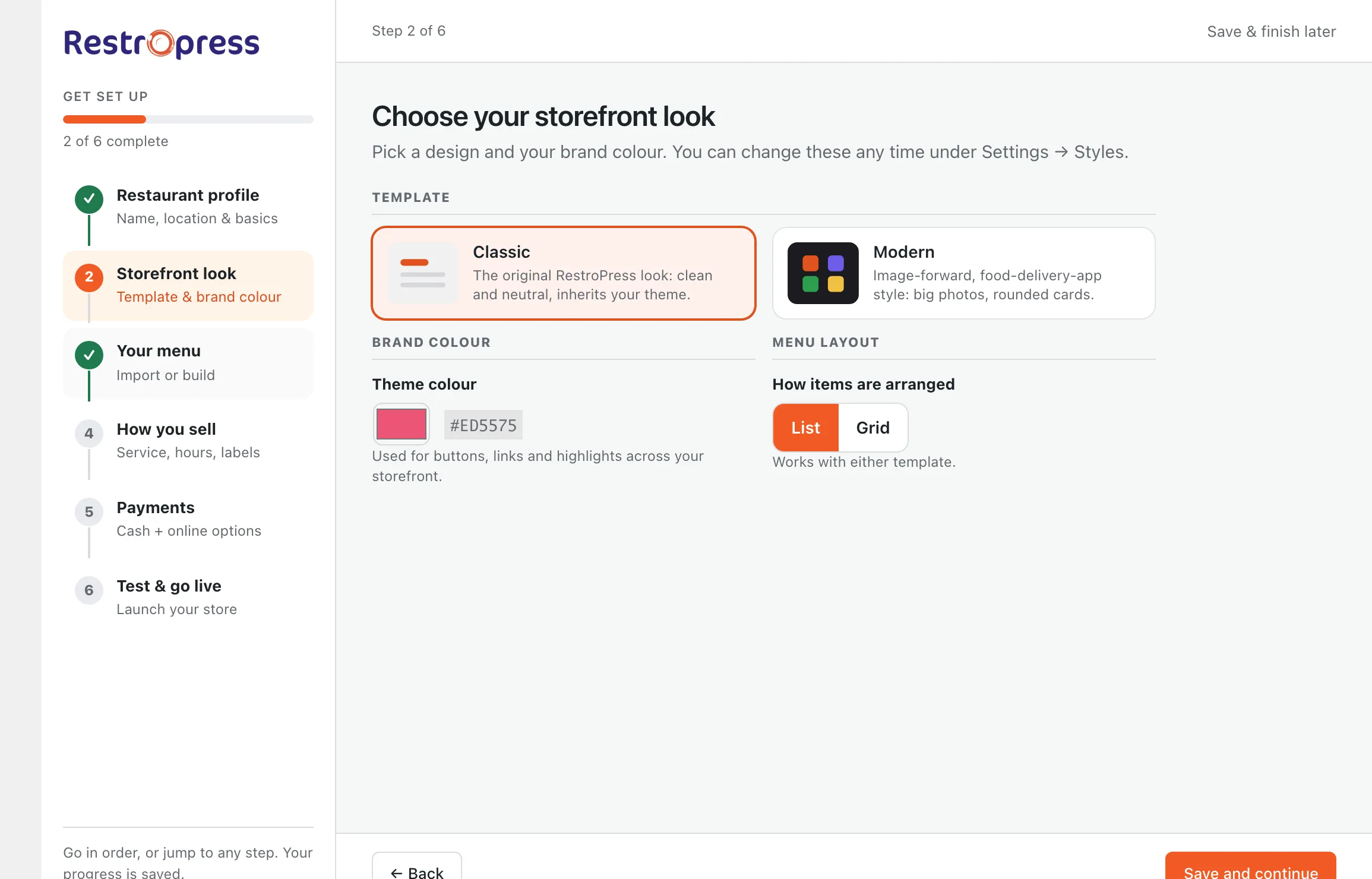
- Template: Classic keeps the original RestroPress look and inherits your theme. Modern is image-forward, in the style of a food-delivery app, with large photos and rounded cards.
- Brand colour: the colour used for buttons, links and highlights.
- Menu layout: List or Grid. Both work with either template.
3. Your menu#
Pick the way that fits what you already have. Nothing goes live until you approve it on the review screen.
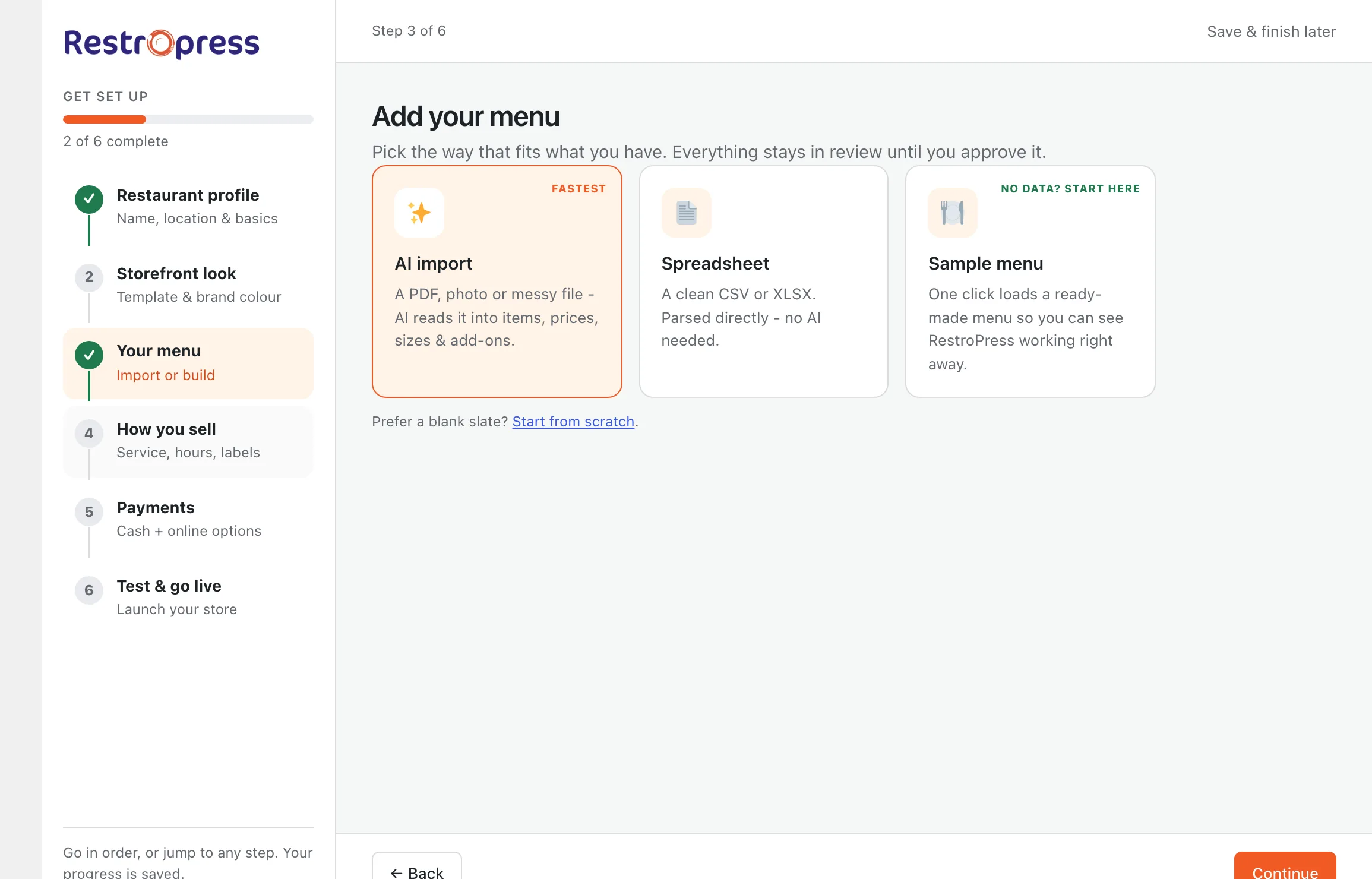
- AI import reads a PDF, a photo or a messy file into items, prices, sizes and add-ons.
- Spreadsheet reads a clean CSV or XLSX file directly, with no AI.
- Sample menu loads a ready-made menu so you can see RestroPress working straight away.
- Start from scratch skips the import so you can add items yourself.
The same options are available later under Menu Items › Import. See Add menu items for the full guide.
4. How you sell#
The wizard pre-fills sensible defaults here. Review each card and change what you need.
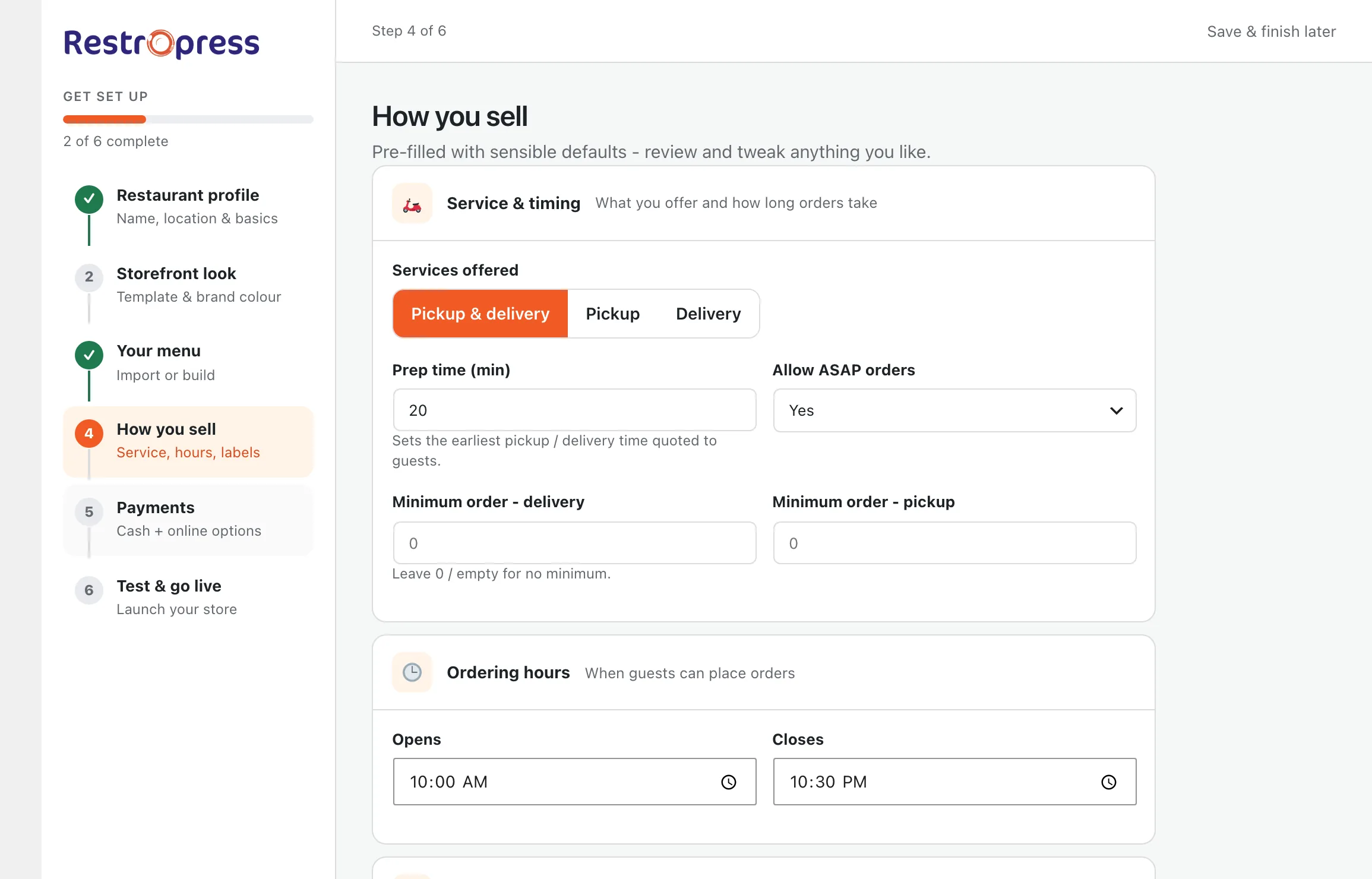
- Service and timing: choose Pickup and delivery, Pickup only or Delivery only. Set the prep time in minutes, which sets the earliest pickup or delivery time offered to customers, and whether Allow ASAP orders is on or customers can only schedule orders. You can also set a minimum order for delivery and one for pickup. Leave them at 0 for no minimum.
- Ordering hours: the time customers can start and stop placing orders. For different hours on each day, use the weekly store hours under Settings.
- Menu labelling: turn on dietary preferences (Vegetarian, Vegan, Gluten-free, Halal and more), and optionally the Veg / Non-veg marks used in India and similar markets, which are off by default.
- Order alerts: the email address that receives new-order alerts, and whether the admin rings and shows a desktop notification when a new order arrives.
5. Payments#
Decide how customers pay.
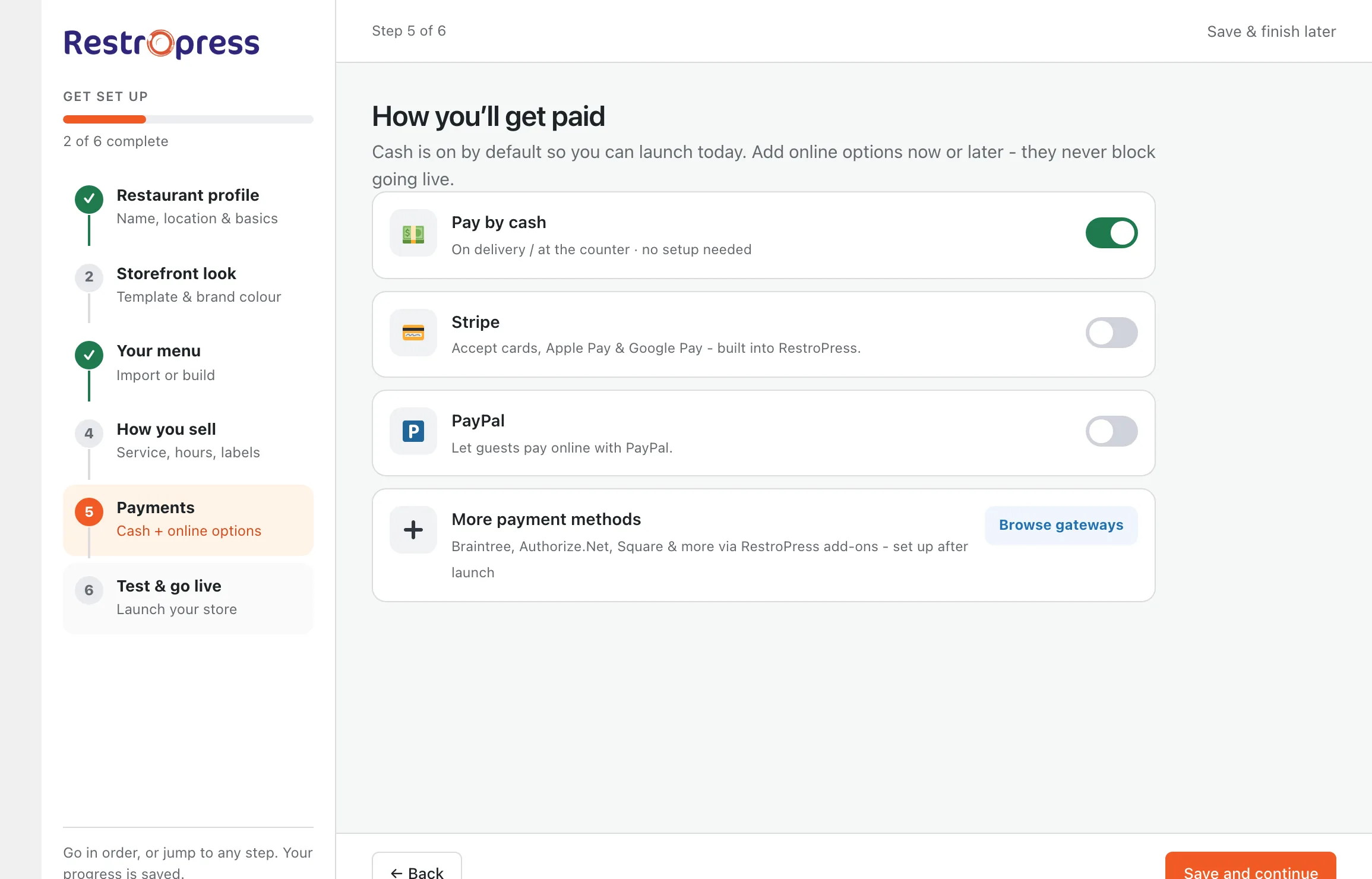
- Pay by cash (cash on delivery or at the counter) needs no setup.
- Stripe accepts cards, Apple Pay and Google Pay. It needs your API keys before it can take payments.
- PayPal lets customers pay online with PayPal. It also needs setup first.
- More payment methods such as Braintree, Authorize.Net and Square come from extensions. See Payment gateways.
6. Test and go live#
Place one real test order to prove the whole flow works. The wizard checks the basics for you automatically: that your menu is published, that a payment method is ready, and that your hours and alerts are set.
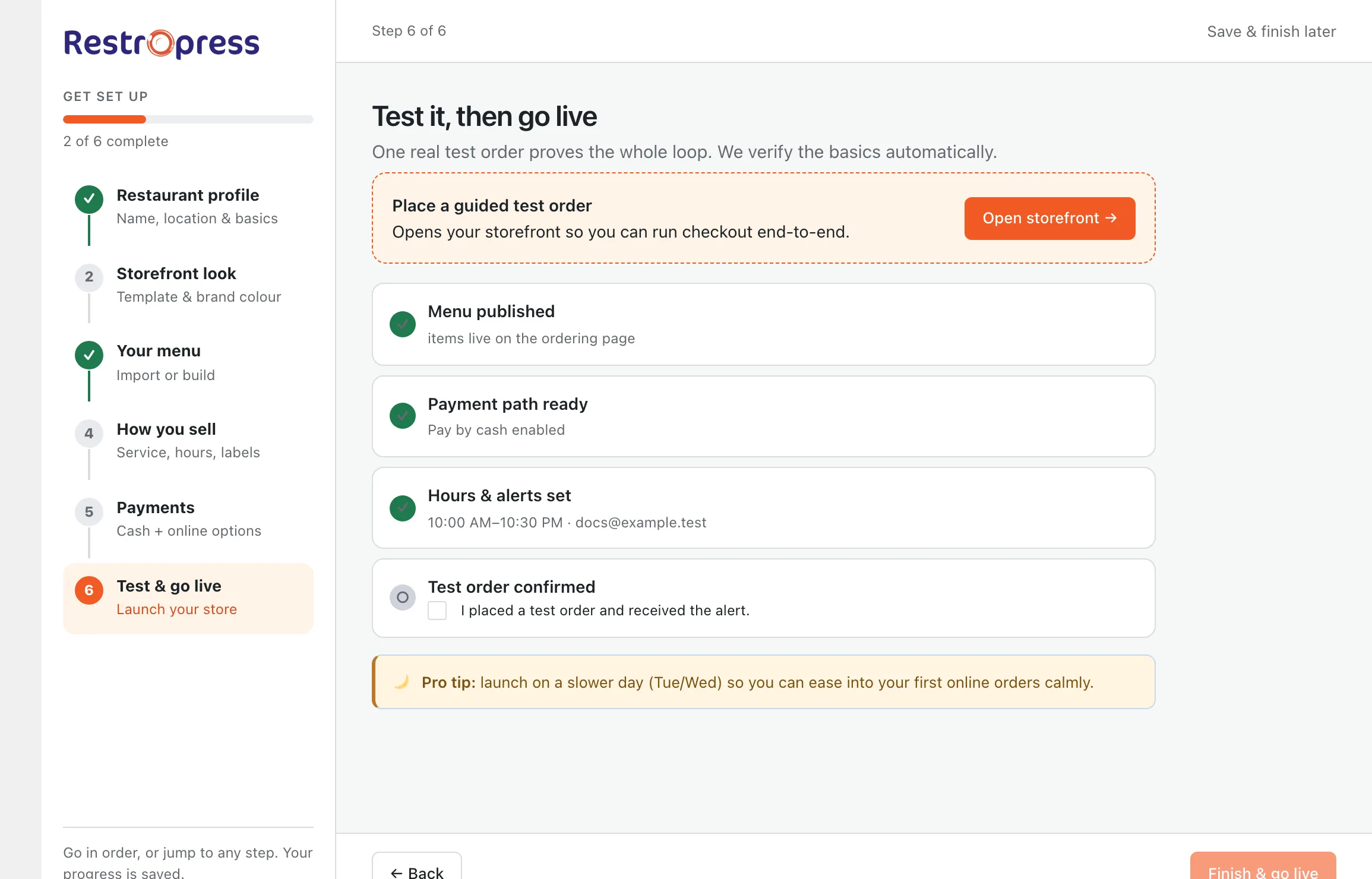
- Click Open storefront and place a test order from start to finish.
- Confirm that the order shows up under RestroPress › Orders and that you got the alert.
- Tick Test order confirmed, then finish.
The final screen gives you the link to your ordering page to share, with shortcuts to your storefront, Orders, your menu and Settings. A good tip is to launch on a quieter day so you can ease into your first online orders.
Pages RestroPress creates for you#
On activation RestroPress creates the pages customers use: Order Online (your menu), Checkout, Order Confirmation, Transaction Failed, Orders (order history), Login, Register and Forgot Password. They are selected under Settings › General › Store Setup. You can check they are all connected with RestroPress › Tools › Health Check.