
RestroPress - Time Based Menu
On this page
RestroPress - Time Based Menu shows food categories only during the time windows you define, for example a breakfast menu in the morning and a dinner menu in the evening. You define named time slots, then assign each food category to one or more slots. On the storefront, only categories assigned to a slot that is currently active are listed.
Requirements#
- RestroPress (free plugin) active. If it is not active, the extension shows an admin notice ("RestroPress - Time Based Menu requires the RestroPress plugin to be installed and active") and deactivates itself.
- The readme lists WordPress 4.4 and PHP 5.5 as minimums and says it was tested up to WordPress 7.1.
- The slot editor in the admin loads the Moment.js and Date Range Picker libraries from cdn.jsdelivr.net, so the admin browser needs access to that CDN.
Installation#
- Go to Plugins › Add New › Upload Plugin, choose the ZIP file and select Install Now.
- Select Activate Plugin.
- Use the Settings link on the Plugins screen, or open RestroPress › Settings › General › Time Based Menu.
The plugin has no licence field and no update code of its own, so there is nothing to enter under RestroPress › Settings › Licenses.
Settings#
Settings are in RestroPress › Settings › General › Time Based Menu, under "Time Based Menu Settings". The field "Add Multiple Time and Their Corresponding Menus" is a table of time slots (each row is called an occasion).
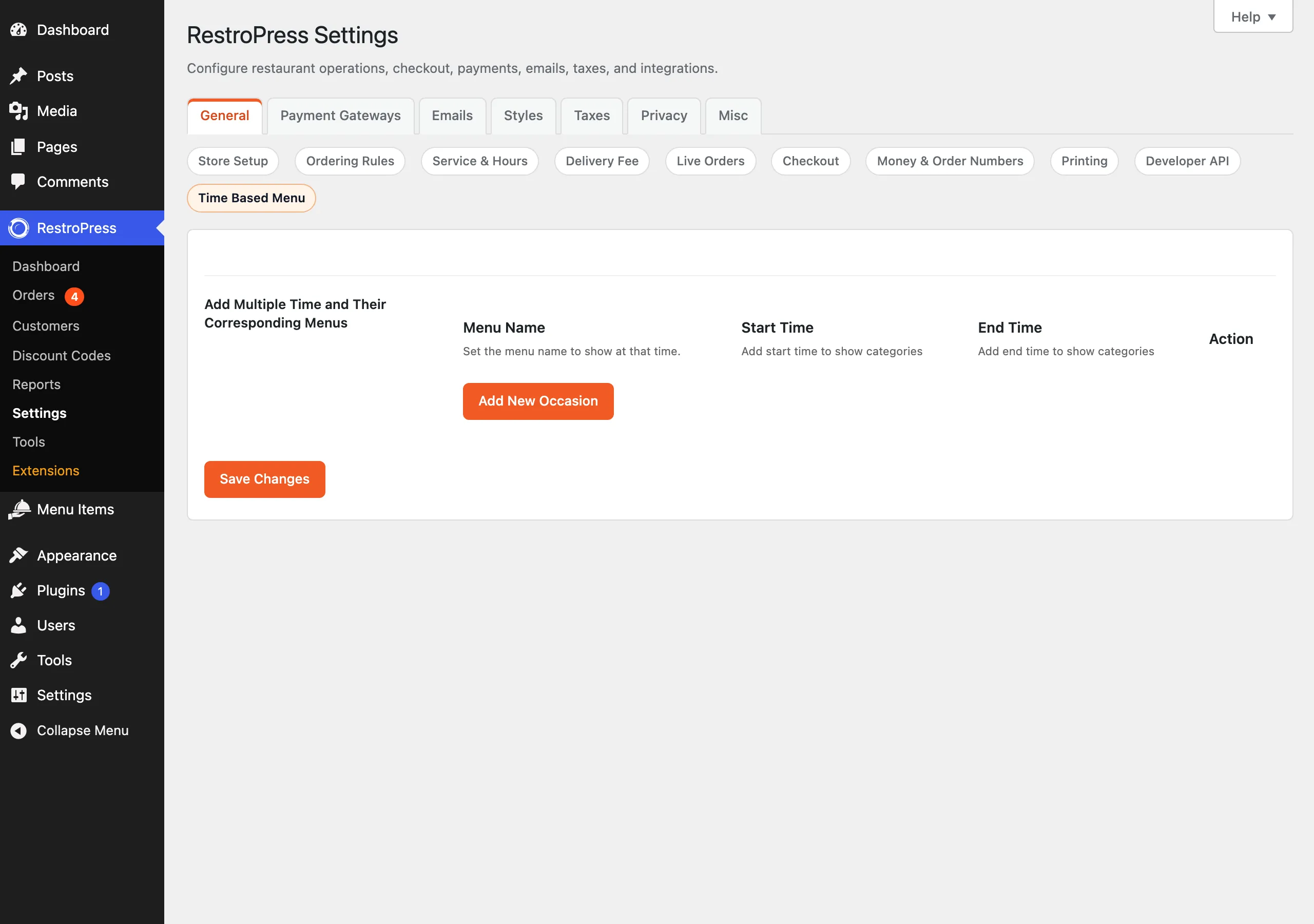
| Column | What it does |
|---|---|
| Menu Name | The name of the slot, for example Breakfast. This name is what categories are matched against, so keep it unique. |
| Start Time | When the slot begins. Picked from a time picker in 12-hour format (for example 08:00 AM). |
| End Time | When the slot ends. If the end is earlier than the start, the slot is treated as overnight and runs past midnight (for example 08:00 PM to 02:00 AM). |
| Action | Remove deletes the row. |
Use Add New Occasion to add a row, and save the settings to keep them. Rows missing a name, start or end are ignored when the menu is filtered. Times are compared in the site timezone (WordPress Settings › General).
Assigning categories to slots#
Open Menu Items › Categories and add or edit a category. The form has a "Select Menu Slot" field listing one checkbox per slot name. Tick the slots in which the category should appear and save. Unticking all boxes removes the assignment.
How it works#
- When RestroPress builds the category list and the menu item list, it passes the categories through the filters
time_based_menu_rpress_categoriesandtime_based_menu_rpress_foods. This extension hooks both. - If no slots are defined at all, nothing is filtered and every category is shown.
- Otherwise the extension works out which slots are active now. If the customer has chosen a service time (cookie
service_time), that time is used instead of the current time, so a customer ordering for dinner sees the dinner menu. - A category is shown only if it is assigned to at least one active slot. Categories with no slot assigned are hidden whenever any slot exists, and when no slot is active the list is empty.
- The front-end script saves the selected delivery or pickup time into the
service_timeandservice_time_textcookies (for 24 hours) when the customer changes the time or presses update, so the chosen time survives to checkout.
Important consequence: once you define at least one slot, every category must be assigned to a slot or it disappears from the storefront.
Developer reference#
| Hook | Type | Parameters | Purpose |
|---|---|---|---|
time_based_menu_rpress_categories | filter (core) | $get_all_items, $data | Category list in the category navigation templates. This extension returns only categories in an active slot. |
time_based_menu_rpress_foods | filter (core) | $all_terms | Category terms used when listing menu items. |
rpress_get_time_based_menu | filter | $settings (the rpress_settings array including restropress_time_based_menu_options) | Lets code adjust the slot settings read by the admin screen. |
rpress_store_delivery_timings_slot_remaining | filter (core) | $slot | The extension hooks it but returns the slot unchanged. |
Slots are stored in the rpress_settings option under restropress_time_based_menu_options (also copied to an option of the same name). Category assignments are term meta time_based_menu on the food-category taxonomy.
Example: log how many categories remain after the time filter (the extension runs at priority 10).
add_filter( 'time_based_menu_rpress_categories', function ( $items, $data = null ) {
    error_log( 'Categories after time filter: ' . count( (array) $items ) );
    return $items;
}, 20, 2 );Troubleshooting#
- The menu is empty. No slot is active at the current (or chosen) time, or the categories are not assigned to any slot. Check the slot times and the "Select Menu Slot" boxes on each category.
- A category is missing. With slots defined, categories without any ticked slot are hidden.
- The slot name was changed and categories vanished. Categories store the slot name, so renaming a slot in the table does not update categories that used the old name. Re-tick the category.
- Time picker does not appear. The picker libraries load from cdn.jsdelivr.net; check the browser can reach it.
- Wrong time of day. Check the WordPress timezone in Settings › General.
- Cached menu pages. The menu depends on the current time, so exclude the menu page from full-page caching.
Changelog highlights#
- 1.2.6: time-based menu slots are kept when other settings tabs are saved; redesigned Remove button.
- 1.2.5: category selection filtering on the storefront; compatibility with Store Timing pre-orders; checkout time cookie persistence.
- 1.2.4: required-plugin validation fix.